What is Bridge Mode in your Router?
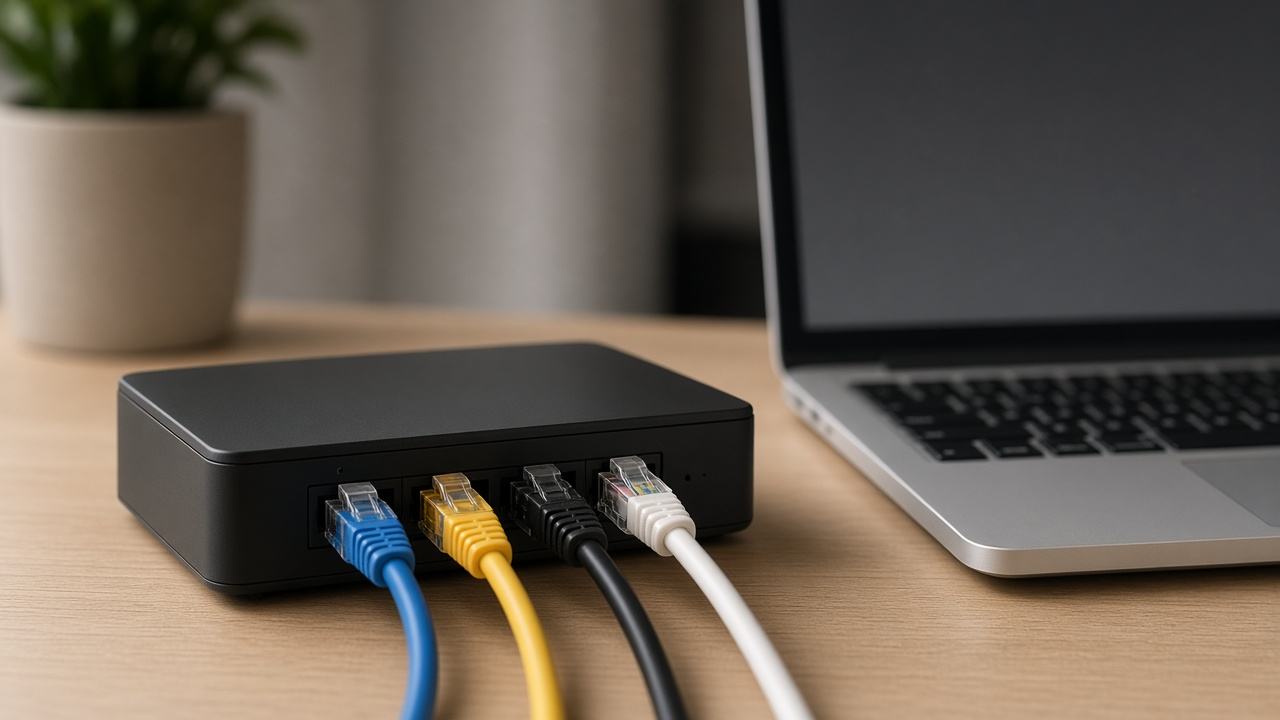
Networking proficiency continues to be a valuable skill as technology advances, influencing the functionality and optimization of routers in both home and office settings. Bridge Mode is not merely an arcane term in the lexicon of network engineers; it is a functional feature integral to managing and enhancing network performance. When initiating bridge mode on a router, one must understand that this action transforms the device into a network bridge, effectively allowing two networks to communicate as if they were natively connected. In the foundational fabric of networking, routers ordinarily direct traffic between connected devices and the internet; bridge mode, however, extends a network by joining two separate networks at the data link layer of the OSI model. This mode is advantageous when the goal is to increase the reach of a network or reduce the number of networks managed in a particular space, consolidating connectivity and potentially improving network performance.
Decoding the Functionality of Routers in Network Architecture
Routers act as the cornerstone of home network systems, facilitating the flow of digital information to appropriate devices. By directing data packets, routers maintain a seamless stream of communication between your local network and the wider internet. This coordination requires a sophisticated process of information sorting and distributing, including taking the data from your internet service provider and sending it to the correct device in your home.
Each device connected to a router is identified with a unique IP address, courtesy of the router's DHCP (Dynamic Host Configuration Protocol) service. DHCP assigns dynamic IP addresses to devices on the network, allowing for flexible and efficient management of the network. This means that routers not only provide the path for data but also the identification for each member of the network, a necessity for organized communication and data transfer.
Understanding the distinction between routing and bridging can unravel the complex web of networking terms. A router's function focuses on selecting paths within a network for packets to travel across multiple networks. Bridges, conversely, connect multiple network segments within the same network, making them operate as a single entity. Combining the two concepts allows for greater versatility in managing and expanding network architectures.
Differences Between Router Mode and Bridge Mode
The default operation of a router, known as Router Mode, orchestrates the flow of information between your local network and the internet. In this mode, the router performs several critical functions: it assigns IP addresses to devices, manages network traffic using Network Address Translation (NAT), and acts as the first line of defense for your network. These operations create an environment where multiple devices can connect to the internet securely and efficiently without IP address conflicts.
In Bridge Mode, by contrast, the device ceases to perform some of these functions. Routing capabilities are disabled so the device no longer manages traffic using NAT, and it will not assign IP addresses to connected devices. Instead, the router now acts merely as a gateway or a pass-through device, often used to connect different segments of a network or to extend the range of wireless signals. This mode is ideal for scenarios where network performance is prioritized over the router's ability to manage connections and route traffic.
Selecting Router Mode over Bridge Mode or vice versa depends on specific networking requirements. Network complexity grows with the number of connected devices and the demand for sophisticated traffic management, which Router Mode handles adeptly. Conversely, when the goal is to extend a network or integrate with another router without creating a separate network, Bridge Mode becomes the preferred choice.
- Router Mode: Maximizes security and network management features; assigns unique IP addresses; utilizes NAT for directing traffic.
- Bridge Mode: Simplifies network design by disabling NAT; does not assign IP addresses; beneficial for network extension purposes.
Maximize Your Network's Efficiency with Bridge Mode
Switching a router to Bridge Mode results in widespread Wi-Fi coverage, turning hard-to-reach zones within homes and offices into connected spaces. Devices previously bound by ethernet cables, such as desktop computers, effortlessly join the wireless network. This networking strategy simplifies the digital landscape, effectively decreasing the quantity of DHCP servers in operation.
- Enhanced Connectivity: Deploying Bridge Mode extends Wi-Fi reach, eliminating dead spots in locations beyond the main router's effective range.
- Seamless Integration: When connected devices multiply, Bridge Mode enables the incorporation of wired devices into the existing wireless framework without additional wiring hassles.
- Cleaner Network Setup: By consolidating DHCP duties to a single device, Bridge Mode paves the way for a streamlined and less convoluted network.
Experience a network that adapts to the demands of space and device compatibility. An efficient network with Bridge Mode not only broadens your connectivity but also promises a more orderly and functional networking environment. The tangible improvements in network clutter and Wi-Fi coverage stand testament to the advantages Bridge Mode offers.
Scenarios for Using Bridge Mode
When tackling complex network configurations, bridge mode serves as a valuable tool. You deploy bridge mode to tackle specific scenarios where network efficiency or functional requirements outweigh the default routing capabilities of a device. Understanding these scenarios underscores knowing when to apply this network technique.
Connecting Multiple Routers to Extend Wi-Fi Coverage
Deploying bridge mode allows for the interconnection of multiple routers, thereby extending Wi-Fi coverage across a larger area without creating conflicting networks. This setup results in a single, seamless network, ensuring devices switch between routers without noticeable interruption.
Linking a Game Console or Smart TV Directly to the Internet Service
Specific devices, such as game consoles or smart TVs, benefit from lower latency and potentially faster connections when bypassing the router’s built-in network address translation (NAT). Bridge mode facilitates this by enabling a direct connection to the internet service, which can enhance gaming or streaming experiences.
Creating a Separate Subnet for Guest Access or IoT Devices
For heightened security and network management, bridge mode is often employed to isolate a segment of the network. This can serve to provide guest access or manage Internet of Things (IoT) devices on a separate subnet, thus maintaining the integrity and security of the main network.
- In extended Wi-Fi setups, users gain improved coverage without the complication of setting up a new network.
- Devices like game consoles or smart TVs connect directly to the internet, enjoying a possibly enhanced connection.
- A dedicated subnet segregates either guest traffic or IoT devices, reinforcing network security.
Each scenario indicates a strategic deployment of bridge mode tailored to enhance network setup, user experience, or security protocols. Whether extending a network, connecting a device, or segmenting traffic, the use of bridge mode can yield significant benefits.
Activating Bridge Mode on Your Router
Transitioning a router to bridge mode varies depending on the device's make and model. However, most follow a similar basic process. First, ensure this feature is supported by the router and compatible with the Internet Service Provider's (ISP's) equipment.
To begin, connect to the router's network. Access the router's web interface by entering the router's IP address into a web browser. This address is found in the device's manual or printed on a label on the router itself.
Once logged in, navigate through the menu to locate the bridge mode settings. Often found under 'Network Settings', 'Advanced Settings', or 'Wireless Settings', the exact path will depend on the router's firmware.
Select 'Bridge Mode' or 'Enable Bridge Mode' from the available options. Confirm the action if prompted; the router will restart to apply the changes.
Compatibility Considerations
Compatibility varies significantly across router models and ISP equipment. Consult the manufacturer's documentation or contact ISP support to confirm compatibility before making changes.
Some ISP-provided routers automatically configure settings to work with their network, requiring less user input during bridge mode activation. Others may require manual setup of network parameters such as IP address ranges.
After enabling bridge mode, routers no longer offer certain functions such as DHCP or NAT, transforming them into network pass-through devices. Subsequently, an additional, primary router or network gateway typically assumes these roles within the network infrastructure.
- Ensure you have the necessary credentials to log into your router's web interface.
- Back up your current router settings before making changes to revert if necessary.
- Take note of any ISP-specific settings, as they may need to be reconfigured post-transition.
Once bridge mode is enabled, monitor the network to verify that connections remain stable and performance meets expectations. Adjustments to network configurations may be needed to optimize performance post-transition.
Understanding the Limitations of Bridge Mode
Activating bridge mode on a router can inadvertently diminish the network's security features. Traditionally, routers employ built-in firewalls and other security measures to protect the network; however, when operating in bridge mode, these protective functions might be bypassed or disabled. This exposes connected devices to potential risks that the router would otherwise guard against.
Port forwarding and firewall configurations are another aspect that can become intricate in bridge mode. Since the device is no longer managing IP addresses, network administrators may encounter hurdles in setting up these features. This is because the typical process relies on the router to direct incoming and outgoing traffic, a capability that bridge mode might impede.
Services like Voice over Internet Protocol (VoIP) and Internet Protocol Television (IPTV) could face challenges as well. These services often depend on specific router functionalities that bridge mode might render inaccessible. For proper operation, these services require the router to handle data traffic in a particular way, an ability that might be compromised or altogether lost in bridge mode.
Wireless Bridge vs. Wired Bridge Configurations
A wireless bridge connection facilitates the extension of a wireless network through the linkage of two or more networks without cables. These configurations often see utilisation in scenarios such as connecting a standalone Wi-Fi access point to a network located in a different building or floor. Businesses take advantage of these configurations to expand their network coverage across disparate locations without the need for intrusive physical wiring.
While a wireless bridge can offer the convenience of extending a Wi-Fi signal to remote locations, wired bridge connections maintain a stronghold in reliability and raw performance. Desktop computers, servers, gaming consoles, and other high bandwidth-demanding non-Wi-Fi devices frequently connect to a wired bridge to benefit from stable, high-speed data transmissions. A wired bridge ensures a dedicated passage for data flow, typically resulting in increased network efficiency and reduced latency compared to its wireless counterpart.
- A wireless bridge may experience interference from various sources such as other wireless devices, walls, and even atmospheric conditions.
- Wired bridges, while limited by the physical constraints of cabling, do not succumb to such interference, thereby offering an uninterrupted and robust connection.
Whether choosing a wireless or wired bridge configuration, each has its context of best fit. Wireless bridges break physical barriers at the expense of potential interference, whereas wired bridges offer a solid connection but require meticulous planning in cable management and infrastructure layout.
Boosting Network Efficiency: Unveiling Bridge Mode's Role in Performance
Activating bridge mode on a router fundamentally restructures network distribution. The shift enhances Wi-Fi speed and overall reliability by mitigating signal overlap and reducing competition for bandwidth among multiple routers. When a router operates in bridge mode, it directly relays the data to the primary router without unnecessary processing or rerouting, thereby streamlining the information flow and quickening the data transfer rates within the network.
Navigating congested networks becomes straightforward with bridge mode. Networks usually encompass multiple devices simultaneously vying for connectivity, often leading to traffic bottlenecks. Implementing bridge mode alleviates such strains by effectively orchestrating network traffic and load balancing. This setup delegates specific network responsibilities to bridged routers, such as directing guest connections or handling a dedicated data stream, thus optimizing the distribution of network tasks and preventing any single device from becoming overwhelmed.
Do Your Devices Reap the Full Benefits of Bridge Mode?
After enabling bridge mode, the network's capacity to handle high-volume data traffic during peak usage times is palpable. Users notice a pronounced decrease in lag when streaming video or engaging in online gaming, fostering a seamless online experience. However, sustained performance comes from the consistent application of bridge mode principles across all relevant network devices, ensuring a cohesive and efficient network environment.
Security Considerations in Bridge Mode
Deploying a router in bridge mode removes some layers of network protection. Typically, routers operate with a built-in firewall, and in standard mode, they perform Network Address Translation (NAT), which hides the user's private IP addresses from the public Internet. When a router functions in bridge mode, it connects two network segments directly, effectively disabling NAT and potentially exposing devices to external threats.
Secure practices must be adopted to preserve network integrity in a bridged setup. One such practice includes implementing a dedicated firewall between the now bridged network and the Internet. Users are advised to ensure their devices have robust security measures, such as updated antivirus programs and operating system security patches.
Monitoring network traffic plays a critical role in maintaining a secure environment. Users should employ network monitoring tools to detect unusual traffic patterns or unauthorized access attempts. Changing default passwords, closing unused ports, and regularly updating device firmware also contributes significantly to securing a network where bridge mode is in use.
Another significant consideration is the encryption of wireless communication. When using bridge mode, especially in wireless bridge configurations, ensuring that Wi-Fi Protected Access 2 (WPA2) or Wi-Fi Protected Access 3 (WPA3) encryption is active helps in safeguarding the wireless transmission of data against interception or unauthorized access.
Troubleshooting Common Issues in Bridge Mode
Encountering difficulties whilst operating routers in bridge mode can provoke frustration but understanding the right troubleshooting techniques can swiftly restore network stability. Let’s explore solutions to some common issues.
Addressing Connectivity Issues and Compatibility Problems
Direct intervention is mandated when connectivity hiccups occur. Checking the physical connections between devices usually uncovers any loose or compromised cables. After ensuring stable hardware connections, verify that the firmware on all network devices is up to date. Firmware inconsistencies frequently lead to compatibility dilemmas. If problems persist, restart both the primary router and the bridged device to refresh network connections.
Resolving IP Address Conflicts within the Bridged Network
IP address conflicts derail network communication. To resolve these, access the router’s management interface and inspect DHCP settings. Ensure that each device on the network gets a unique IP address. If manual intervention is necessary, assign a static IP address outside the DHCP range to avoid further conflicts.
Tips for Managing Bridge Mode with Various Internet Service Providers
- Seek advice from the ISP. Each provider has specified protocols for devices operating in bridge mode, and they often provide specific guidance.
- Ascertain that the bridged router adheres to the ISP's requisite standards for bridge mode.
- If intermittent connectivity issues arise, survey the ISP's network status or consult their customer service to rule out an external fault.
Familiarity with one's ISP's procedures not merely averts unnecessary complications but also guarantees that bridge mode configurations leverage the provider's network optimally.
Ensuring Bridge Mode Compatibility with ISP Equipment
When configuring a router to operate in bridge mode, compatibility with Internet Service Provider (ISP) equipment requires consideration. Each ISP may supply a distinctive modem or gateway that interacts differently when you deploy bridge mode in your router. Effectively integrating bridge mode can sometimes necessitate engagement with your ISP's support team, particularly for modems that also combine router functions.
Routers provided by ISPs often come with customized firmware, which can affect the router's functionality when switched to bridge mode. Before proceeding, verify that your ISP supports bridge mode with their supplied equipment. In cases where the modem cannot be bridged, for example, you may need a separate modem that supports this feature to work in tandem with your router.
If your Internet connection relies on specific ISP protocols or settings, connecting with ISP support ensures these are preserved during the bridge mode configuration. This support becomes crucial especially when dealing with more complex setups such as static IP assignments or when the router needs to pass certain types of traffic without hindrance.
- Consulting the ISP’s documentation or help resources usually clarifies whether their equipment is bridge-mode compatible.
- Contacting ISP customer support can provide direct guidance on whether bridge mode will operate seamlessly with their equipment.
- Sometimes ISPs provide online resources or automated tools to assist with the setup process, ensuring correct and efficient configuration.
Different ISPs may have unique requirements or limitations when using bridge mode. Some ISPs may restrict the use of personal routers or third-party devices in their network, so checking the terms of service is advisable before altering network settings. When in doubt, an ISP representative can affirm if your desired network configuration will meet the service guidelines.
Enhancing Home Networks with Bridge Mode
For users with advanced home networking setups, bridge mode offers a pathway to streamline connectivity and extend wireless coverage. Home environments with numerous devices benefit from the reduced network complexity that bridge mode brings. The process involves connecting routers or networking equipment in such a way that they work together seamlessly to expand the network.
Seamless Integration of Bridge Mode into Home Networks
Incorporating bridge mode into a home network requires identifying the primary router that connects directly to the Internet Service Provider and designating it as the network's gateway. Subsequent routers can then be set to bridge mode, effectively disabling their NAT, DHCP, and firewall functions. This leads to all routers using the same network layer, which simplifies device communication across the network.
For households with areas out of the main router’s reach, additional routers in bridge mode serve as access points, enabling devices to connect from greater distances. These satellite routers, once bridged, broadcast the same network credentials as the primary router, allowing seamless roaming for mobile devices.
Customizing Network Layouts with Multiple Devices and Users
Bridging devices tailors network setups to the diverse needs of different users and devices within the home. Media-heavy activities, like streaming or gaming, no longer suffer from weak signals when areas prone to poor coverage are equipped with bridged access points. Furthermore, smart home devices, which often need a stable connection, reliably perform their functions when the home network is optimally configured using bridge mode.
Advanced users might segment the network by connecting a secondary router, configured with bridge mode, to handle specific types of traffic, devices, or services. The result is a more efficient network with targeted zones that cater to specific user scenarios, improving the overall home networking experience.
Deciphering Bridge Mode's Influence on DHCP and NAT
Activating bridge mode on a router leads to significant changes in how the device manages IP addresses and network traffic. Foremost, the router ceases to act as a Dynamic Host Configuration Protocol (DHCP) server. Typically, a router assigns IP addresses to devices so they can communicate within the network. In bridge mode, this responsibility shifts to another device on the network, such as the main router or a dedicated DHCP server. Hence, devices connected to the bridge router will not receive an IP address from it.
Similarly, Network Address Translation (NAT) is also impacted. A router in bridge mode no longer translates private IP addresses to a single public IP address for internet access. This duty, like DHCP, gets relocated to the primary router that now manages all routing duties. Without NAT, the subnet behind the bridged router remains a part of the larger network’s subnet, rather than creating a separate, isolated subnet.
Network administrators, therefore, must examine their network topology to ensure proper IP address distribution and network address translation. A seamless transition to bridge mode requires thoughtful planning around these services to maintain network efficiency and integrity. Failure to adjust DHCP settings and NAT configurations can result in IP conflicts or loss of internet connectivity for devices on the network.
- Switching off DHCP in bridge mode necessitates a different device to take over IP address allocation.
- In bridge mode, NAT is disabled, requiring the primary router to manage all external communication.
The absence of DHCP and NAT inside a bridged network streamlines the flow of packets between devices, as there are fewer checks and translation processes. Yet, the simplification also implies that a bridged network relies more heavily on a primary router to direct traffic properly.
How might these changes affect your network setup? Consider the scale of the network and the devices involved. Large networks or those dependent on segmenting traffic might require additional planning for a bridge mode transition. Others, like small home networks looking to reduce redundancy and improve performance, may find the shift to bridge mode beneficial.
Unleashing Network Potential: VLANs Fusion with Bridge Mode
Unveiling the synergy between Virtual LANs (VLANs) and bridge mode unlocks a new realm of network customization and efficiency. VLANs create segmented networks on the same physical infrastructure; bridge mode, when deployed in conjunction, facilitates the transparent passage of these segments across multiple routers.
The Intersection Between Virtual LAN (VLAN) Configurations and Bridge Mode
Employing VLANs in tandem with bridge mode allows for distinct broadcast domains to traverse across network device boundaries. This setup enables devices on separate VLANs to behave as though they are on the same local network, which significantly improves network management and security without necessitating additional hardware.
Advanced User Scenarios Where Bridge Mode and VLANs Are Beneficial
Within complex network environments such as enterprise systems, combining bridge mode with VLANs proves advantageous. Users who require isolated traffic for security purposes or seek to reduce network congestion will find that integrating VLANs into a bridged infrastructure supports these objectives. Furthermore, administrators who wish to bridge traffic between different subnets can do so efficiently, allowing for seamless communication across segmented portions of the network without compromising organizational protocols.
- Network segmentation within office environments becomes simplified, ensuring that sensitive data remains isolated.
- Routed inter-VLAN communication across multiple access points can be achieved without the need for complex router configurations.
- For multi-tenant buildings, distinct internet services are delivered effectively while preserving tenant privacy and network autonomy.
Configuring bridge mode on a router that is VLAN-aware empowers networks to handle data packets intelligently, distinguishing and directing VLAN tags as necessary while maintaining the core attributes of the bridged connection. This technique streamlines network traffic, promotes better bandwidth utilization, and maintains order in environments where data transmission precision is paramount.
Reflecting on the Appropriateness of Bridge Mode for Your Network
Understanding the advantages and potential issues of bridge mode leads to a strategic decision about its application in your network setup. Seamless integration of multiple networks, efficient management of network resources, and improved wireless signal reach characterize bridge mode deployment. Conversely, the loss of certain router functions including the ability of the router to send DHCP addresses and handle NAT (Network Address Translation) requires consideration.
Before transitioning to bridge mode, assess the necessity for network extension against the potential drawback of lost functions. Evaluate if your network demands the specialized employment of bridge mode. For example, in setups requiring the reduction of network segmentation or amplification of signal reach without the need for additional routing capabilities, activating bridge mode could be beneficial. Conversely, networks requiring robust routing features, complex configurations, and high-security protocols may not align well with the operational profile of bridge mode.
Assessing Your Network's Bridge Mode Suitability
Examine your network's topology, the range of devices to connect, performance requirements, and security mandates. In scenarios with a non-trivial count of devices, where a single router cannot cover all areas effectively, implementing bridge mode on an additional router can extend the wireless coverage. Configurations involving virtual LANs (VLANs) might also require bridge mode to fully realize segment management without impacting performance.
Remember, while bridge mode can extend the network, it relinquishes the routing capabilities of the secondary router, centralizing the DHCP and NAT functions to the primary router. The need for advanced security measures or ISP equipment compatibility warrants careful analysis, as engaging bridge mode affects these aspects directly.
Ultimately, the decision to use bridge mode is contingent on your network's specific demands and the trade-offs you are prepared to accept in terms of router functionality. If after careful analysis you determine that the benefits of bridge mode align with your networking requirements, it can be a powerful tool in achieving your intended network infrastructure.
Have you experienced the transformation of your network through bridge mode? Share your successes or challenges. For readers seeking deeper insight into technical nuances or personalized support, explore the following resources:
- Guides on enabling bridge mode across various router brands
- In-depth discussions on network topology optimization
- Forums for real-world troubleshooting and expert advice