TP-Link Port Forwarding: A Step-by-Step Guide for Router
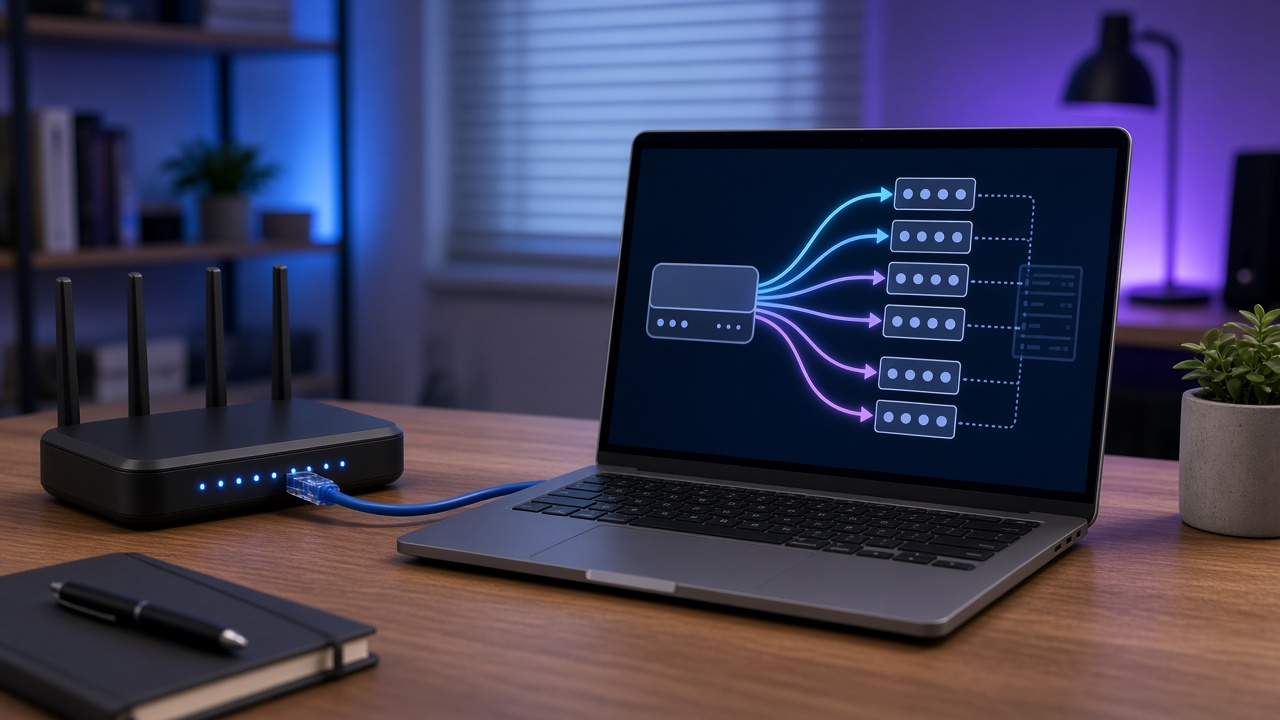
TP-Link commands industry respect as a network equipment provider, consistently pushing the boundaries of what consumers can expect from their home and business networking hardware. With a formidable market presence, TP-Link has become synonymous with reliability and innovation in the realm of internet connectivity devices. Routers, the pivotal hardware enabling access to the web, function as the gatekeepers of data flow, communicating between the global network and local devices.
Through sophisticated design, TP-Link routers have streamlined network management and enhanced user connectivity experiences. One potent feature nestled within these routers is port forwarding—a key function that allows users to direct external traffic to specific devices within their local network. This guide navigates the nuances of TP-Link port forwarding, providing clarity and control over your network traffic.
Decoding TP-Link Port Forwarding
Port forwarding on a TP-Link router directs incoming traffic on certain network ports to specific devices within the private network. This process involves a strategic rerouting from the internet to a local IP address, distinct from the routable internet IP address assigned to the router. By distinguishing these IP types, the router effectively becomes a dispatch center, redirecting incoming digital packets to the appropriate internal destinations.
Key Concepts of Port Forwarding
When delving into port forwarding, understanding the jargon is foundational. 'Open ports' refer to gateway interfaces that allow external devices to access services on the network. The 'service' becomes identifiable by a port number, which associates the incoming traffic with the appropriate application or device. 'Configuration' is the tailored setup process on the TP-Link router, governing how and where the data packets are forwarded.
Local Versus Internet IP Address Explained
The typical network utilizes two types of IP addresses. A local IP address, assigned to each device on a private network, remains invisible to the outer internet world. In contrast, the internet IP address identifies the network on the global web, a necessary beacon for receiving information packets. Port forwarding leverages these addresses, ensuring that requests from the wider internet reach their correct local destinations.
- An open port stands akin to a dedicated lane for data, streamlining traffic to a service within the local network.
- A service binds to a port number, creating a recognizable path for the data seeking its specific attention.
- Configuration within the TP-Link router determines the efficiency of this data delivery system, based on user-defined rules.
Uncovering the Advantages of Port Forwarding on TP-Link Routers
Port forwarding on TP-Link routers adjusts the course of internet traffic, guiding it to specific devices on a local network. This network adjustment is not frivolous; rather, it ensures seamless interaction with services requiring direct access. One such application of port forwarding enhances connectivity for services like online gaming, video conferencing, and IoT devices, where uninterrupted data flow and reduced latency significantly improve user experience.
Beyond enhancing connectivity, port forwarding serves a critical function in overcoming NAT restrictions. Network Address Translation enables multiple devices on a local network to share a single public IP address. However, this can restrict incoming connections to a particular device. Port forwarding creates a distinct pathway, allowing traffic to bypass NAT restrictions and reach the intended device directly.
A notable use is the expedited server accessibility from the internet. By configuring port forwarding correctly, remote users can access servers hosted on a local network with a public IP address. This capability is essential for services such as FTP, websites, and gaming servers, where accessibility from various geographic locations is mandatory.
- Connectivity: Customized routes streamline data flow, enhancing performance for demanding services.
- NAT Limitations: Creating precise entry points negates the confinements imposed by NAT, freeing devices to receive inbound connections.
- Server Access: Remote entry becomes feasible, as port forwarding facilitates the visibility and interaction with locally-hosted services over the internet.
Diving into the nuances of TP-Link port forwarding will reveal the steps to achieve these advantages. By following detailed instructions, users can optimize their networks for specific needs.
Identifying Your TP-Link Router Model: A Key Step
Before delving into the intricacies of port forwarding, pinpointing your TP-Link router model is a decisive step. Various models may require divergent pathways and nuances within their port forwarding setup.
Step-by-step Identification of Your TP-Link Router Model
- Inspection of the router device itself is the initial move. Locate a label or engraved section that typically reveals the model number.
- If physical inspection proves challenging, log into the router's admin panel. The dashboard frequently displays the model number prominently.
- Another avenue involves checking the original packaging or user manual, where the model number is often listed.
- In the absence of packaging and physical markers, the official TP-Link support website offers a detection tool for model identification.
Why the Router Model Matters for Port Forwarding Settings
Diverse TP-Link router models may harbor distinct firmware versions or interface designs. Knowledge of your specific model guarantees precision when elucidating port forwarding steps. Compatibility with certain features and functionality, such as port triggering or virtual server capabilities, hinges on the router model. The correct identification ensures you follow the accurate procedure and leverage the most suitable features for an effective port forwarding setup.
Preparing for Port Forwarding
Before embarking on the process of port forwarding on your TP-Link router, specific preliminary steps must be completed. These preparations ensure that the subsequent steps can proceed without interruption and that the configuration you apply is precise and effective for your needs.
Finding your TP-Link router's IP Address and Logging Credentials
Access to your TP-Link router's admin panel is a prerequisite for port forwarding. To begin, identify the router's IP address, most commonly found on the device label or instruction manual. Should this information be elusive, consult the TP-Link support database or use common default addresses like 192.168.1.1 or 192.168.0.1.
Furthermore, you'll require the router's login credentials, which are set to default values for new devices. If defaults have been modified, ensure you have the current username and password. Failure to authenticate will prevent access to the router's admin panel where port forwarding settings reside.
How to Determine which Port Numbers You Need to Forward
To configure port forwarding accurately, the port numbers for the inbound and outbound communications must be identified. These ports depend on the service or application in use; for a game server, for instance, the specific game's documentation will list the required ports. Firewall logs can also reveal which ports are being blocked, indicating which ones to forward.
Documenting the Hardware Details: Server or Device Requiring Open Ports
Documentation of the internal hardware that requires open ports is a necessary step. Record the internal IP address for the device — whether a server, computer, or another piece of hardware — that needs to establish external connections. This information ensures that the router's port forwarding rules correctly target the appropriate machine in your network structure.
- Identify the device's IP address within your local network settings.
- Note any static IP requirements to prevent future IP changes from disrupting the configuration.
Once these preparatory steps are fulfilled, progress to accessing the TP-Link router's admin panel can begin where the specific port forwarding settings will be established and applied.
Accessing the TP-Link Router's Admin Panel
Before diving into the intricacies of port forwarding, let's ensure a seamless entry into your TP-Link router's admin panel. This gateway is where the journey of network customization begins. Begin by identifying your router's IP address. Most TP-Link routers default to 192.168.0.1 or 192.168.1.1.
To log into your router:
- Open a web browser and enter the IP address into the address bar, pressing Enter afterwards.
- A login page will appear requesting your username and password. If unchanged, the default credentials are often 'admin' for both fields.
- Upon successful authentication, you will be directed to the router's home screen.
Logging in securely involves a series of measures to prevent unauthorized access to your network settings. Change the default login credentials at your first login to something unique and robust, combining letters, numbers, and symbols. Remember that your router acts as the gatekeeper to your network; therefore, securing this access point is non-negotiable for network integrity.
Navigating the TP-Link Router Interface
The TP-Link router administration panel is a gateway to customizing network preferences and enhancing security. Navigation through this interface is a straightforward process once a user becomes acquainted with the layout and various settings available.
Familiarizing with the Router’s User Interface
Upon successful login to the TP-Link router's admin panel, the dashboard provides a quick overview of the system's status, including the current network's operational status, connected devices, and other details. Users should allocate time to explore various tabs and menus. Each section houses parameters that could be crucial for tasks such as port forwarding.
Locating Key Sections for Port Forwarding Configuration
For port forwarding, the "Advanced" tab is often the starting point. Within this area lies the "NAT Forwarding" or similar section, where port forwarding rules can be established. Efficient configuration hinges on the ability to pinpoint this location promptly.
- To navigate, select the 'Advanced' option.
- Scroll to the 'NAT Forwarding' menu.
- Click on 'Virtual Servers' or 'Port Forwarding' depending on the model.
Subsequent steps require creating or modifying rules specifically tailored to the applications or services in focus. Users must gather the necessary port numbers, IP addresses, and protocols beforehand to expedite the process.
Guide to TP-Link Port Forwarding: A Step-by-Step Tutorial
Setting up port forwarding on a TP-Link router facilitates remote access and ensures that specific devices on your network receive data packets intended for them. Follow these detailed instructions to enable port forwarding on your TP-Link router, designed to assist you through every stage of the process.
Detailed Instructions for Setting Up Port Forwarding
Navigate to the 'Forwarding' section in your router's admin panel. This is typically under the 'Advanced' tab. Within this menu, locate and select 'Virtual Servers.'
Click the 'Add New' button. This action allows you to create a new port forwarding rule.
Providing Service and Port Number Entry
In the service port field, enter the port number that you wish to open. For applications that use multiple ports, you need to create separate rules for each.
Under the 'Internal IP' field, input the IP address of the device you're forwarding these ports to. The internal port field is often the same as the service port, unless your internal device requires a different port number.
Confirm the protocol that your application requires—TCP, UDP, or both—are selected in the protocol field.
Status and Save
Ensure the status is set to 'Enabled.' This step is pivotal as a disabled rule will not forward any ports.
Click 'Save' to apply your settings. The router may require a reboot to activate the new configurations.
Visual Guidance
Accompanying diagrams visualize each step, making the implementation of port forwarding on your TP-Link router more accessible. These visuals are integral guides as they illustrate the appropriate fields and what data is required in each.
By meticulously following these steps, you can successful implement port forwarding for your TP-Link router.
Assessing Your Port Forwarding Setup on a TP-Link Router
After configuring port forwarding on a TP-Link router, verification is necessary to ensure the process was successful. The method is straightforward: employ online services or dedicated applications designed to scan ports. These tools will attempt to connect to your network through the designated ports, effectively confirming whether or not the configuration is operational.
Verifying Successful Port Forwarding
One reliable procedure for testing port forwarding is using the network utility integrated into your operating system. For instance, Windows users might utilize the Command Prompt to perform a telnet command or initiate a Test-NetConnection in PowerShell to test connectivity through specific ports. Linux and macOS users have similar capabilities in their terminals. If the test confirms connectivity, the port forwarding rule is active, and external traffic can reach your local device through the specified port.
Tools to Test Open Ports
Several third-party tools and online services can aid users in testing their port forwarding setups. Websites like CanYouSeeMe.org allow you to enter the port in question for immediate status checks. This service accesses your router from the internet to ensure that the port is open and listening for connections. Software applications such as PortChecker and Open Port Check Tool provide an alternative method of scanning, downloadable, and often offering more detailed results and advanced options. Regardless of the online tool or software used, the objective is the same: testing the target port to ensure it has been correctly forwarded and is accessible from external networks.
Troubleshooting Common Port Forwarding Issues on TP-Link Routers
When faced with difficulties during the port forwarding setup, several steps can pinpoint and resolve the issues. Users must verify that IP addresses and port numbers are input correctly. Misconfigured settings often lead to unsuccessful port forwarding. If despite accurate configuration port forwarding fails, further investigation is necessary.
Ensuring Correct IP Addresses and Port Numbers
Initially, verify the accuracy of the internal IP address assigned to the device requiring port forwarding. This IP must align with the one specified in the router's port forwarding rules. Confirm that the IP address has not changed if the device is set to obtain IP addresses dynamically. Static IP assignment prevents such changes. The correct port numbers are equally critical—they must match the application's requirements you're forwarding ports for.
Addressing Port Forwarding Malfunctions
When port forwarding does not activate post correct configurations, restart the router. This can clear temporary glitches that impede the applied settings. Firewall settings on the computer or router may also interfere—adjust them to allow the necessary traffic. Antivirus software could block certain ports as well; ensure it's not the cause. If problems persist, confirm that your Internet Service Provider is not blocking the relevant ports, an action some ISPs take for security reasons.
- Restart the TP-Link router to refresh port forwarding settings.
- Review the firewall settings on the router and the device using the forwarded ports.
- Check for any antivirus software blocking the required ports.
- Contact the ISP to ascertain that no external blocking is in place on the necessary ports.
Security Considerations for Port Forwarding
When configuring port forwarding on a TP-Link router, users must acknowledge that opening ports can expose the network to security vulnerabilities. Unauthorized access gains traction through open ports, potentially compromising data and network integrity. To mitigate such risks, adhere to best practices that fortify the network's defenses.
Potential Risks of Open Ports and Mitigation Strategies
- Restricted access to open ports stipulates strict control; only entrusted and necessary devices should use them.
- Updating firmware consistently eliminates vulnerabilities that hackers exploit.
- Regular audits of port forwarding rules reveal unused or outdated entries, which require immediate removal.
Best Practices to Enhance Security When Using Port Forwarding
Deploying a robust security protocol for port forwarding involves multiple strategies.
- Secure passwords thwart unauthorized router access, necessitating complex combinations of characters.
- Encryption enhances data security, advocating for the latest protocols such as WPA3.
- Network monitoring identifies suspicious activity, prompting timely response to threats.
- VPN usage obscures Internet activity, shielding it from malign entities.
By integrating these measures, users maintain a secure network environment while benefiting from port forwarding on their TP-Link routers.
Master Your TP-Link Router: Navigate Port Forwarding with Confidence
Having delved into the intricacies of port forwarding on TP-Link routers, the knowledge applicable to this area of networking has expanded, ready to be utilized for a variety of online activities. With precise steps taken to ensure accurate configuration and attention to security considerations, the router's capability to direct traffic effectively to designated devices within a network has been enhanced.
Unlock Further Networking Proficiencies
Diving deeper into networking complexities might showcase providers of in-depth troubleshooting guides, as well as spirited discussions with fellow enthusiasts, via community forums such as TP-Link's own support forums and websites like Reddit's HomeNetworking thread. These platforms offer a wealth of collective knowledge and are a space to exchange tips, solutions, and advanced tactics beyond the scope of standard guidelines.
Acquainting oneself with advanced protocols, gaining insight from shared experiences, and keeping abreast with the latest updates in firmware and software can profoundly impact the effectiveness and security of network management. Professional administrators and hobbyists alike frequent these forums, presenting a unique opportunity for learning and community interaction.
Manage Your Network with Assurance
The practice of managing and securing a network, especially tasks such as port forwarding, transcends basic utility—it contributes to the robustness of your home or business network, providing more reliable connectivity and enhancing the functionality of connected services. Continued learning and application of network management principles will undoubtedly contribute to more seamless and secure networking experiences.
Share Your Networking Triumphs
If this step-by-step guide has equipped you to harness the full potential of TP-Link port forwarding, consider sharing the insights you’ve gained. The act of spreading knowledge reinforces the importance of community in the technology realm. Moreover, subscribing to further content can be the gateway to a continuous influx of networking wisdom, keeping your skills sharp and your network at peak performance.
Contribute to the conversation, enhance your networking acumen, and help others achieve mastery by sharing this guide. Stay informed on the latest in advanced networking and proactive router management—subscribe now for updates straight to your inbox.