Slow Wi-Fi? How to add a wired network to your home without an Ethernet cable
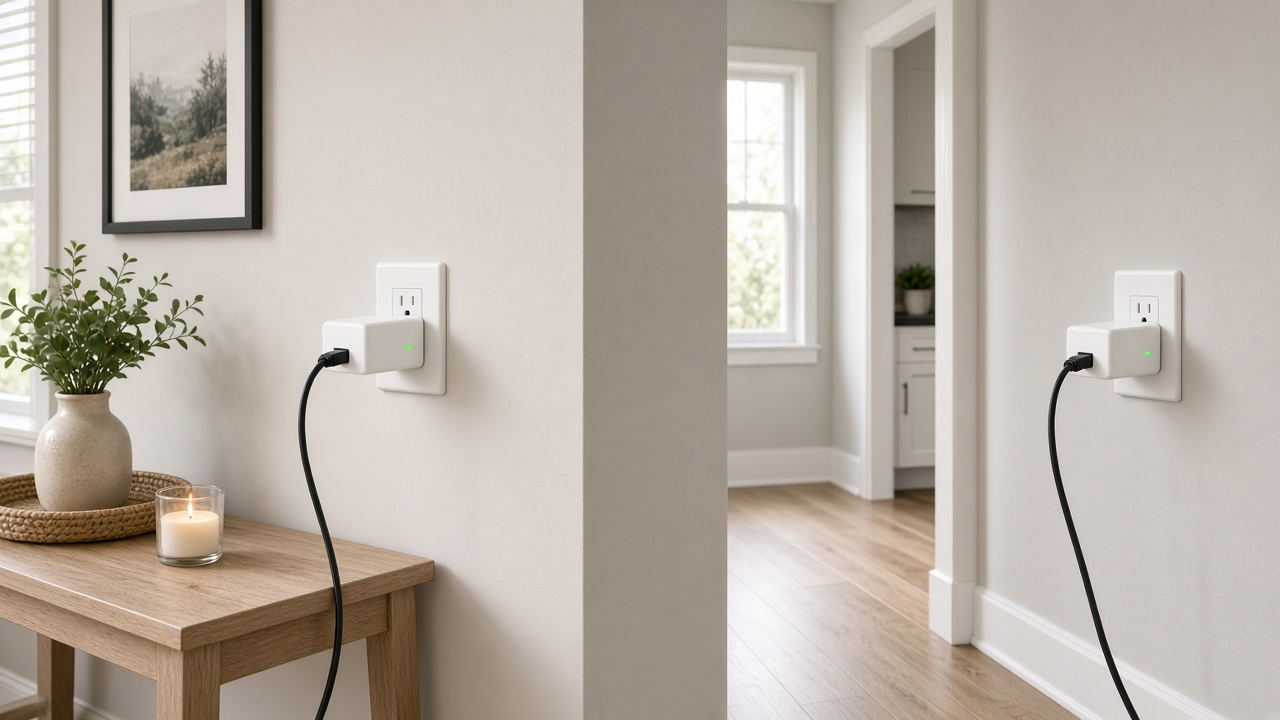
Wi-Fi has become the default choice for home internet—easy to set up, clutter-free, and accessible from every room. With the rise of smart TVs, streaming devices, work-from-home setups, and game consoles, most homes now depend on strong wireless connectivity. But what happens when slow speeds, inconsistent signal, or network congestion get in the way?
These issues often stem from relying solely on Wi-Fi, especially in larger homes or those with thick interior walls. While wireless offers flexibility, it doesn’t always guarantee speed or reliability. For bandwidth-heavy tasks—like 4K streaming, videoconferencing, or online gaming—wired connections deliver consistently better performance.
Yet many homes lack pre-installed Ethernet cabling, and retrofitting isn't always practical. Fortunately, there are effective alternatives that let you enjoy the stability of wired internet without pulling a single cable through your walls. Ready to upgrade without tearing up drywall? Let’s walk through your best options.
Spot the Signs: Recognizing the Symptoms of Poor Wi-Fi Performance
Not all Wi-Fi problems announce themselves with a complete loss of connection. More often, they show up quietly—slowing down your day, disrupting your streaming nights, or making remote work feel like a chore. Before setting up alternatives, identify exactly where your current setup fails.
Slow Internet Speed in Certain Rooms
Speed inconsistencies usually appear in rooms furthest from the router. Pages load sluggishly, apps stall, and streaming services downshift to grainy resolutions even though you're paying for high-speed internet. Devices closer to the router experience full performance, creating stark bandwidth disparities across your home.
Buffering During Video Calls or Streaming
Stuttering video calls and endless buffering wheels are classic indicators of limited connectivity. When your screen freezes mid-sentence on Zoom, or Netflix refuses to play HD, bandwidth isn’t reaching your device fast enough to maintain a smooth data stream.
Dropped Connections for Multiple Devices
Smartphones losing Wi-Fi, tablets disconnecting suddenly, or even smart home devices going offline without warning—these aren’t glitches. These are symptoms of a network struggling to support multiple connections through a limited wireless signal.
Disrupted Remote Work or Gaming Sessions
Real-time applications—like cloud-based software or online gaming platforms—expose weak Wi-Fi instantly. Lag spikes ruin gameplay. File uploads take forever. Virtual meetings report unstable connections. Inconsistent performance makes concentration difficult and reduces productivity.
Signal Weakening Due to Distance from Router
Move two walls away from the router and your signal bars drop. Wi-Fi strength fades with distance, especially when confronted with barriers like concrete walls, metal fixtures, or even household appliances. If you’ve caught yourself standing in hallways just for a stronger signal, the issue is no longer minor.
Identifying these problems early allows you to take targeted action. Now ask yourself: which of these have you experienced in the past week?
Why a Wired Connection Still Outperforms Wireless for Key Tasks
Wired vs. Wireless Internet: Speed and Performance Comparison
Wireless networks have improved dramatically over the past decade, particularly with the emergence of Wi-Fi 6 and now Wi-Fi 6E. Despite these advancements, wired Ethernet connections consistently outperform Wi-Fi in both raw speed and stability.
Take real-world throughput as an example. A typical Cat6 Ethernet cable offers up to 1 Gbps of symmetrical bandwidth with near-zero packet loss. In contrast, most Wi-Fi networks—even when rated for high theoretical speeds—often deliver only 30% to 60% of their advertised bandwidth once interference, range limitations, and network congestion are factored in.
For instance, a Wi-Fi 5 (802.11ac) connection might advertise 867 Mbps, but depending on obstacles like walls and competing signals, actual performance often drops to 200–400 Mbps. Ethernet sustains 940 Mbps speeds across short-to-medium distances without variation.
Lower Latency With Wired Connections
Latency—the time it takes data to travel between devices—remains a critical performance metric. Ethernet leads here with typical latency figures of 0.1–1 millisecond (ms) on internal networks.
Meanwhile, Wi-Fi latency fluctuates significantly, commonly ranging from 5 ms to 30 ms even under optimal conditions. If a router is two rooms away or dozens of connected devices share the same access point, those figures easily spike to 50 ms or more, causing noticeable lag in interactive applications.
More Reliable for Home Office Setups and Smart Devices
Remote work environments demand predictable connectivity. Video conferencing platforms like Zoom or Microsoft Teams process real-time audio and video streams that don’t tolerate fluctuations or brief dropouts. Wired connections eliminate the variables introduced by wireless interference, ensuring consistent uptime and quality.
Reliability also affects smart home ecosystems. Devices such as smart TVs, home security cameras, and voice assistants work more efficiently when backed by a wired backbone. While many of these devices support wireless operation, placing core hubs on Ethernet enables faster response times and reduces routing conflicts.
Ideal for High-Bandwidth Applications Like Gaming and Streaming
Online gaming platforms require extremely low latency and packet loss rates to preserve fast reaction times. For competitive play, Ethernet eliminates the jitter and inconsistency linked to wireless transmission.
Streaming is equally sensitive. Services like Netflix and Apple TV+ deliver 4K HDR streams at 15–25 Mbps, and buffering often occurs on Wi-Fi connections under heavy load. Wired setups handle these demands with ease, supporting multiple simultaneous streams without compression artifacts or resolution downgrades.
- A 1 Gbps Ethernet connection can stream up to 40 4K videos simultaneously.
- Wired users experience less than 0.01% packet loss during peak traffic hours.
- Online games show up to 70% more stable ping rates on wired vs. wireless setups.
Want uninterrupted video calls, smooth gaming performance, or rock-solid streaming across every room? Then a wired connection—even without traditional Ethernet cabling in your walls—deserves serious attention.
Challenge: Adding Wired Network Access Without Ethernet Cables
Not every home is built with future-proof network infrastructure in mind. Older homes often lack structured Ethernet cabling. Even newer constructions aren't always equipped with network jacks in every room. So what happens when Wi-Fi falls short, but rewiring your home isn't a realistic option?
Not All Homes Are Pre-Wired with Ethernet
Residential Ethernet wiring is still far from standard. According to a 2022 survey by the Fiber Broadband Association, less than 20% of single-family homes in the U.S. are prewired with Cat5e or Cat6 cabling. Builders prioritize cable TV or phone line access over dedicated data lines, especially in cost-sensitive projects. As a result, many households rely solely on Wi-Fi and face avoidable performance challenges.
Drilling or Remodeling to Run Ethernet Is Costly and Invasive
Adding Ethernet post-construction often means navigating insulation, retrofitting walls, navigating around plumbing and electrical paths—none of which come cheap or easy. Just one professional Ethernet drop can cost between $150 and $300, depending on wall access, materials, and labor rates. Multiply that by three or four rooms, and the project quickly outpaces the budget of most homes.
Alternative Technologies Use Wiring That Already Exists
Fortunately, achieving wired-like speed doesn't always mean laying new cable. Existing electrical and coaxial wiring, already running behind your walls, can serve double duty. Technologies like powerline networking and MoCA (Multimedia over Coax Alliance) convert these lines into fast, stable data links. They eliminate the chaos of renovation while delivering consistent speeds that outperform ordinary Wi-Fi.
Think about which rooms have accessible outlets or coaxial jacks. Several underutilized wires in your walls are just waiting to be transformed into networking assets.
Alternative Solutions: Creating a Wired Network Without Ethernet Cables
Ethernet Over Power (Powerline Adapters)
Powerline networking offers a fast, cost-effective way to establish a wired connection using your home's existing electrical infrastructure. It doesn’t require tearing up floors or running cables through walls.
How Powerline Adapters Work
Powerline adapters transmit data over standard electrical wiring using modulated carrier signals. Each adapter acts as a bridge, translating Ethernet traffic to flow over the power circuit. For homes built after the 1980s with relatively clean electrical wiring, speed and stability are generally consistent.
Setup Process
- Plug the first adapter into a wall outlet near your router, avoiding surge protectors or extension cords.
- Connect the adapter to your router using a standard Ethernet cable.
- In the target room, plug in the second adapter near the device requiring a wired connection (e.g., a desktop PC, gaming console, or streaming box).
- Connect the second adapter to your device with another Ethernet cable—network access begins instantly after pairing.
Benefits
- Quick installation without the need for drilling, fishing wires, or complex tools.
- Improves network stability for devices distant from the Wi-Fi router.
- Typical models support speeds from 500 Mbps to 2000 Mbps, suitable for HD streaming or online gaming.
Limitations
- Performance drops in homes with older or split-phase electrical systems.
- Heavy noise appliances—microwaves, vacuum cleaners—may cause intermittent interference.
- Powerline networks don’t cross isolated electrical circuits tied to different breaker panels without advanced configuration.
MoCA (Multimedia over Coax)
MoCA technology uses coaxial cables already installed in many homes, originally intended for cable TV or satellite service, to deliver a wired Ethernet experience.
What MoCA Technology Offers
MoCA adapters create a private point-to-point high-speed connection over RG6 coax cabling. Version 2.5 adapters currently deliver up to 2.5 Gbps of throughput with latency as low as 3.6 milliseconds—performance tailored for demanding applications like 4K streaming or online multiplayer gaming.
Installation Process
- Place one MoCA adapter near the router and connect both the router and house coaxial port using coax and Ethernet patch cables.
- At the desired endpoint, plug in a second MoCA adapter to a coaxial jack and attach an Ethernet cable between the adapter and your device.
- Optional point of optimization: include a MoCA-compatible splitter rated for 1675 MHz or higher if multiple rooms use the same coax line.
Advantages
- MoCA consistently outperforms Powerline in terms of latency and bandwidth.
- Stable even in larger homes where coax lines run room-to-room.
- Secure channels using encryption protocols like MoCA Protected Setup (MPS).
Considerations
- The home must have coaxial ports in both the router location and the target room.
- Existing cable TV service might require a MoCA PoE (Point of Entry) filter to avoid signal leakage.
- May not be compatible with satellite TV systems without specific splitters or filters in place.
Upgrade Without the Wires: Hybrid Mesh Wi-Fi Systems with Ethernet Backhaul Support
Expand Wireless Coverage with Smarter Design
Mesh Wi-Fi systems use multiple devices—called nodes—to blanket a home with consistent coverage. Unlike traditional routers relying on a single point of transmission, mesh networks hand off signals from node to node. This design reduces dead zones in large homes, older buildings, or homes with thick walls. In systems like the Google Nest WiFi Pro, TP-Link Deco XE75, or Netgear Orbi RBK752, users typically experience more consistent speeds across all rooms.
Hybrid Capabilities: Ethernet Ports Built In
Some mesh systems push beyond wireless. Several high-end models include Ethernet ports on one or more nodes. This dual functionality supports hybrid configurations: wireless where cables aren't an option, wired where they are. For example:
- Asus ZenWiFi AX (XT8) nodes include two Ethernet ports each, allowing wired connections to devices like gaming consoles and desktop PCs.
- Netgear Orbi RBK753 allows Ethernet backhaul, useful for linking nodes without relying solely on Wi-Fi transit.
By wiring select nodes, users reduce node-to-node wireless dependency. This stabilizes bandwidth and reduces latency, especially in multilevel homes or environments with signal interference.
Ethernet Backhaul: A Performance Multiplier
Mesh node communication often clogs the airwaves when done wirelessly. Running a wired connection (backhaul) between nodes isolates their interconnect traffic from general device traffic. This preserves more wireless bandwidth for laptops, phones, and smart devices. It's especially effective in congested wireless environments or homes running bandwidth-hungry applications like 4K streaming or multiplayer gaming.
Not every node needs to be wired to see gains. Linking just two key nodes with Ethernet while others operate wirelessly lifts the overall efficiency of the mesh system.
Pairing with Coax or Powerline for Full Coverage
What if running Ethernet cable between nodes isn’t feasible? Consider hybridizing further by pairing mesh nodes with MoCA (Multimedia over Coax) or powerline Ethernet adapters. Install a mesh access point near a coaxial cable outlet or a power socket connected to your home's electrical circuit. Then use MoCA or powerline to create a pseudo-Ethernet path between mesh nodes.
This setup merges two enhancements: wired backhaul stability with the flexible placement of wireless mesh. It enables Ethernet-grade links where only coax or power sockets exist, avoiding disruptive cable runs or wall drilling.
Making smart use of a mesh system’s Ethernet ports in tandem with existing coaxial or electrical infrastructure unlocks high-performance networking—no direct Ethernet installation required.
Choose the Right Solution for Your Home Network Needs
Evaluate the Wiring Already in Your Walls
Start by checking what type of existing wiring runs through your home. If coaxial cables are available, MoCA adapters can deliver high-speed data using those lines. Homes without coax but with consistent electrical wiring across rooms can benefit from powerline adapters, which transmit data through the electrical system. In contrast, if your home lacks both coax and stable electrical wiring—or has highly variable powerlines—wireless-based alternatives with Ethernet backhaul may prove more reliable.
Map Out Your Connectivity Priorities
Not every room needs fast internet access. Identify the spaces where high-speed, stable internet matters most. Maybe it’s the office where large files get uploaded daily, or the entertainment center where 4K streaming and gaming happen. Focus your upgrade efforts on those locations rather than aiming for universal coverage. Strategic placement reduces cost and setup complexity while delivering the most noticeable performance improvements.
Count the Connected Devices by Zone
Each added device puts more demand on your internet connection. A bedroom with just a phone and smart speaker requires far less bandwidth than a living room juggling three game consoles, two laptops, and a smart TV. Assess room-by-room device density. This helps determine whether a basic powerline kit is enough or if you’ll need a higher-performance MoCA setup or a hybrid mesh solution with wired connectivity in key zones.
Balance Performance Expectations with Budget
Powerline kits cost less but may suffer from performance variability due to electrical interference or circuit segmentation. MoCA adapters offer faster speeds and lower latency but often cost more and require coax jacks near devices. Hybrid mesh systems with wired backhaul represent a flexible, modern choice—best suited to households seeking seamless performance across multiple floors and rooms without rewiring everything.
Validate Impact with Real-World Speed Tests
Don’t rely on theoretical speeds. Run speed tests before and after implementing any new solution. Tools like Ookla’s Speedtest and Fast.com provide snapshots of upload, download, and latency values. Test in multiple rooms at different times of day. These results will confirm whether your upgrades have closed the performance gap—or if further adjustments are needed.
Tools and Devices You’ll Need to Build a Wired Network Without Ethernet Cables
Establishing a reliable wired connection in your home without laying down Ethernet cables requires a few targeted tools. These components work together to bypass Wi-Fi limitations and deliver faster, more stable connections directly where you need them.
Powerline or MoCA Adapter Kits
Every wired solution without Ethernet begins with the right adapter kit. Choose between:
- Powerline Adapters: These use your home's electrical circuitry to transmit network data. Brands like TP-Link, Netgear, and Devolo offer plug-and-play models with advertised speeds ranging from 600 Mbps to 2,000 Mbps.
- MoCA Adapters: These send data through existing coaxial TV cabling. MoCA 2.5-compatible models (such as those from Actiontec or goCoax) support throughput up to 2.5 Gbps, giving them an edge in large homes with coax access.
Short Ethernet Cables
While the goal is to avoid running Ethernet across rooms, you'll still need short Cat 5e or Cat 6 cables to link your router and endpoints to the adapters. These cables come in lengths as short as 1 foot and allow clean, hidden connections behind entertainment centers, desks, or network enclosures.
Available Power Outlets or Coaxial Ports
Success with either method hinges on physical infrastructure. Powerline adapters require wall outlets—not surge protectors—for stable communication. For MoCA, verify that active coaxial jacks are present near both the router and the target device.
Devices That Benefit Most from Wired Internet
Not every device needs wired speed, so prioritize connections to:
- Gaming consoles that demand low latency and high bandwidth.
- Desktop PCs used for video editing, uploads, or streaming.
- Work laptops relying on video conferencing and large file transfers.
- Smart TVs or media boxes that stream in 4K UHD or higher.
With these tools assembled, you're ready to deploy a powerful, cable-free wired network—and dramatically reduce buffering, dropouts, and lag across your most demanding devices.
Powerline Adapter Setup: A Step-by-Step Installation Guide for Wired Networking Without Ethernet Cables
Initial Placement: Positioning the First Powerline Adapter
Begin where your internet signal originates—at the router. Select a wall outlet that's directly adjacent or within close proximity to the router. Avoid using surge protectors or extension cords, as these can interfere with signal quality. Plug the first Powerline adapter directly into the chosen wall socket.
Establishing the Backbone: Connecting the Adapter to the Router
Use a short Ethernet cable (often included with the adapter kit) to connect the Powerline adapter to one of the LAN ports on the back of your router. Make sure the cable clicks firmly into place on both ends. This connection sends your network signal into the existing electrical wiring of your home.
Extending the Network: Installing the Second Adapter
In the room where you need a wired connection—whether it’s the home office, media room, or a bedroom—plug the second adapter into a wall outlet. Just like before, avoid multi-plug strips. This adapter will pick up the network signal transmitted over your electrical circuits and deliver it locally through Ethernet.
Final Connection: Linking Your Device to the Second Adapter
Take another Ethernet cable and connect your device directly to the second adapter. Desktop computers, gaming consoles, smart TVs, or network printers all benefit from this wired link. Once connected, the device will access the network as if it were plugged directly into the router.
Reading the Signal: Interpreting LED Indicators
Most Powerline adapters feature LED lights that show connection strength and activity.
- Power LED: Confirms the adapter is receiving electrical power.
- Ethernet LED: Lights up when a device is actively connected through Ethernet.
- Data/Link LED: Indicates the quality of the connection across your electrical network. Green usually means a strong signal, amber indicates average performance, and red suggests poor connectivity.
If any of these indicators fail to light up, try plugging the adapters into different outlets on the same electrical circuit and ensure all cables are securely connected.
Validation: Measuring the Improvement with a Speed Test
Run a local speed test using your connected device. If you're on a Windows PC or Mac, use services like Speedtest.net or Fast.com.
- Compare the download and upload speeds to wireless performance in the same area.
- Look at ping and jitter values—lower numbers indicate a more stable connection.
Well-functioning Powerline adapters will typically deliver 70% to 85% of the main router’s speed, depending on electrical wiring quality, distance between adapters, and local interference.
Troubleshooting Common Issues
Adapters Not Pairing Correctly
If Powerline or MoCA adapters fail to pair, the most frequent cause lies in mismatched encryption settings or incompatible electrical phases. For Powerline setups, keep both adapters on the same circuit whenever possible. Pressing the pairing button on each unit within two minutes typically resolves the issue. When that fails, factory-resetting the adapters and starting the pairing process again will often restore the connection.
Signal Interference from Power Strips or Circuit Breakers
Plugging Powerline adapters into surge protectors or power strips will significantly degrade signal quality. Always connect them directly into wall outlets for clean signal transmission. In homes with circuit breakers that include AFCI (Arc Fault Circuit Interrupter) protection, interference can also occur—especially in newer electrical panels. In those cases, relocating the adapter to another outlet on a different breaker can stabilize the link.
Inconsistent Speeds Across Rooms
Network speeds often drop between rooms due to electrical noise, cable quality, or distance. A sustained speed discrepancy (e.g., 400 Mbps near the router but only 80 Mbps in a farther room) points to signal degradation through the electrical lines. Solutions include:
- Repositioning adapters to different outlets.
- Upgrading to higher-throughput adapters, such as models with HomePlug AV2 MIMO support.
- Switching to coaxial-based MoCA adapters where coaxial lines are available, since they maintain higher stable speeds over greater distances.
Router Settings Configuration (QoS, DHCP, IP Conflicts)
When adding wired devices, IP conflicts or DHCP misconfiguration can severely impact connectivity. Assign static IP addresses outside the DHCP range to avoid overlap. On some routers, enabling QoS (Quality of Service) without correctly prioritizing traffic leads to bottlenecks in bandwidth delivery. Check if QoS is active and configure priorities for wired traffic accordingly. Some routers may also require multicast settings to be adjusted to recognize devices connected via adapters.
Firmware Updates on Network Adapters
Firmware updates resolve compatibility bugs, improve speed consistency, and fix security vulnerabilities. Manufacturers such as TP-Link, Netgear, and Actiontec provide utilities on their websites for managing firmware. Connect the adapter via Ethernet, launch the vendor’s configuration utility, and follow the steps to install the latest version. Don't overlook this step—firmware lag can cripple performance despite proper installation.
Upgrade Your Home Network: Say Goodbye to Slow Wi-Fi Without Running Ethernet
Running Ethernet cables through walls and ceilings isn't the only path to better performance anymore. For homes suffering from slow Wi-Fi, modern alternatives like powerline adapters and MoCA technology deliver wired internet performance across existing infrastructure—without drilling or professional rewiring.
Consider the scenario: your video conferences stutter, streaming buffers, and cloud backups crawl. The problem isn't always your internet provider—often it’s your home’s internal network. While Wi-Fi vs Ethernet remains a trade-off in performance, reliability, and interference, there's no need to choose between them when hybrid solutions exist.
By leveraging your home’s existing wiring—whether electrical via Ethernet over power or coaxial through MoCA—you can bypass traditional limitations of wireless setups. These Ethernet cable alternatives support device speed optimization, reduce network interference, and extend router performance to areas where Wi-Fi falters.
However, the most effective solution varies depending on multiple factors: layout, wall composition, existing cables, and the density of wireless devices. One home may thrive on a robust powerline adapter setup, while another benefits more from a mesh Wi-Fi system with Ethernet backhaul support.
If your home office network needs to support high-definition Zoom calls, cloud syncs, and smart devices without lag, explore these non-intrusive technologies. Rethink dead zones as new opportunities using devices designed to amplify and stabilize your internet connections without invasive installations.
Still struggling with slow Wi-Fi? Explore powerline or MoCA networks today to get faster, more stable internet in every room—without drilling for Ethernet!