Should You Use HDMI, DisplayPort, or USB-C for a 4K Monitor?
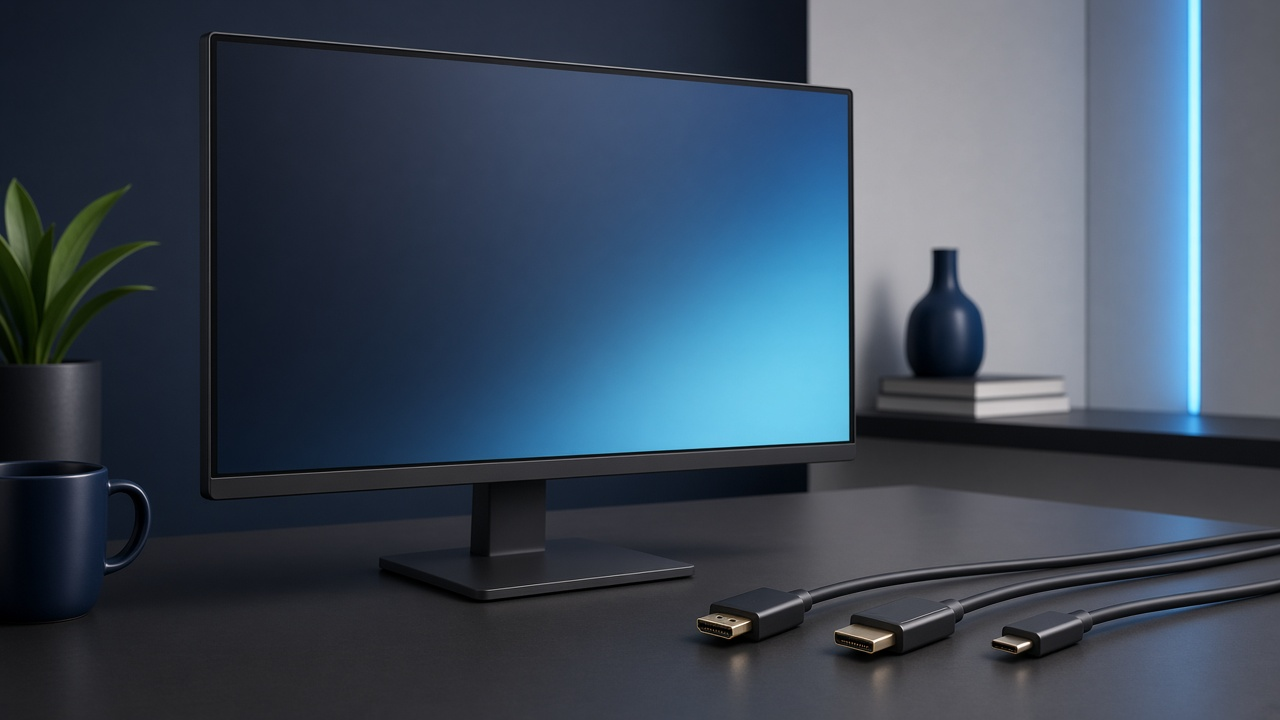
A 4K monitor requires the right video interface to deliver sharp visuals and smooth performance. HDMI, DisplayPort, and USB-C each offer distinct advantages, but not all of them support the same resolution, refresh rate, or bandwidth. Choosing the right connection affects image clarity, frame fluidity, and overall user experience.
Understanding how these interfaces handle video and audio transmission helps in making an informed decision. Resolution determines the number of pixels displayed, refresh rate defines how often the image updates per second, and bandwidth dictates how much data can be transmitted simultaneously. Matching these specifications with a monitor’s capabilities ensures optimal performance for gaming, professional work, or everyday use.
The Evolution of Monitor Support
The Journey from VGA to 4K-Capable Interfaces
Early computer displays relied on the Video Graphics Array (VGA) standard, introduced in 1987. VGA supported a maximum resolution of 640×480 pixels, which quickly became insufficient as display technology advanced. The Digital Visual Interface (DVI) emerged in 1999, offering higher resolutions with digital transmission, removing analogue signal degradation.
High-definition displays in the mid-2000s led to the adoption of HDMI and DisplayPort. HDMI 1.0 launched in 2002, originally designed for consumer electronics like televisions but increasingly used for monitors. DisplayPort 1.1 followed in 2006, providing better data rates and broader compatibility with computer graphics cards.
As resolution demands increased, HDMI 2.0 and DisplayPort 1.2 introduced support for 4K at 60Hz, dramatically improving image quality and refresh rates. DisplayPort 1.4 and HDMI 2.1 pushed this further, enabling 8K resolutions and higher refresh rates, critical for gaming and professional workflows. USB-C, integrating DisplayPort technology, introduced single-cable connectivity, simplifying setups for laptops and ultra-thin monitors.
How Manufacturers Like Dell Have Adapted to New Standards
Manufacturers have continuously updated their products to support the latest display interfaces. Dell, a major player in both consumer and enterprise displays, progressively integrated HDMI, DisplayPort, and USB-C into its monitor lineup to meet evolving user demands.
- Transition from DVI to DisplayPort and HDMI: Dell phased out DVI in favor of these newer interfaces as resolutions increased, ensuring compatibility with modern graphics cards and laptops.
- Support for 4K and Beyond: HDMI 2.0 and DisplayPort 1.2 became standards in Dell's UltraSharp and professional series, accommodating 4K content creation and business applications.
- USB-C and Thunderbolt Integration: Newer Dell models, such as the UltraSharp U-Series, feature USB-C with DisplayPort Alt Mode, reducing cable clutter while enabling high-bandwidth displays, charging, and data transfer through a single connection.
With each technological shift, display manufacturers adapted by offering updated ports, ensuring compatibility across multiple devices and usage scenarios. The evolution from VGA to USB-C reflects a broader industry move towards higher resolutions, better refresh rates, and streamlined connectivity.
HDMI: Capabilities and Limitations for 4K Monitors
Understanding HDMI Versions and Their 4K Capabilities
HDMI has evolved significantly since its introduction in 2003. Each version brings higher bandwidth and new features. For 4K monitors, the most relevant versions include:
- HDMI 1.4: Supports 4K resolution at 30Hz with a bandwidth limit of 10.2 Gbps. Not ideal for smooth motion or gaming.
- HDMI 2.0: Increases bandwidth to 18 Gbps, enabling 4K at 60Hz with 8-bit color depth. Supports HDR10 but lacks dynamic metadata.
- HDMI 2.1: Expands bandwidth to 48 Gbps, supporting 4K at 120Hz and 8K at 60Hz. Introduces Variable Refresh Rate (VRR), Auto Low Latency Mode (ALLM), and Dynamic HDR.
Not all 4K monitors or cables support HDMI 2.1, making it crucial to check specifications before purchasing.
Limitations and Potential Issues with HDMI for 4K
Despite its widespread adoption, HDMI presents several limitations when handling 4K resolution.
- Bandwidth Constraints: HDMI 2.0 cannot handle 4K at high refresh rates with deep color or HDR simultaneously without chroma subsampling (4:2:2 or 4:2:0), which reduces color accuracy.
- Latency Concerns: While HDMI 2.1 introduces ALLM, older versions may suffer from input latency, especially in gaming scenarios.
- Daisy-Chaining Limitations: Unlike DisplayPort, HDMI does not support Multi-Stream Transport (MST), making multi-monitor setups less efficient.
- Variable Refresh Rate (VRR) Support: HDMI only introduced VRR with version 2.1, meaning older versions cannot compete with DisplayPort’s Adaptive-Sync capabilities.
In professional environments requiring precise color representation and in high-performance gaming setups, these limitations may render HDMI less desirable than other options.
HDMI and Mac Compatibility for 4K Displays
Mac computers handle external displays differently than Windows-based systems. HDMI support on Macs is inconsistent across models:
- MacBooks with USB-C/Thunderbolt: Require an adapter for HDMI connections, often limited to HDMI 2.0, restricting 4K to 60Hz max.
- Mac Mini and iMac: Native HDMI outputs vary by model; older Macs frequently ship with HDMI 1.4, capping refresh rates at 30Hz.
- macOS Scaling Issues: MacOS UI scaling can cause text to appear blurry on certain 4K HDMI connections due to non-integer scaling methodology.
For Macs, DisplayPort or USB-C often provides better performance for 4K displays, especially when high refresh rates and color accuracy are priorities.
DisplayPort: Advantages for 4K
Why DisplayPort is Recommended for 4K Monitors
DisplayPort offers a higher bandwidth ceiling compared to HDMI in several versions, making it a strong choice for 4K displays. Unlike HDMI, which prioritizes consumer electronics, DisplayPort is designed for high-performance computing and professional applications. It provides stable, high-resolution display output with support for adaptive sync technologies like NVIDIA G-Sync and AMD FreeSync.
Another major advantage is its ability to handle multi-monitor setups using Display Stream Compression (DSC) while maintaining image fidelity. The connection also supports daisy-chaining via Multi-Stream Transport (MST), reducing cable clutter and simplifying workstation configurations.
DisplayPort 1.4 Features Relevant to Resolution and Refresh Rates
- Higher Bandwidth: DisplayPort 1.4 delivers up to 32.4 Gbps of bandwidth, allowing uncompressed 4K at 120Hz and even 8K support with DSC.
- HDR Support: The integration of DisplayHDR technology ensures deeper color contrast and wider color gamuts, improving visual quality for media consumption and content creation.
- Variable Refresh Rate (VRR): Compatible with adaptive sync technologies, which eliminates screen tearing by synchronizing the display refresh rate with the GPU output.
- Embedded Clocking: Reduces signal interference, providing a more stable display connection over longer cable runs.
Monitor and PC Compatibility Considerations with DisplayPort
Most modern GPUs and high-end monitors include at least one DisplayPort connection, especially those targeting professional workstations and gaming setups. Graphics cards from AMD and NVIDIA typically offer DisplayPort as the preferred output due to its higher refresh rate capabilities.
Thunderbolt docks and USB-C port configurations often integrate DisplayPort as the underlying protocol, further extending its versatility. Users aiming for higher refresh rates at 4K or planning multi-display setups benefit significantly from a DisplayPort connection over HDMI alternatives.
USB-C: Versatility and Future-Proofing for 4K Displays
The Multifunctional Nature of USB-C in Monitor Connectivity
USB-C consolidates multiple functions into a single port, streamlining monitor connectivity. Unlike HDMI or DisplayPort, which primarily transmit audio and video, USB-C supports data transfer, power delivery, and peripheral connections simultaneously. This makes it a compelling choice for modern 4K displays integrated into workstations, mobile setups, and high-performance environments.
With USB-C Alternate Mode, the interface carries DisplayPort signals, allowing full-resolution 4K output. Depending on the version, USB-C can handle DisplayPort 1.2, 1.4, or even 2.0, affecting maximum refresh rates and color depth. Additionally, USB Power Delivery (USB-PD) enables up to 100W charging, reducing cable clutter by powering compatible monitors and laptops through the same connection.
- Single-cable solution: USB-C transmits video, audio, data, and power simultaneously.
- Power delivery: USB-PD provides up to 100W, powering monitors and laptops.
- Flexible DisplayPort integration: Alternate Mode allows DisplayPort compatibility over USB-C.
- Docking station support: USB-C hubs expand connectivity, integrating Ethernet, USB ports, and more.
How USB-C is Shaping the Future for 4K Monitors and Beyond
Manufacturers are increasingly adopting USB-C as a universal interface, not just in monitors but across various digital devices. The widespread support from laptop and monitor makers reduces reliance on proprietary charging and display connections. As USB4 integrates DisplayPort 2.0, bandwidth expands to 40 Gbps, enabling higher refresh rates and HDR rendering for 4K and even 8K applications.
USB-C also simplifies docking solutions. Connecting a 4K display through a USB-C hub eliminates multiple cables while enabling peripherals like external hard drives, webcams, or keyboards. This adaptability makes USB-C a future-proofed investment for professionals requiring high-resolution displays without sacrificing connectivity options.
Addressing Monitor Compatibility and Support with USB-C
Not all USB-C ports support video output. Devices must explicitly include DisplayPort Alternate Mode to transmit display signals. Some laptops and desktops feature USB-C ports limited to data transfer and power, necessitating verification before relying on USB-C for 4K output.
Compatibility with existing displays depends on the monitor’s integrated USB-C support. While many contemporary 4K monitors include USB-C as a primary input, others require USB-C to DisplayPort or HDMI adapters to function correctly. Additionally, cable quality influences performance, as lower-spec USB-C cables may not handle full DisplayPort 1.4 bandwidth or power delivery simultaneously.
- Check Alternate Mode support: Not all USB-C ports output video; confirm device specifications.
- Monitor compatibility varies: Some models require adapters for proper USB-C integration.
- Cable quality matters: High-speed USB-C cables ensure full bandwidth and power support.
USB-C’s expanding role in 4K connectivity makes it a strong contender for those seeking a streamlined, high-performance setup. However, checking device and cable specifications remains critical to achieving optimal results.
Comparing Bandwidth and Resolution Support
Analysis of HDMI 2.0 vs. DisplayPort 1.4 vs. USB-C for 4K Resolution
Bandwidth directly affects a monitor's ability to handle 4K resolution with higher refresh rates and color depth. The three main interfaces—HDMI 2.0, DisplayPort 1.4, and USB-C—each offer distinct capabilities.
- HDMI 2.0: Supports a maximum bandwidth of 18 Gbps, allowing 4K resolution at 60 Hz with 8-bit color depth and 4:4:4 chroma subsampling. Higher bit depth (10-bit or 12-bit) requires chroma subsampling or lower refresh rates.
- DisplayPort 1.4: Delivers a bandwidth of 32.4 Gbps, making it possible to achieve 4K resolution at 120 Hz with 10-bit HDR and full 4:4:4 color. Display Stream Compression (DSC) extends capabilities further.
- USB-C (with DisplayPort Alt Mode): Matches DisplayPort 1.4's bandwidth restrictions when using a fully capable cable, providing the same 4K resolution and refresh rate capabilities, assuming no bandwidth-sharing with data transfer.
What Bandwidth Means for Your 4K Experience
Higher bandwidth improves display performance in several ways. A lower bandwidth interface may require chroma subsampling, which reduces color detail, or limit refresh rates, affecting smooth visuals. For gaming, video editing, and high-end professional workloads, choosing an interface with higher bandwidth ensures fluid motion and accurate colors.
HDMI 2.0's 18 Gbps can handle standard 4K playback and casual gaming but falls short for higher refresh rates or HDR at full color depth. DisplayPort 1.4 offers more flexibility with uncompressed HDR and higher refresh rates, making it preferable for demanding applications. With USB-C, bandwidth allocation depends on other data transmissions; using it exclusively for display output provides parity with DisplayPort 1.4.
The Importance of Resolution Support in Different Use Cases
Choosing the right interface depends on specific needs:
- General Computing and Streaming: HDMI 2.0 provides sufficient quality for 4K video playback and office applications.
- Gaming: DisplayPort 1.4 or USB-C (DisplayPort Alt Mode) deliver higher refresh rates, reducing motion blur and screen tearing.
- Professional Content Creation: Full 10-bit HDR with 4:4:4 chroma requires the additional bandwidth of DisplayPort 1.4 or USB-C for accurate color representation in video editing and design.
Bandwidth defines limitations, but resolution support dictates practical application. While all three interfaces can output 4K, only DisplayPort 1.4 and USB-C ensure full-quality, high-frame-rate performance.
Audio and Video Quality Differences
Audio and Video Fidelity Across Interfaces
HDMI, DisplayPort, and USB-C all support 4K resolution, but their ability to transmit uncompressed video and high-fidelity audio varies. DisplayPort 1.4 and HDMI 2.1 both support High Dynamic Range (HDR) and 10-bit color depth, ensuring vibrant colors and deeper contrast ratios. USB-C, utilizing DisplayPort Alt Mode, inherits the same capabilities as the DisplayPort version it supports.
HDMI 2.1 introduces features like Dynamic HDR, which enhances frame-by-frame color and contrast adjustments. DisplayPort 1.4 achieves similar results with Display Stream Compression (DSC), enabling lossless visual output even at high resolutions and refresh rates. USB-C connected via DisplayPort Alt Mode maintains these advantages, but its encoding efficiency depends on the specific implementation within the device.
The Role of Audio in the Monitor Experience
HDMI supports multi-channel audio formats, including Dolby Atmos and DTS:X, making it ideal for home theater setups. DisplayPort transmits uncompressed 7.1-channel audio and supports advanced formats, but its adoption for audio-centric applications remains lower than HDMI. USB-C, when using DisplayPort Alt Mode, carries the same audio capabilities as DisplayPort, but alternative USB-C implementations, such as those using Thunderbolt 3/4, can enable direct digital audio output to compatible DACs and headphones.
When using integrated monitor speakers, all three interfaces deliver comparable sound quality. However, external audio systems benefit from HDMI's widespread compatibility with AV receivers. DisplayPort can also transmit immersive audio, but its primary focus remains on high-resolution video.
Matching Audio-Visual Expectations with the Right Interface
- For cinematic visuals and surround sound: HDMI 2.1 provides the best balance of high-quality video and multi-channel audio formats.
- For professional color accuracy and high refresh rates: DisplayPort 1.4 ensures optimal clarity with support for HDR and lossless compression.
- For flexibility with mobile devices and multiple peripherals: USB-C with DisplayPort Alt Mode allows video, audio, and power delivery through a single cable.
All three interfaces handle 4K content effectively, but the choice depends on whether audio, video, or versatility matters most in a given setup. For high-fidelity audio, HDMI remains dominant in entertainment systems, while DisplayPort leads in PC monitor performance.
Cable Length and Signal Integrity for 4K Monitors
How Cable Length Affects 4K Signal Transmission
As transmission distance increases, signal degradation becomes a factor in maintaining 4K resolution with high refresh rates. Each interface has a maximum recommended length for copper cables before significant loss occurs:
- HDMI 2.1: Up to 3 meters (10 feet) for full 48 Gbps bandwidth; longer cables may require active signal boosters.
- DisplayPort 1.4: Reliable up to 2 meters (6.5 feet) for full 32.4 Gbps bandwidth; longer passive cables can work but may require reducing resolution or refresh rate.
- USB-C (DisplayPort Alt Mode): Typically reliable up to 1 meter (3.3 feet) for high-bandwidth applications due to power and data signal constraints.
Beyond these lengths, unprotected signals experience attenuation, leading to artifacts, flickering, or complete video loss.
Maintaining Signal Integrity Over Longer Distances
To ensure consistent video quality beyond standard cable lengths, several solutions exist:
- Active Cables: Integrated amplification preserves signal strength over long distances, commonly used for HDMI and DisplayPort beyond 3 meters.
- Optical HDMI and DisplayPort Cables: Fiber optics eliminate electrical interference and allow 4K 120Hz transmission beyond 15 meters.
- Signal Boosters and Repeaters: Devices that recondition and amplify signals, extending reliable transmission over copper cables.
- Docking Stations and Hubs: USB-C users can leverage hubs with DisplayPort outputs to position a monitor closer to the connection source.
These solutions mitigate degradation for high-refresh-rate 4K signals without reducing resolution or color accuracy.
OEM vs. Third-Party Cable Quality
Cheap unshielded cables introduce electromagnetic interference, increasing the risk of signal dropouts or reduced image clarity. Differences between OEM and third-party cables include:
- OEM Cables: Designed to meet manufacturer specifications, ensuring full compatibility with certified devices.
- Premium Certified HDMI and DisplayPort Cables: Independently tested to meet industry standards, supporting high data rates without degradation.
- Lower-Quality Third-Party Cables: Some budget alternatives use inferior shielding and connectors, leading to performance inconsistencies, particularly at longer lengths.
Selecting certified cables with adequate shielding and verified bandwidth capabilities eliminates potential issues with 4K monitors.
Gaming Considerations with Refresh Rates and G-Sync/FreeSync
Why Refresh Rates Matter in Gaming
Refresh rate dictates how many frames per second a monitor can display. A 60Hz monitor refreshes the image 60 times per second, while a 144Hz monitor does so 144 times per second, delivering smoother motion. Competitive gaming benefits from higher refresh rates because they reduce motion blur and input lag, improving reaction times.
For 4K gaming, most high-end monitors support at least 120Hz, with some reaching 144Hz or higher. However, the interface used significantly impacts whether the monitor can achieve its full refresh potential. HDMI 2.0 caps out at 4K 60Hz, while HDMI 2.1 enables 4K at 120Hz. DisplayPort 1.4 delivers 4K 144Hz through DSC (Display Stream Compression), and USB-C, when using DisplayPort Alt Mode, follows DisplayPort’s specifications.
The Impact of Adaptive Sync Technologies on 4K Gaming
Screen tearing occurs when the monitor’s refresh rate doesn't match the game's frame rate. Adaptive sync technologies eliminate this problem by synchronizing the monitor’s refresh rate with the GPU’s output.
- G-Sync: Developed by NVIDIA, G-Sync requires a compatible monitor with the necessary module. It reduces input lag and stutter but is only available over DisplayPort unless using G-Sync Compatible HDMI 2.1 displays.
- FreeSync: AMD’s FreeSync varies in implementation, with FreeSync Premium and FreeSync Premium Pro adding better performance and HDR support. FreeSync works over both HDMI and DisplayPort, making it more accessible than G-Sync.
For 4K 120Hz or higher gaming with adaptive sync, DisplayPort 1.4 or HDMI 2.1 are the best choices. USB-C, while versatile, often introduces limitations depending on the device’s implementation of DisplayPort Alt Mode.
Choosing the Best Interface for 4K Gaming
Selecting the right connection depends on the monitor's specifications, the graphics card, and the highest supported refresh rates under 4K resolution.
- HDMI: HDMI 2.1 supports 4K 120Hz with VRR (Variable Refresh Rate), making it ideal for modern gaming consoles like the PlayStation 5 and Xbox Series X.
- DisplayPort: DisplayPort 1.4 is the preferred option for PC gaming, providing 4K 144Hz with DSC and the best compatibility with G-Sync and FreeSync.
- USB-C: While convenient, USB-C relies on DisplayPort Alt Mode and often has bandwidth limitations that restrict high refresh rates or adaptive sync performance.
For competitive and high-fidelity gaming on a 4K monitor, DisplayPort 1.4 or HDMI 2.1 remain the most reliable interfaces to maximize refresh rates and take full advantage of adaptive sync technologies.
The Role of Thunderbolt 3/4 in 4K Display Connectivity
Differentiating Thunderbolt 3/4 from Traditional USB-C
Thunderbolt 3 and 4 use the same USB-C connector, but their capabilities extend far beyond standard USB-C. A conventional USB-C port with DisplayPort Alt Mode can support video output, yet Thunderbolt enhances this by integrating PCIe data transfer, significantly increasing bandwidth. Thunderbolt 3 offers up to 40 Gbps, whereas USB-C with DisplayPort Alt Mode is limited to 10 Gbps or 20 Gbps, depending on the implementation.
Thunderbolt 4 maintains the same 40 Gbps bandwidth as its predecessor but enforces stricter minimum performance requirements. Unlike some Thunderbolt 3 implementations, Thunderbolt 4 mandates at least one PCIe connection supporting 32 Gbps and guarantees dual 4K 60Hz display support or a single 8K display. This ensures consistent performance across all certified devices, reducing confusion caused by Thunderbolt 3’s varied implementations.
Addressing the Niche Requirements of Thunderbolt with 4K Monitors
Professionals handling high-bandwidth workloads, such as video editors and 3D content creators, benefit greatly from Thunderbolt’s integration of high-speed data and display output. A single Thunderbolt connection can drive multiple 4K displays while also transferring large media files to external storage at high speeds.
For daisy-chaining multiple 4K monitors, Thunderbolt provides a seamless solution. DisplayPort Multi-Stream Transport (MST) enables chaining multiple displays from a single output, eliminating the need for multiple video cables. Standard USB-C with DisplayPort can theoretically support MST, but Thunderbolt’s higher bandwidth ensures stable performance.
- Mac compatibility: Apple’s MacBooks and iMacs have relied on Thunderbolt for external displays due to its integration with their ecosystem, ensuring efficient support for 4K and higher resolutions.
- Docking station advantages: Thunderbolt docks simplify 4K monitor setups by merging power delivery, USB ports, and display connectivity into one cable, reducing desk clutter.
- Alignment with professional workflows: Thunderbolt-equipped monitors cater to creative professionals needing a streamlined, high-speed connection for both display and data transfer.
While Thunderbolt offers high-performance advantages, the necessity depends on the user’s workflow. General users may find DisplayPort or HDMI sufficient, but for those balancing 4K video playback, external storage, and peripheral connections, Thunderbolt 3 and 4 provide the most efficient and integrated solution.
Ease of Use and Cable Management with Modern Monitor Interfaces
User-Friendly Setup Across HDMI, DisplayPort, and USB-C
Connecting a 4K monitor should be straightforward, but the ease of use varies between HDMI, DisplayPort, and USB-C. HDMI remains the most widely used interface, found on almost all consumer electronics. Plugging in an HDMI cable requires no additional configuration in most cases. DisplayPort, while slightly less common in home setups, functions similarly with a plug-and-play approach. USB-C, especially with DisplayPort Alt Mode, adds versatility by handling video, data, and power through a single cable, reducing clutter on the desk.
Cable orientation and insertion differ between these interfaces. HDMI and DisplayPort use a keyed design, preventing incorrect insertion but requiring careful alignment. DisplayPort connectors feature a latch mechanism that provides a secure connection but requires manual release when unplugging. USB-C simplifies this with a reversible design, allowing insertion in either direction, which minimizes fumbling during setup.
Optimizing Cable Management for a Clean Workspace
Messy cables add visual and functional clutter, especially in multi-monitor setups. Each interface requires a different approach to cable management:
- HDMI: Stiff cables, especially with high-bandwidth versions, pose a challenge for routing behind desks. Using flexible HDMI cables or cable sleeves helps maintain a clean look. Right-angle adapters can also prevent excessive bending in tight spaces.
- DisplayPort: Thicker cables with locking mechanisms require more space behind the monitor. Proper cable routing with adhesive clips or under-desk mounts prevents stress on the connectors and reduces cable sag.
- USB-C: With a thinner and more flexible design, USB-C cables allow better flexibility in cable management. Running a single USB-C cable from a laptop to a monitor, especially in setups with USB hubs, simplifies workspace organization by consolidating multiple functions into one connection.
Using cable raceways and dedicated cable ties helps keep all connections neat, regardless of the interface. For desks with adjustable height, leaving enough slack in the cables prevents strain or accidental disconnections when raising or lowering the surface.
Challenges with Adapters and Docking Stations
Adapters and docks introduce additional points of failure in a setup, but sometimes they are necessary. HDMI-to-DisplayPort adapters, for example, require active signal conversion, which increases cable bulk and potential signal degradation. USB-C docking stations simplify multi-device connections but add extra hardware that needs placement on the desk. Choosing high-quality adapters with short, flexible cables minimizes these complications.
For multi-monitor arrangements, a docking station with DisplayPort or USB-C outputs reduces the number of direct connections to the computer. This setup not only keeps the workspace organized but also streamlines device-swapping when using multiple systems at the same workstation.
Best Connection Choice for Your 4K Monitor
Key Takeaways for 4K Connectivity
Different interfaces offer varying strengths, and the right choice depends on specific requirements. HDMI 2.1 supports 4K at 120Hz with features like VRR, making it a viable option for gaming and entertainment setups. DisplayPort 1.4 and 2.0 provide higher bandwidth, supporting uncompressed 4K at higher refresh rates, making them ideal for gaming and professional workflows. USB-C, often incorporating DisplayPort Alt Mode, adds versatility for laptops by enabling power delivery and data transmission alongside video output.
Best Options Based on Use Case
Gaming
- DisplayPort 1.4 or 2.0: Delivers the highest refresh rates and supports variable refresh rate technologies like G-Sync and FreeSync.
- HDMI 2.1: Works well for gaming consoles and modern GPUs offering 4K 120Hz support with VRR.
- USB-C: Limited for gaming unless using a DisplayPort Alt Mode connection with high-bandwidth support.
Professional Work (Creative, Design, Video Editing)
- DisplayPort 1.4 or 2.0: Ensures accurate color reproduction, high resolutions, and multi-display daisy-chaining.
- USB-C: Ideal for laptops and workstations supporting DisplayPort Alt Mode with additional benefits of power delivery.
- HDMI 2.1: Viable but limited by available refresh rates and bandwidth compared to DisplayPort.
General Use and Productivity
- USB-C: Excellent for single-cable solutions in laptops and docking station setups.
- HDMI 2.0/2.1: Sufficient for standard office work and media consumption.
- DisplayPort: Beneficial for multi-monitor productivity setups with high-resolution requirements.
The Best Interface for 4K Monitors
For high-performance gaming and professional applications, DisplayPort leads with superior bandwidth and refresh rate support. HDMI 2.1 stands as a solid alternative for gaming and general use, particularly with modern gaming consoles. USB-C provides convenience for laptops, balancing video output with other functions. The final choice depends on the intended use case and device compatibility.