Guide to the Best Router Placement & Signals 2026
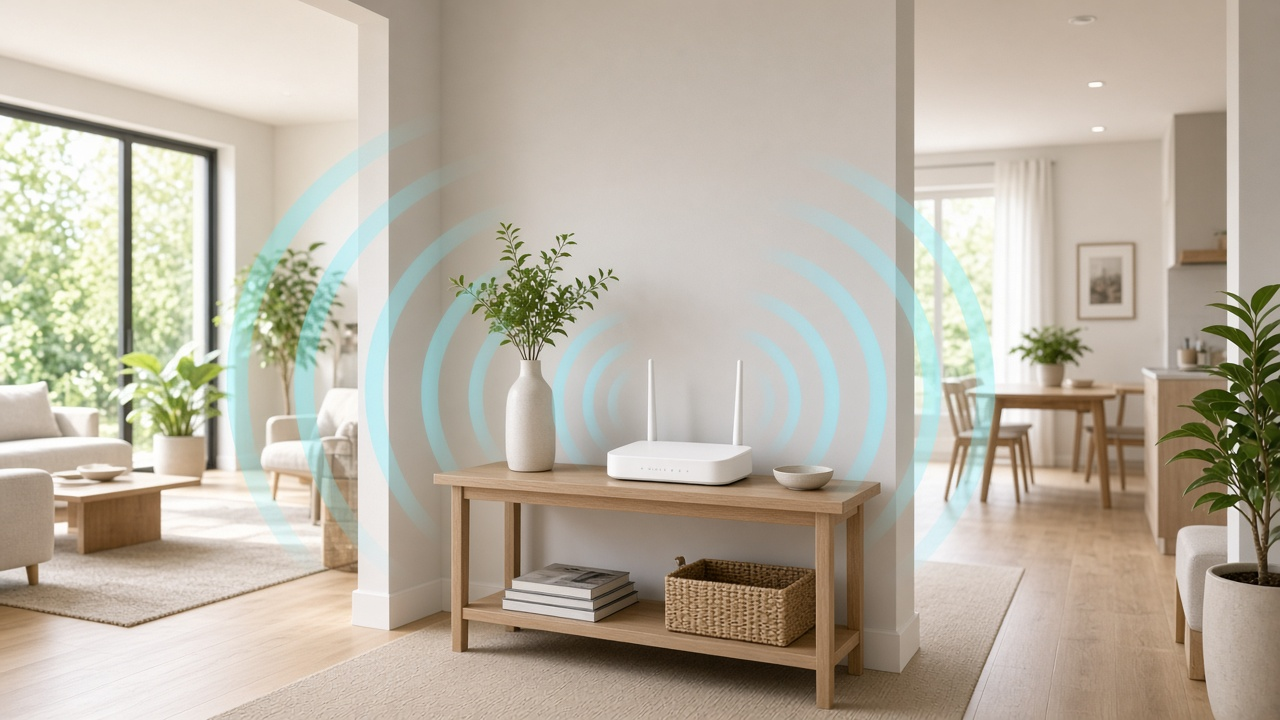
The physical location of your Wi-Fi router directly shapes the performance of your internet connection. Place it in the wrong corner of your home, and you'll face buffering videos, sluggish downloads, or dead zones that frustrate both work and leisure. Position it intelligently, and your devices will glide through tasks with consistent signal strength.
Walls, furniture, floor plans, and even household appliances interfere with signal reach and stability. A router tucked behind your TV may look tidy, but that aesthetic choice cuts throughput dramatically. By optimizing your router’s position, you'll extend wireless coverage, avoid mid-meeting disconnects, and allow your smart home devices to stay online without hiccups.
This guide walks you through how to position your router for maximum effectiveness—eliminating signal drops, improving streaming quality, and ensuring smooth, uninterrupted browsing throughout your space.
Understanding Wi-Fi Signal Strength
What Wi-Fi Signal Strength Tells You
Signal strength refers to the power level being received by a device from a Wi-Fi router. It's typically measured in decibel-milliwatts (dBm). The better the signal (closer to -30 dBm), the faster and more reliable the connection. At around -67 dBm, streaming in HD and video calls remain stable. When it drops below -70 dBm, expect slower speeds, buffering, and disconnections.
Unlike internet bandwidth, which relates to the data capacity of your plan, signal strength directly governs device connectivity. Even with high-speed internet, weak signal degrades performance. A 500 Mbps plan won’t deliver if the signal barely registers on your device.
Weak Bandwidth vs. Signal Drop: Not the Same Problem
Intermittent connectivity and sluggish speeds don't always stem from the same root issue. A signal drop implies a complete or brief loss of connection between the router and device — often due to a physical barrier or out-of-range condition. On the other hand, weak bandwidth happens when multiple users are consuming high amounts of data or when the router is bottlenecked by its hardware or ISP limitations.
To test the difference, try moving closer to the router. A poor signal will improve immediately with proximity, while insufficient bandwidth remains limited regardless of location.
How Distance and Obstacles Alter Signal Strength
Wi-Fi uses radio waves, and those waves weaken over distance and when passing through materials. The layout of the house, wall density, and floor composition all influence propagation. For example:
- Drywall reduces signal slightly but usually not enough to disrupt streaming.
- Concrete or brick walls absorb more signal, often cutting strength by over 50%.
- Metal framing or piping reflects signals unpredictably, generating dead zones.
- Homes with multiple floors introduce vertical obstacles. Signals traveling upward or downward lose clarity through insulation and subflooring materials like plywood or concrete slabs.
Standing 10 feet from the router with no barrier often produces a signal of around -40 dBm. By contrast, two rooms away through a concrete wall, you might measure -75 dBm or worse – enough to interfere with high-demand tasks like gaming or Zoom calls.
Think about your own floor plan. Where are the thickest walls? Which directions do floors run? Each physical element between the router and device exacts a measurable toll on strength and stability.
Pinpointing the Perfect Spot: Where to Place Your Router for Stronger Signals
Central and Elevated Locations Matter
Router placement follows one core principle—distance and obstructions degrade wireless signal. Positioning the router near the physical center of your home dramatically reduces the distance the signal must travel to reach any device. This strategy creates a uniform coverage zone and minimizes areas with weaker reception.
Height also plays a measurable role. Signals radiate outward and slightly downward from most consumer-grade routers, which means placing the device on a high bookshelf or mounting it on a wall above the midpoint of the room significantly reduces floor and ceiling absorption. Tests by the Wireless Broadband Alliance show improved average throughput when routers are installed closer to ceiling height rather than left on low desks or floors.
Avoiding Corners, Closets, and Enclosed Spaces
Enclosures suppress Wi-Fi. Placing a router inside a cabinet, closet, or entertainment center introduces barriers that absorb or reflect signals—especially walls made of metal, brick, or concrete. Signal loss through a single drywall partition might be negligible, but interference compounds with each additional obstacle. A router tucked in the far corner of a room might cover one area well while leaving others with minimal signal.
Instead of confining the router, position it in open, ventilated space, away from unnecessary dividers. Large furniture pieces like bookshelves or refrigerators also reflect and diffuse signals unpredictably. Even a partial obstruction cuts efficiency; a 2012 IEEE study demonstrated up to 60% signal degradation depending on furniture density, material, and layout.
Keeping It Away From Floors and Placing It Above Furniture Level
Routers placed on the floor waste signal strength. Wi-Fi antennas radiate omnidirectionally or in specific lobes depending on design, and much of that energy is absorbed by flooring if the device sits too low. When placed beneath desk level, signal pathways direct toward non-essential vertical routing, further throttling performance.
Position the router on a small table, elevated shelf, or wall mount—anything that brings it above furniture height and minimizes contact with solid surfaces beneath. For homes with multiple stories, an upper-floor placement ensures better coverage below than placing the router in a basement or near ground level. Signal strength from a first-floor router drops dramatically when trying to penetrate upward through structural barriers, especially if the ceiling includes reinforced insulation or metal supports.
How Your Home’s Design Shapes Wi-Fi Coverage
Architectural Layout and Signal Behavior
Wi-Fi signals travel in straight lines and reflect or weaken when encountering obstacles. The unique layout of a home—its walls, floors, materials, and room configurations—alters the way signals spread. Each element either absorbs, reflects, or allows signals to pass through, changing coverage quality from one room to the next.
Dealing with Multi-Floor Homes
In homes with multiple levels, signals must pass through ceilings and floors, which often contain wood, insulation, pipes, and even metal supports. These materials attenuate signal strength. Routers positioned on the ground floor may fail to deliver consistent coverage to upper stories. Placing the router on the middle floor, if possible, improves vertical coverage by reducing the number of floors a signal must penetrate in either direction.
Thick Walls and Structural Barriers
Concrete, brick, and stone walls block or deflect signals far more than drywall. Interior walls with metal studs, plumbing, or electrical wiring further degrade Wi-Fi performance. Even drywall, if double-layered or insulated, diminishes signal strength. Houses built before the 1980s, often with plaster or lath walls, can create harder barriers to signal flow than more modern materials. In such homes, signals may disappear entirely just a room or two away from the router.
Impact of Room Sizes and Large Furniture
In small, closed-off rooms, Wi-Fi waves may bounce unpredictably, creating pockets of interference. On the other hand, large open-plan spaces allow signals to spread freely—but with potential dead zones behind bulky furniture. Upholstered items, bookshelves filled with volumes, or cabinetry packed with household goods can all act as absorbers, reducing signal clarity behind them.
Using Heat Maps to Visualize Signal Distribution
Mapping Wi-Fi strength throughout the house reveals how your signal performs in real conditions. Several apps—such as NetSpot, Ekahau HeatMapper (Windows), or AirPort Utility (iOS)—allow users to walk through their homes and build visual heat maps of coverage.
- Green zones indicate strong signal strength (typically -30 to -60 dBm).
- Yellow or orange zones reflect moderate coverage (-60 to -75 dBm), where performance starts to dip.
- Red zones or dead zones (weaker than -75 dBm) signal areas that may require repositioning the router or adding a range extender or mesh node.
By identifying exact weak spots, heat maps remove guesswork—helping users make targeted changes to router positioning or network architecture.
Common Obstacles to Wi-Fi Signals
Structural Interference: When the Architecture Fights the Signal
Wi-Fi signals rely on uninterrupted radio waves — any dense or irregular physical obstruction will degrade their quality or block them entirely. Construction materials play a decisive role in how far and how well your router's signal travels. Some materials absorb or reflect signals, interfering with both speed and stability.
- Brick, Concrete, and Metal Walls: These materials cause significant attenuation. A standard brick wall can reduce signal strength by over 25%, while reinforced concrete may block up to 90% of the signal, according to the IEEE 802.11 standards for indoor radio propagation. Metal, often used in insulation or support beams, reflects radio signals, causing dead zones or inconsistent coverage.
- Ceiling and Floor Barriers in Multi-Level Homes: Signals lose strength as they travel vertically. A single wood floor might reduce signal performance by 10–15%, but if the ceiling includes dense insulation, HVAC ducts or embedded piping, degradation increases significantly. When routers are located on one floor and devices are used on another, expect signal loss without specialized antennas or extenders.
Environmental Interference: Everyday Objects with Hidden Effects
Not all obstacles are architectural — many are environmental. These invisible saboteurs range from furniture placement to household electronics that coincide with the same frequency bands used by your router.
- Large Furniture & TV Units: Bookcases, entertainment centers, and wardrobes absorb or reflect wireless signals, especially when made of dense materials like MDF or hardwood. Flat-screen TVs, when placed directly in front of routers or on top of media cabinets, act as barriers, deflecting signals instead of allowing them to propagate.
- Microwave Ovens, Cordless Phones, Baby Monitors: These operate on the 2.4GHz band, which is also used by most Wi-Fi routers. When active, a microwave emits electromagnetic noise that overlaps with Wi-Fi frequencies, causing interference. Cordless phones and analog baby monitors generate similar disruptions. Use of these devices tends to produce noticeable lag, reduced bandwidth, or temporary disconnections.
Consider this: how many of these obstacles exist between your router and your devices? Mapping those zones can reveal why some rooms have weak coverage or inexplicable dead spots.
Optimizing Router Antenna Positioning for Maximum Coverage
Understanding Omnidirectional vs. Directional Antennas
Not all router antennas behave the same way. Omnidirectional antennas radiate signal in a 360-degree horizontal pattern, similar to how a donut wraps around a stick. This type suits open areas and single-floor layouts where coverage needs to spread evenly in every direction. In contrast, directional antennas focus the signal in a specific direction, much like a flashlight beam. These are ideal when you want to target signal strength toward a particular room or device zone.
Before adjusting anything, identify the antenna type. Most consumer routers include up to three omnidirectional antennas, while enterprise-grade models or signal boosters often feature directional antennas for more focused deployment.
Best Practices for Antenna Positioning
- Keep antennas vertical to support horizontal reach. In most homes, devices like laptops, smart TVs, and smartphones are spread out across the same floor. When router antennas stand upright at a 90-degree angle, they emit signals horizontally. This placement aligns with how omnidirectional antennas distribute their signal across a level plane, ensuring optimal spread to side rooms and hallways.
- Tilt antennas to enhance vertical coverage in multifloor spaces. In duplexes or vertical layouts, a combination helps. For routers with two antennas, position one vertically and angle the other slightly (around 30–45 degrees) to push the signal upward or downward through floors. This setup increases the likelihood that the signal penetrates ceilings and reaches additional levels with retained strength.
- Fine-tune antenna direction for room-specific coverage. Identify which areas suffer from weak connectivity using a Wi-Fi analyzer tool. For routers with adjustable or add-on directional antennas, aim them directly toward the low-signal zones. In large rooms or open-plan layouts, angle antennas to face diagonally across space rather than perpendicular to walls—this reduces signal reflection and increases area saturation.
Not all routers benefit equally from these adjustments. Models with internal antennas optimize signal automatically. However, for units with visible external antennas, subtle adjustments can create measurable gains in both speed and stability, particularly where physical layout creates dead zones.
Decoding Frequency Bands: 2.4GHz vs. 5GHz
Every modern Wi-Fi router broadcasts in at least two frequency bands: 2.4GHz and 5GHz. Understanding how these bands function changes how effectively a network performs across different areas of a home or office. Both have unique strengths, and the physical placement of the router significantly impacts their performance.
Speed and Range: What Sets Them Apart
The 2.4GHz band offers longer range but supports lower maximum speeds. In contrast, the 5GHz band delivers higher data rates over shorter distances. Here's how that breaks down:
- 2.4GHz — covers larger areas, but maxes out at lower speeds due to congested bandwidth and increased interference from devices like microwaves, cordless phones, and baby monitors.
- 5GHz — supports faster throughput (up to 1300 Mbps on 802.11ac routers) with reduced interference, but signals weaken more quickly and struggle to penetrate solid objects like walls and floors.
When to Use Each Band
Choosing between bands hinges on the needs of a specific device and its location within the space. Consider the following scenarios for optimal usage:
- 2.4GHz: Best suited for low-bandwidth activities — web browsing, email, and smart home devices — especially in rooms far from the router or on different floors. It handles distance and obstruction better.
- 5GHz: Ideal for high-bandwidth tasks — HD streaming, online gaming, large file downloads — and works best in close-range environments with minimal barriers between the device and the router.
The choice becomes even more relevant in multi-story buildings or dense apartment settings. Thick concrete walls and metal frames diminish 5GHz performance considerably, while wood-and-drywall interiors allow 2.4GHz signals to travel farther, albeit at lower efficiency.
Router Placement Dynamics and Band Performance
Signal strength and reliability can shift dramatically depending on where a router sits within a space. Placement directly influences which frequency band performs better.
- High central placement on an upper floor allows 2.4GHz signals to fan out across multiple levels, maintaining connectivity through vertical obstructions.
- Short-distance, open-area placement enhances 5GHz performance, helping devices make the most of its speed without disruption.
- Walls, ceilings, and furniture degrade 5GHz signal power more aggressively than 2.4GHz — careful line-of-sight positioning matters more with 5GHz.
Dual-band routers often allow devices to automatically choose the best connection based on signal strength and congestion. Still, strategic placement can influence the final decision a device makes. Want strong 5GHz for your smart TV or gaming console? You'll need that router placed within the same room or just next door — without too many barriers in the way.
Managing Interference from Other Devices
Devices That Disrupt Your Wi-Fi Signal
Wi-Fi interference stems from more than just walls and distance. Numerous everyday electronic devices actively emit signals that compete with or distort your router's transmission. Recognizing these culprits is the first step to regaining control over your network performance.
- TVs and Microwaves: Flat-screen televisions, especially smart TVs with built-in Wi-Fi, generate electromagnetic interference. Microwaves release strong signals in the 2.4GHz range, which can disrupt wireless connections when in use.
- Bluetooth Devices: Wireless speakers, keyboards, headphones, and smartwatches operate close to or on the 2.4GHz frequency. Despite modern protocols attempting to mitigate conflict, dense usage still results in signal degradation.
- Baby Monitors and Cordless Phones: Many legacy baby monitors, particularly analog models, and older DECT cordless phones, transmit on the 2.4GHz frequency, frequently overlapping with Wi-Fi channels.
Competing Wi-Fi Networks
In apartment buildings or densely populated neighborhoods, interference from neighboring routers has an outsized impact. Multiple overlapping Wi-Fi networks saturate the same frequency bands, creating congestion similar to traffic bottlenecks on a single-lane road.
The 2.4GHz band has only three non-overlapping channels (1, 6, 11), intensifying collisions when many routers default to the same settings. The 5GHz band supports more non-overlapping channels but has shorter range, which slightly offsets interference in high-density environments.
Proven Techniques for Reducing Interference
- Change Router Channels: Log in to your router’s admin interface and manually switch the channel to one that’s less congested. Use Wi-Fi analyzer tools—such as NetSpot or inSSIDer—to identify the channels used most heavily around your location.
- Create Separation from Interfering Devices: Maintain at least two to three feet of distance between the router and high-interference devices, especially TVs and microwave ovens. Avoid placing the router directly behind or under such units.
- Use 5GHz Where Possible: The 5GHz band is less prone to interference because it’s less commonly used by household devices. Assign high-data usage devices—streaming boxes, gaming consoles, PCs—to this band if supported.
- Turn Off Idle Wireless Devices: Unused smart speakers, printers, and laptops still send occasional signals. Disconnect or shut them down to reduce background interference load.
- Reposition Wi-Fi Antennas: Adjusting antenna angles—one vertical, one horizontal—can help signals propagate in multiple directions, reducing the intensity of interference in a single path.
Think about the layout of your home. Where do you store electronics? How close is your laptop to the microwave in the kitchen? Small adjustments here and there can dramatically raise your network's reliability and speed.
Mesh Network Systems for Extended Coverage
When Traditional Routers Fall Short
In homes larger than 2,000 square feet or those split across multiple floors, a single router often leaves dead zones—those frustrating spaces where signal disappears altogether. Thick walls, multiple levels, and long distances create barriers that traditional routers can't consistently overcome, no matter how advanced their antennas or how central their placement.
This is where mesh network systems come in. Unlike range extenders, which repeat an existing signal with reduced strength, mesh setups consist of a primary router and multiple satellite nodes that work in harmony to create a blanket of Wi-Fi coverage with seamless handoff between units. The result: stable, high-speed connectivity in every corner of the house, including basements, garages, and upstairs bedrooms.
How Mesh Systems Deliver Uniform Coverage
Mesh systems treat your entire home as a single network zone. As you move from room to room, your device stays on the same network without dropping connection or needing manual switches. Each node communicates dynamically with the others, rerouting traffic and optimizing performance in real time.
For example, if a tree blocks the signal between nodes in a garden-facing room, the system redirects through other units to preserve strength and speed. This adaptability makes mesh networks noticeably more resilient in complex layouts than routers with static signal paths.
Best Locations for Satellite Nodes
- Near dead zones—but not inside them. Place nodes halfway between the primary router and problem areas. The node must still receive a strong enough signal to repeat and redistribute effectively.
- In open, uncluttered areas. Avoid placing satellite units inside bookshelves, cabinets, or drawers. These restrict airflow and block signal spread. Use elevation to your advantage by positioning nodes on open shelves or side tables.
- Away from solid obstructions. Brick walls, fireplaces, reinforced doors, and large appliances absorb or reflect signal. Whenever possible, leave at least a few feet of clearance between a satellite node and any dense or metallic structure.
One effective arrangement in a two-story home: position the primary router downstairs in a central location, add a satellite near the staircase landing upstairs, and place another near the edge of any problematic wing or high-use area like a home office.
Need guidance on the number of nodes? A 3-bedroom house typically requires two or three units total, depending on construction materials and layout complexity. Many systems, such as those from Eero, Google Nest WiFi, or Netgear Orbi, allow you to expand over time—just add another satellite as needed.
Router Firmware and Hardware Optimization: Boosting Performance from Within
Keep Firmware Updated for Maximum Efficiency
Router firmware works behind the scenes, providing the code that controls how your device routes traffic and communicates with other networks. Manufacturers release updates periodically—not just to patch security vulnerabilities, but also to improve speed, connectivity stability, and protocol handling. Logging into your router's admin panel and checking for firmware updates once a month ensures you're not relying on outdated software architecture.
Some routers support automatic updates, but in many cases, you'll need to download the latest firmware from the router manufacturer’s website and install it manually. Check the firmware version against the latest release published—if there's a match, you're set; if not, update immediately before tackling performance troubleshooting.
Upgrade Outdated Routers to Match Modern Usage
Wi-Fi standards have evolved significantly. An 802.11n router, common before 2013, caps out under optimal conditions at 300 Mbps. Contrast that with 802.11ac (Wi-Fi 5), which supports speeds up to 3.5 Gbps, and the newer Wi-Fi 6 (802.11ax), which can reach theoretical peaks of 9.6 Gbps and supports more simultaneous device connections.
If your router can't meet the demands of modern devices—or lacks features like MU-MIMO, OFDMA, or Beamforming—then no amount of repositioning will fix dead zones or bottlenecking. Replacing routers over five years old is not overkill; it’s alignment with current digital expectations.
Leverage Dual-Band and Tri-Band Routers
Older routers operated strictly on the 2.4GHz band. While that frequency travels further, it’s more susceptible to congestion. Dual-band routers offer both 2.4GHz and 5GHz bands, allowing devices to jump to the less crowded channel for faster data transmission.
Tri-band routers go a step further by adding a second 5GHz band. This third pathway significantly reduces network congestion for homes with many connected devices, such as smart TVs, gaming consoles, and IoT systems.
- Dual-band routers: Allocate basic browsing to 2.4GHz and high-data streams like video calls to 5GHz.
- Tri-band models: Create separate 5GHz lanes for media-heavy applications, keeping performance consistent.
Most modern routers integrate automatic band steering, intelligently directing devices to the best available frequency based on their needs and distance from the router. This smart traffic management minimizes manual configuration and maximizes speed throughout the home.