4 Reasons Your 2.5GbE Is Slower Than Gigabit
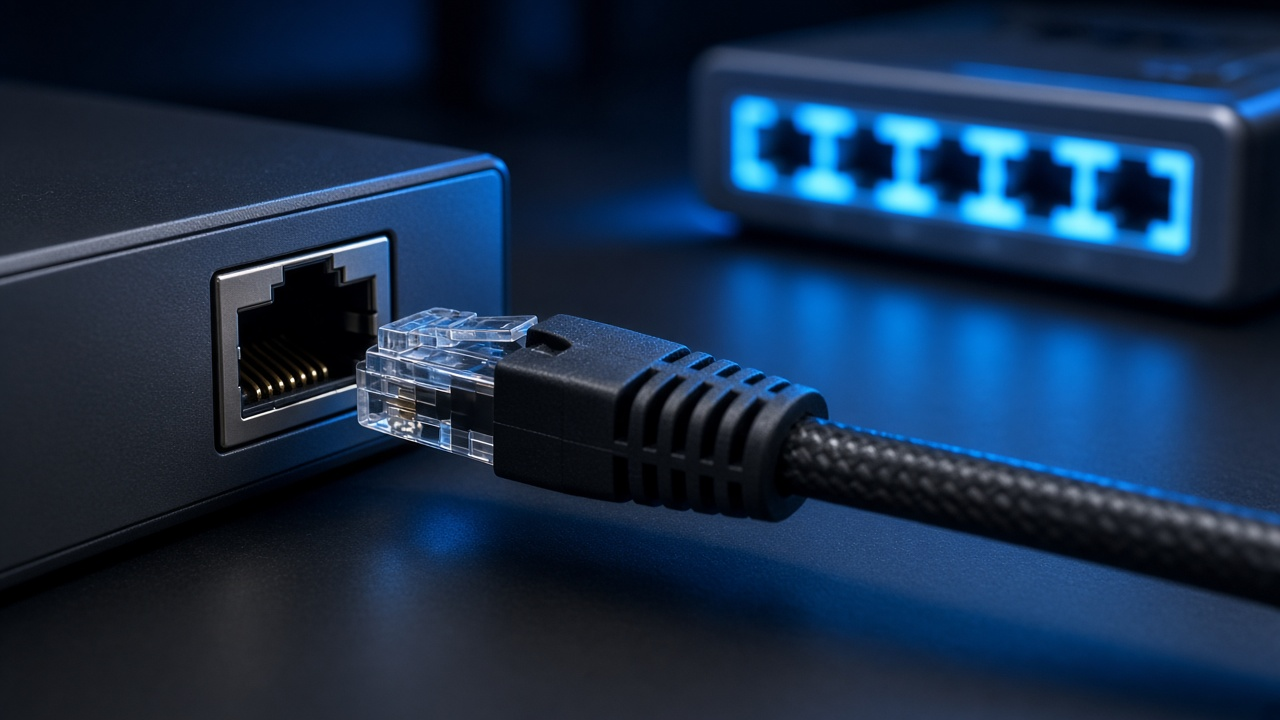
Upgrading to 2.5GbE and still seeing speeds stuck at 1Gbps? You're not alone. This issue usually traces back to overlooked hardware limitations rather than faulty cables or software settings.
Start with the switch. A 2.5GbE network interface card (NIC) will automatically throttle its speed to match the slowest device in the chain, and using a standard Gigabit switch will lock the link at 1Gbps. Many users expect their switch to adjust dynamically to higher speeds—but unless it explicitly supports 2.5GbE, that won’t happen. Always verify switch specs rather than relying on assumptions.
Port limitations on consumer-grade routers and modems often compound the problem. Even newer models frequently ship with only Gigabit ports. If any single device between source and destination is limited to 1Gbps, the entire network negotiation drops to match that weakest link.
Want full 2.5GbE throughput? Replace your switch with one that offers verified 2.5GbE or multi-gig support. Pay attention to product documentation: check both advertised speeds and which ports actually support them. A little research up front will avoid bottlenecks when connecting NAS units, desktop workstations, or high-bandwidth peripherals.
Why Your 2.5GbE NIC Could Be Slowing You Down
Old or Generic Drivers
Even when installing a NIC rated for 2.5GbE, driver support determines actual speed. Many chipset-integrated NICs, especially those from Realtek or older Intel families, need updated drivers to negotiate and hold a stable 2.5Gbps link. Without them, Windows or Linux often falls back to 1Gbps, or worse, 100Mbps, depending on how the OS interprets the hardware.
Driver packages from your motherboard manufacturer may lag behind those from the NIC vendor. Manufacturers frequently package outdated driver versions in system utilities or don't expose advanced settings like link speed negotiation. A quick driver update—sourced directly from chipset vendors like Realtek, Intel, or Aquantia—can immediately unlock the full bandwidth potential.
NIC Auto-Negotiation Flaws
When link speed is set to auto-negotiate on both NIC and switch, the behavior isn't always predictable. A mismatch in duplex mode between two supposedly compatible Ethernet devices often leads to significantly degraded performance. The NIC might connect at 1Gbps instead of 2.5Gbps, or in cases of severe mismatch, it defaults to half-duplex at 100 Mbps. This isn’t just a loss in headline speed—it creates an environment ripe for poorly timed retransmissions, excessive latency, and sharp throughput drops.
These failures appear deceptively subtle: transfer speeds drop without any clear connectivity loss. Users relying on system defaults never realize both sides failed to agree on the best available link parameters.
Power-Saving Features and Link Throttling
Auto-negotiation isn’t the only hidden obstacle. Laptops, ultrabooks, or OEM desktops often prioritize low power consumption over raw throughput. In such systems, Active State Power Management (ASPM), Energy Efficient Ethernet (EEE), or vendor-specific power-saving layers can silently dial down link consistency.
These features especially affect onboard 2.5GbE NICs when operating under thermal constraints or while on battery. The result: inconsistent link speeds, reduced send/receive buffer allocations, and dramatic TCP throughput penalties.
How to Fix It
- Set Speed Manually: Override auto-negotiation by locking the NIC at 2.5Gbps/full-duplex in the OS network interface settings or in the device firmware utility.
- Disable Power-Saving Options: Under Device Manager in Windows (or ethtool in Linux), turn off EEE, ASPM, and similar features found under advanced properties.
- Update Directly from Vendor: Bypass your system manufacturer's drivers. Download the latest chipset-specific package from Intel, Realtek, Aquantia, or others directly.
- Check OS and Firmware Compatibility: Confirm your NAS, router, or desktop OS supports the NIC in question. Some models require firmware patches or updated kernel modules to operate correctly at 2.5GbE.
Adjusting these settings only takes minutes and often unlocks bandwidth you've technically had all along. When transfer rates shoot past 115MB/s into the 280–290MB/s range, you'll know it's working.
Cable Quality & Length — Underestimating the Physical Layer
Is Your Cabling Holding Back Your 2.5GbE?
Ethernet cabling isn't just a passive conduit—it's an active participant in whether your 2.5GbE network delivers on its promise. Network speed isn't controlled only by switches or network interface cards. When cable quality and length are ignored, performance takes a hit.
Cat5e vs Cat6/6a: Margins Matter
Cat5e cables can technically support 2.5GbE under specific conditions, particularly over short distances. However, they operate closer to their limit, making them prone to signal degradation and crosstalk. These problems often lead to unreliable auto-negotiation, unstable links, or devices dropping down to lower speeds without clear warnings.
For structured cabling, Cat6 is a safer bet for runs up to 55 meters. Beyond that, Cat6a delivers full 2.5GbE performance up to 100 meters, thanks to improved shielding and reduced signal loss. When margin is low, even environmental interference—from fluorescent lighting to other cabling bundles—can tank your throughput.
Mid-Run Mistakes: Mixed or Unknown Cables
Upgrading your patch panel or router-to-switch cable is a good start, but the chain is only as strong as its weakest link. Many installations include forgotten or unlabeled segments—like a Cat5e patch cable behind a wall plate or a kinked jumper at the switch. These 'invisible' flaws can neutralize an otherwise compliant 2.5GbE path.
Shielding and bend radius affect performance too. Twisted-pair cables need room to breathe; tight corners or harsh bends increase impedance and reflection, especially at higher frequencies. At 2.5GbE and beyond, adherence to bending standards (typically a radius of at least four times the cable diameter) goes from optional to mandatory.
Detecting Degradation: Real Symptoms from Real-World Setups
- File transfers to your NAS inch along despite a switch and NIC upgrade.
- Connections feel unreliable—brief dropouts or failed link negotiation upon reboot.
- Devices report 1GbE speeds, even when rated for 2.5GbE or higher.
These issues don’t just point to configuration problems. In many cases, they're physical-layer failures waiting to be addressed.
Get Hands-On: How to Fix the Hidden Cable Problem
- Replace any unknown or older cables with certified Cat6 or Cat6a patch cords.
- Inspect every cable in the data path—from the NIC to the wall socket, patch panel to switch port.
- Use built-in diagnostics under your operating system’s network settings to verify the connection speed negotiated at both ends.
- Ensure bends meet minimum radius recommendations and that shielding remains intact, especially in high-interference environments.
Upgrading silicon does little when copper undermines the signal. A clear, verified cable path makes the difference between frustration and full-speed performance.
Why Your 2.5GbE Network Is Still Crawling: System Performance Limitations
CPU Load and Background Tasks Are Bigger Culprits Than You Think
A 2.5Gbps connection should, in ideal conditions, deliver up to 312.5MB/s. Yet, users often encounter real-world speeds closer to 180–250MB/s. The discrepancy doesn't always come from the network hardware itself. System resources—especially on software-based NAS devices and lower-powered machines—can throttle performance far below expectations.
When a device manages packet processing, encryption, or disk I/O operations entirely via software, the CPU becomes a critical bottleneck. Transfer sessions consume cycles, and if parallel tasks compete for the same resources, throughput takes a hit. This isn't rare—users relying on budget NAS solutions or fanless mini-PCs regularly face these constraints without realizing the root cause.
Check what happens on your system during transfers. Is the CPU spiking? Are background processes flaring up in resource monitors? Monitoring these metrics during live transfers can pinpoint exactly where the system is choking.
Your Storage Stack Can’t Keep Up—Especially in NAS Setups
Even with a clean 2.5GbE handshake, actual data movement stalls when the disks involved can’t read or write fast enough. This is especially relevant if mechanical drives or complex software RAID configurations are in play.
- Most 7200RPM HDDs, under optimal conditions, manage read/write speeds between 120–160MB/s—below theoretical max for 2.5GbE.
- RAID 5 or 6 configurations often add parity overhead that reduces throughput further, especially for small-file transfers.
- On the other hand, SSDs, particularly NVMe-based, sustain speeds well above the 2.5GbE envelope and avoid I/O bottlenecks.
If transfer speeds sag despite pristine network metrics, inspect drive performance using tools like CrystalDiskMark or fio. Sustained throughput under 250MB/s from either the source or target drive guarantees a network bottleneck will never be reached.
Jumbo Frames: Useful Only When Everything Plays Nice
When configured properly, jumbo frames—typically using an MTU of 9000 bytes—can reduce CPU load and improve transfer efficiency. However, when even one link in the chain misaligns with this setting, packets fragment, and performance craters.
The networking subsystem doesn’t automatically correct this. A mismatch between your switch port, NIC, or NAS MTU values forces packets to fragment or drop entirely, harming throughput while introducing unnecessary latency.
To verify consistency, check MTU values across all interfaces: on the switch, the server/client NICs, and the storage endpoint. Only when all units match on MTU and support jumbo frames will performance gains emerge. Otherwise, leave MTU at a standard 1500 to maintain stability.
There's a World of Difference Between Theory and Reality
Networking specs often quote theoretical maximums—2.5GbE translates to 312.5MB/s. But protocol overhead (TCP/IP stack handling, SMB/APFS/NFS inefficiencies) eats into that bandwidth before data ever hits the wire. CPU and disk latency further drag that number down.
Expecting real-world speeds of 240–250MB/s during large single-file transfers is reasonable—particularly over SMB when using SSDs and fast CPUs. Seeing sub-150MB/s? That signals interference at the system level, not the network layer.
Bring Your Systems Up to Speed
- Monitor CPU usage during active file transfers using htop, Task Manager, or Resource Monitor.
- Upgrade NAS and host devices with SSDs or SSD cache layers to eliminate I/O bottlenecks.
- Audit MTU settings across your network—switch ports, NICs, and all endpoints need to align.
- Disable or minimize background services during critical transfers, especially on older or embedded devices.
These adjustments won’t squeeze out every byte of theoretical performance—but they will restore lost capacity and bring you far closer to what a 2.5GbE link can genuinely deliver.
Before Blaming 2.5GbE, Look at the Entire Chain
Four common factors often explain why a 2.5GbE connection performs worse than a standard 1Gbps link: switch or port limitations, unstable NIC configurations, low-quality cables, and system resource bottlenecks. Each one can severely restrict throughput—and any single weak point is enough to derail the entire setup.
Fast networking requires consistency across every layer. A 2.5GbE-capable NIC won’t reach full potential if it’s communicating through a 1GbE switch or using a poorly crimped Cat5e cable. Likewise, a blazing-fast link won't deliver results if it’s connecting to a sluggish NAS with outdated firmware or high CPU load.
Instead of randomly upgrading hardware, start by identifying performance gaps:
- Check if your switches actually support 2.5GbE on the ports being used.
- Verify that the link speed displays as 2.5Gbps in the NIC properties.
- Inspect cable labels—Cat6 or higher cables under 55 meters are non-negotiable for reliability at 2.5Gbps.
- Run performance monitoring tools: CPU, disk I/O, and memory usage all impact network speed.
- Compare NAS and PC logs to see where latency or throttling gets introduced.
Try this: transfer a large file and watch both ends—does the CPU max out on one side? Does disk usage spike? These indicators will expose where the real bottleneck sits. Give the same scrutiny to system drivers, network stack settings, and protocols like SMB multi-channel or jumbo frames.
Skipping detailed diagnostics leads to misplaced assumptions. By contrast, a complete evaluation of the networking environment—starting with cables and ending at software settings—provides an accurate map of where optimization is needed next.