iPad & iPhone No Internet Expert Troubleshooting Guide (2026)
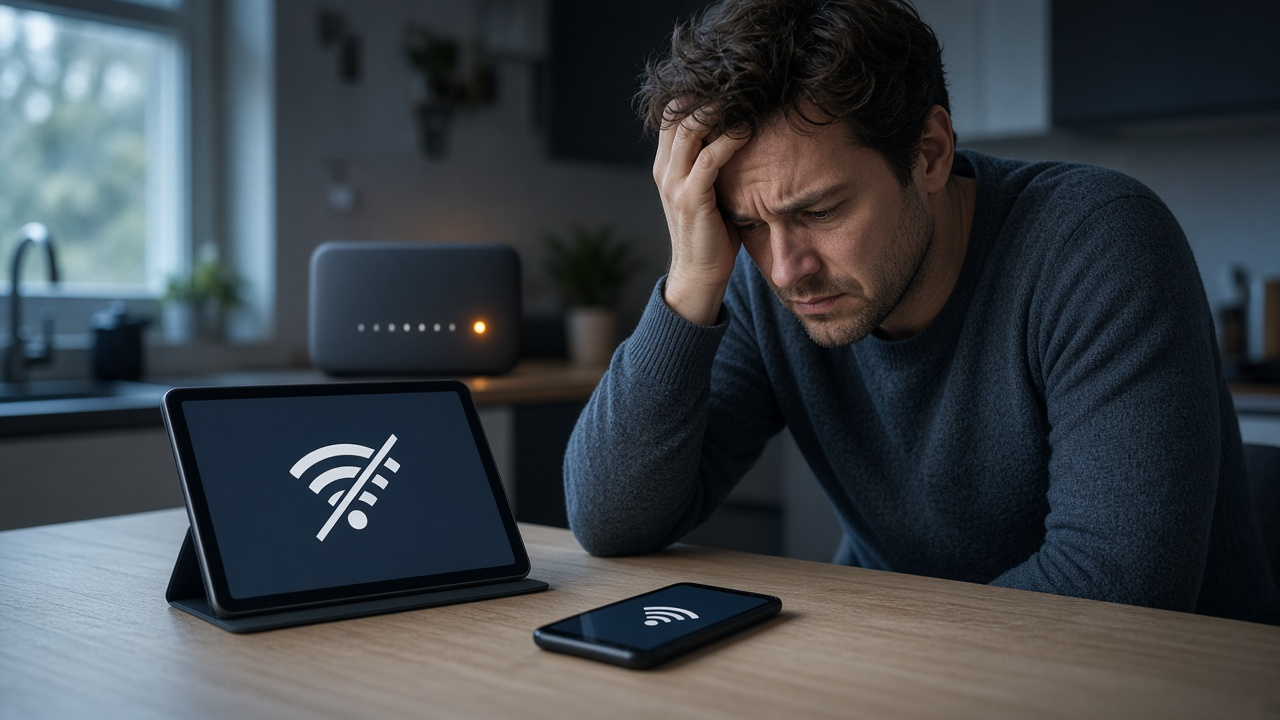
Connectivity glitches on your iPad or iPhone often trace back to temporary network conflicts. One rapid reset tool built into every iOS device sits quietly in the Control Center—Airplane Mode. By design, this feature disables all wireless radios, including Wi-Fi, cellular, and Bluetooth. Toggling Airplane Mode off and on forces the device to re-establish connections from scratch, clearing out minor configuration hiccups that may block internet access.
Start with these steps:
- Swipe down (or up, depending on your device) to open the Control Center.
- Tap the Airplane icon—you’ll see all wireless indicators go dark.
- Wait at least 10 seconds to flush any cached connections.
- Tap the icon again to return to normal mode. The device will reinitialize networking systems.
Break the Glitch Cycle: Restart Your iPhone or iPad
Modern devices, regardless of their processing power, occasionally need a reset. Network functions—especially those tied to DNS resolution, background processes, or Wi-Fi authentication—can get stuck in unpredictable failure states. A restart clears volatile memory, halts buggy background jobs, and forces a fresh load of system components. In many user tests, a simple reboot restored connectivity where all manual settings tweaking failed.
Soft Restart via Power Button
This is the standard procedure and works for most scenarios where the device is still responsive:
- iPhone X and later / iPad without Home Button: Press and hold the Side Button along with either Volume Up or Volume Down until the power slider appears. Drag the slider, wait for shutdown, then press the Side Button to power back on.
- iPhone 6, 7, 8 / iPad with Home Button: Press and hold the Top (or Side) Button until the power-off slider appears. Drag it, wait till shutdown completes, then hold the same button again until the Apple logo displays.
Force Reboot for Unresponsive Devices
When the screen is frozen or the system behaves erratically, a force restart recalibrates hardware and software interaction. It doesn't erase data—it triggers a low-level refresh of iOS subsystems.
- iPhone 8 and later / iPads with Face ID: Quickly press and release Volume Up, then Volume Down. Immediately press and hold the Side Button until the screen goes black and the Apple logo appears.
- iPhone 7 / 7 Plus: Hold the Volume Down and the Side Button simultaneously until the Apple logo appears.
- iPhone 6s, iPhone SE (1st gen), iPad with Home Button: Hold the Home Button and the Top (or Side) Button together until you see the Apple logo.
One timely reboot can often sidestep hours of network troubleshooting. Try it before diving deep into configuration changes—especially if Wi-Fi was working earlier and suddenly dropped.
Wi-Fi Connected but No Internet? Start with These Core Checks
Confirm You’re Connected to the Right Network
Begin by verifying that your iPhone or iPad is connected to the intended Wi-Fi network. Go to Settings > Wi-Fi and confirm the checkmark appears next to the correct network name. If you're on a public network or one with a similar name nearby (like “MyWiFi” vs. “MyWiFi_5G”)—you might be connected to a slower or restricted network without realizing it.
Look for Weak Signals or the “No Internet” Label
Even with the right network selected, a weak signal can block data transmission. Check the Wi-Fi symbol in the upper right corner—fewer bars mean lower signal strength. In some cases, you’ll also see a "No Internet Connection" warning directly under the network name in the Wi-Fi settings list. This indicates the device successfully joined the Wi-Fi network but couldn’t reach external servers.
Make Sure Wi-Fi is Actually Enabled
Go to Settings > Wi-Fi and confirm that the Wi-Fi toggle is turned ON. If it’s greyed out or inactive, software corruption or system settings limitations may be interfering. In rare cases, temporary bugs can disable this switch even after a reboot, requiring further diagnostics.
Test Internet Access with Safari or an App
Don’t rely solely on the Settings UI to conclude there’s no connection. Open Safari and visit a well-known website like apple.com. Alternatively, launch a dependable app such as Mail, Weather, or Messages and observe whether it loads fresh data. This quick test checks if your device is routing a real internet connection through the Wi-Fi interface or just showing a link to a LAN with no outbound access.
- If Safari returns a timeout or “Cannot Open Page,” the issue points to broken external access.
- If apps load data slowly or inconsistently, the Wi-Fi signal might be weak or saturated.
- No connection feedback at all? The gateway or DNS system may be misconfigured.
Forget and Rejoin Wi-Fi Network: A Precise Connection Reset
When your iPad or iPhone shows a stable Wi-Fi connection but refuses to load webpages or connect apps to the internet, the problem often lies deeper than signal strength. The device may hold onto outdated or corrupted network credentials. “Forgetting” the network purges this stored data, clearing the path for a fresh and accurate reconnection.
What “Forget This Network” Actually Does
Using this option deletes the saved password, IP settings, proxy configurations, and DNS references tied to the selected network. Once purged, the device treats the network as new. This process ensures that any misconfigured network data is removed before attempting another connection.
Steps to Forget and Rejoin a Wi-Fi Network
- Open the Settings app on your iPad or iPhone.
- Tap Wi-Fi to view available networks.
- Locate the active network and tap the ⓘ icon next to its name.
- Tap Forget This Network, then confirm the action.
- Return to the list of Wi-Fi networks, select your network again.
- Enter the Wi-Fi password when prompted, then tap Join.
This sequence will often resolve stubborn connectivity issues where the device appears connected but performs as if it’s offline. By eliminating cached authentication failures or bad DNS entries, the device negotiates a clean handshake with the router, restoring normal data flow.
Already tried this step before? The network may have changed configurations again. If prompted for a new password or if connection problems return, repeat this process to ensure all new settings register correctly.
Power Cycle Your Router and Modem for a Network-Wide Reset
When internet connectivity cuts out across multiple devices—not just a single iPhone or iPad—the issue likely stems from the router, the modem, or both. In this scenario, your Apple devices are not the problem—the network infrastructure is.
How to Properly Reboot Your Router and Modem
Unplugging the router or modem and immediately turning them back on won’t force a true reset. To fully clear cached memory and reestablish a new session with your internet service provider (ISP), follow this detailed process:
- Power down the modem by unplugging it from the wall.
- Do the same for the router if it's a separate device.
- Wait exactly 60 seconds. This delay allows residual power to drain from capacitors, wiping temporary settings.
- Reconnect the modem first, giving it 90 seconds to fully boot and reestablish the ISP link.
- Then power on the router and wait until all indicator lights stabilize—this can take up to two minutes.
After completing this sequence, reconnect your iPhone or iPad to Wi-Fi and test for restored connectivity. This reset will affect all devices on the network, so inform any other users before initiating it.
Understanding the Roles: Router vs. Modem
A modem communicates directly with your ISP, converting digital signals into data that reaches your home. The router then distributes this internet signal wirelessly to devices like your iPhone or iPad. In a combined unit, both functions are integrated. However, in a dual-device setup, failure in either component can interrupt service.
Optimize Router Placement for Mobile Use
Tablets like iPads rely heavily on Wi-Fi strength, especially when streaming or syncing iCloud data. Signal degradation happens when the router sits behind metal, inside cabinets, or near microwaves or cordless phones that create interference. To enhance signal spread:
- Place the router at table or shelf height, not on the floor.
- Keep it in a central location, away from corners or enclosed spaces.
- Ensure it's not near thick walls or mirrors that can absorb or reflect signal path.
Taking the time to reposition the router can boost signal stability and speed across your devices—especially noticeable on bandwidth-sensitive iPads.
DNS Configuration Check: Unlock Reliable Internet Access
Domain Name System (DNS) translates human-readable domain names like apple.com into IP addresses that devices use to communicate. If the DNS settings on your iPhone or iPad are misconfigured or corrupted, your browser might load nothing while the Wi-Fi signal remains full.
What Happens When DNS Breaks Down?
Every time you open a website, your device sends a DNS query to a server that returns the matching IP address. If the DNS server is unreachable, slow, or incorrectly set, the lookup fails. This failure blocks websites and apps from loading content, even though the network connection appears normal. Changing to a faster, more reliable DNS usually resolves this kind of disruption immediately.
How to Set Google’s Public DNS on iPhone or iPad
Follow these steps to manually configure your DNS to use Google’s servers—known for speed, reliability, and low latency:
- Open the Settings app.
- Tap Wi-Fi, then find your current connected network.
- Tap the small (i) icon next to the network name.
- Scroll down and tap Configure DNS.
- Select Manual.
- Tap Add Server and input 8.8.8.8.
- Repeat the process to add 8.8.4.4.
- Remove any obsolete or local DNS server entries if listed.
- Tap Save.
Results can be instant. Pages that stalled might start loading right away, and app connectivity issues often disappear. Switching to a high-performance DNS eliminates guesswork in resolving name resolution delays.
Check Proxy and VPN Interference
Proxy servers and VPNs can reroute internet traffic in ways that block or slow down connections. On iPhones and iPads, these tools often integrate deeply into the device’s networking stack, which can lead to apps failing to load data or showing "No Internet" even when the signal is strong. Misconfigured VPNs or proxies, especially ones using private DNS or split tunneling, frequently create these types of conflicts.
Evaluate VPN Impact Quickly
To determine if a VPN is causing the disruption, disable it temporarily and look for an immediate change in connectivity. Some corporate or school devices may auto-connect to VPNs through a managed profile, which can be more difficult to disable without admin access.
- Open the Settings app.
- Go to General → VPN & Device Management.
- Locate the active VPN connection and toggle it Off.
After you disable the VPN, test the internet connection in Safari, Mail, or any other app that previously failed. If pages load or content updates, the VPN was acting as a choke point. Some VPN apps also install profiles under “General → VPN & Device Management” that may persist even after the app is deleted—these configurations can continue to redirect traffic unless manually removed.
Unpack Proxy Settings
Proxies come into play when devices are configured to route traffic through a local or remote server—often used in enterprise networks or parental control setups. While typical home users rarely set these manually, some Wi-Fi networks inject automatic proxy configurations (PAC files) without prompting.
- Navigate to Settings → Wi-Fi.
- Tap the (i) next to the connected network.
- Scroll to HTTP Proxy. Verify whether it’s set to Manual or Auto.
- Set it to Off to bypass proxy routing.
Disabling proxies will restore the device’s direct connection path to services, eliminating artificial bottlenecks or filtering layers that can cause delayed responses or total outages. If using a corporate-configured iPhone or iPad, the proxy or VPN restrictions may be locked by a Mobile Device Management (MDM) system, which requires IT intervention to modify.
Has your company or school issued your device? If so, request network policy clarification from the administrator—many use VPN tunnels or DNS filtering solutions that may restrict domains, slow access, or misroute traffic meant for public servers.
Cellular Offline? Dig Into These Expert-Level Fixes
Confirm Cellular Data is Enabled
Start at the source. Go to Settings → Cellular (or Settings → Mobile Data in some regions) and verify that Cellular Data is switched on. If the toggle is already active, flip it off for a few seconds and turn it back on to reinitialize the connection.
Inspect App-Level Data Permissions
Within the same Cellular settings screen, scroll down through the list of apps. Each one should have a toggle next to it. If Safari, Mail, or other apps that access the internet are disabled, re-enable them.
- Safari disabled under Cellular? It won’t fetch web pages outside Wi-Fi.
- Mail? No new emails will appear without that data pipeline open.
This setting often goes unnoticed, especially after OS updates or data restriction prompts.
Remove and Reinsert the SIM Card
For iPhones and iPads with physical SIMs, eject the SIM card using a SIM pin (or a small paperclip), wait 10–15 seconds, and reinsert it carefully. This reseating process prompts the device to re-register with the carrier’s network.
For devices with eSIMs, skip this step — proceed to resetting network functions later in the guide.
Toggle Between LTE, 5G, and Lower Networks
Signal instability can arise from faulty carrier support in your current data mode. Navigate to Settings → Cellular → Cellular Data Options → Voice & Data. Alternate between:
- 5G Auto
- LTE (4G)
- 3G, if shown (older devices or poor reception areas)
After switching, wait 30 seconds to allow re-registration with the new radio band. This test confirms whether the issue lies in a corrupted 5G or LTE handshake.
Reset Network Settings to Eliminate Hidden Configuration Conflicts
When connectivity issues defy basic fixes, resetting network settings on your iPhone or iPad resolves persistent underlying misconfigurations. This process wipes all stored network data—Wi-Fi credentials, cellular setup profiles, VPN settings, and Bluetooth pairings—without affecting apps, photos, or other personal files.
What Happens During a Network Settings Reset?
The reset clears:
- All Wi-Fi networks and passwords
- Custom DNS entries or manual IP configurations
- Any saved VPN and APN settings
- Bluetooth pairings and preference files
After the reset, the device restarts and reverts to the factory network defaults, removing conditions that can disrupt internet access but are hard to isolate manually.
Navigate the Reset Process Step by Step
Follow these precise steps to reset network settings on your iPhone or iPad:
- Open the Settings app.
- Tap General.
- Scroll down and select Transfer or Reset iPhone/iPad.
- Tap Reset.
- Choose Reset Network Settings.
- Enter your device passcode when prompted and confirm the reset.
The device will reboot. After login, expect to rejoin your home or office Wi-Fi network manually. Re-enter Wi-Fi passwords and reconnect any Bluetooth devices. VPN and cellular settings from carriers may reload automatically, depending on your provider—with some requiring reconfiguration.
Why This Step Fixes Elusive Internet Failures
Incorrect or conflicting settings introduced by apps, configuration profiles, or earlier network changes can survive software updates. A full reset clears out that debris in one move, reestablishing a clean slate. If earlier steps failed to restore internet connectivity, this step often succeeds where others have not.
Install the Latest iOS Version to Eliminate Known Connectivity Bugs
Apple routinely releases iOS updates that patch software bugs, including those that directly affect internet connectivity. Wi-Fi drops, airplane mode glitches, and proxy configuration errors have all been traced back to faults in earlier versions of iOS. Updating directly addresses these issues.
Documented Cases of Connectivity Issues Resolved via Updates
Version histories of iOS demonstrate a clear pattern: system updates frequently include fixes for network-related failures. For instance, iOS 14.0.1 resolved a bug that caused loss of Wi-Fi after reboot. iOS 15.1 addressed a problem where devices failed to reconnect to known networks automatically. More recently, iOS 16.3 included a fix for sporadic DNS lookup issues affecting proxy configurations.
Patterns in user reports across forums like Apple Support Communities and Reddit revealed heightened complaints tied to specific iOS versions. Following updates, complaint volumes typically dropped, indicating a causal resolution.
Check for the Latest iOS Update
To begin the update process, follow this navigation path on your iPhone or iPad:
- Open the Settings app.
- Tap General.
- Select Software Update.
If a newer iOS version appears, tap Download and Install. The system will handle everything else, but make sure the device is connected to Wi-Fi and has sufficient battery charge—or plug it in to avoid interruptions.
Application Compatibility Also Depends on iOS Version
Outdated versions of iOS often limit compatibility with networking frameworks used by third-party apps. Developers align their updates with Apple’s latest APIs, optimizing for security, performance, and connection stability. Running modern apps on out-of-date systems frequently backfires. Network calls may time out or crash without consistent patterns, making issues difficult to trace. Simply updating iOS eliminates this variable.