How To Use YouTube's Parental Controls 2026
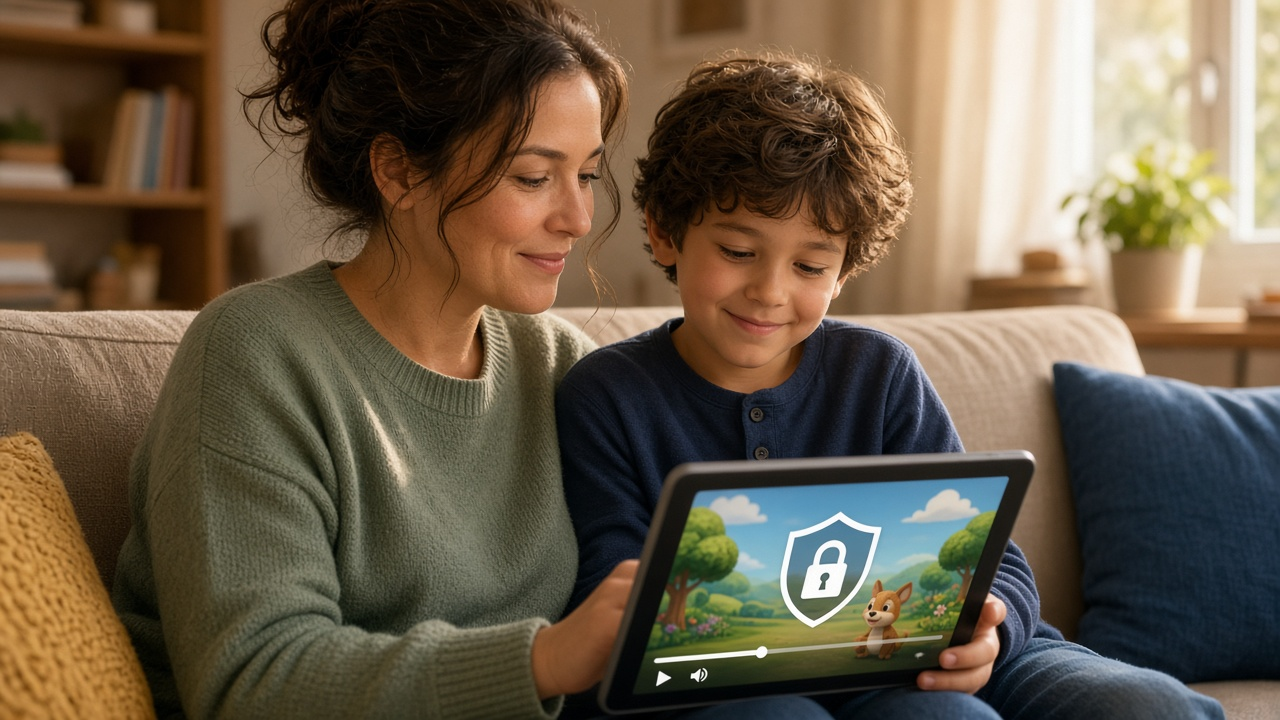
Over 80% of American families with children under 11 turn to YouTube for entertainment, learning, or both (Pew Research Center, 2020). Endless cartoons, DIY science projects, and educational channels offer young users abundant opportunities, yet, unfiltered access opens the door to mature themes, targeted advertising, and contact with strangers. As a parent or guardian, how can you ensure your child avoids inappropriate content while exploring the best of what YouTube delivers? Have you wondered what controls exist to protect kids’ privacy or limit screen time?
This comprehensive guide demonstrates every step needed to configure YouTube’s parental controls, separate safe viewing from risky media, protect your child’s personal information, and foster digital well-being. Ready to take charge? Let’s begin with actionable strategies tailored for today’s digital families.
Understanding YouTube’s Parental Controls
What Are Parental Controls on YouTube?
Parental controls on YouTube refer to a collection of settings and tools that directly limit or customize the kind of content a child can access through the platform. These controls extend across standard YouTube, YouTube Kids, and supervised Google accounts, and are designed to help parents and guardians oversee their child’s online experience. By leveraging these built-in features, adults guarantee that children encounter only videos curated for their developmental stages.
How These Controls Help Parents and Families
Families use YouTube’s parental controls to actively reduce exposure to mature or unsuitable content. Restricted Mode, content filters, and supervised experiences give adults precise command over what kids see. When a parent enables such controls, they set clear digital boundaries—think of it as tailoring the YouTube experience to reflect a household’s specific values and concerns. Have you explored these settings together as a family, discussing which filters feel most relevant?
- Restricted Mode automatically eliminates a wide range of potentially mature content, although the platform relies on algorithmic and community signals rather than manual review.
- YouTube Kids segments videos into groups such as “Pre-school,” “Younger,” or “Older,” with each progressing age band increasing content variety and complexity.
- Supervised accounts allow teens and tweens to use mainline YouTube with parent-set content restrictions applied; results include blocked search features and removed access to comments (for younger ages).
Age-Appropriate Content and User Experience
Children under 13 cannot independently sign up for a standard YouTube account, and Google’s Family Link app governs those using supervised accounts between the ages of 13 and 17. Age-appropriate controls rely on content ratings, community guidelines, and machine learning to flag unsuitable media—YouTube Kids applies stricter human review layers than main YouTube. By toggling on these controls, you shape a browsing environment attuned to your child’s cognitive and emotional level, minimizing distractions and disruptions.
Explore how your child interacts with YouTube. Do they gravitate to animation or science channels? Parental controls create both guardrails and discovery avenues that match their interests while filtering risks.
Mastering YouTube Restricted Mode: Filter Content and Secure Viewing
How Restricted Mode Filters Mature Content
YouTube’s Restricted Mode dynamically reduces access to potentially mature or inappropriate material by relying on a combination of automated systems and user feedback signals. When activated, the mode hides videos flagged as unsuitable based on title, metadata, and user reviews. Machine learning algorithms play a key role: they continuously scan for content that may not align with a family-friendly environment. According to YouTube Help, this feature excludes about 1.5% of all videos, focusing on blocking content that references explicit language, sexual situations, or violence (support.google.com/youtube/answer/174084).
Steps to Turn ON Restricted Mode on Various Devices
Steps differ slightly across devices, so exploring each app’s settings menu uncovers the correct toggle location. Every adjustment affects only the current device or browser unless locked or synchronized with an account.
Tips for Making Restricted Mode Stick Across Devices and Accounts
- Sign in and enable Restricted Mode on each specific device or browser; this setting does not automatically carry over to new environments.
- Use the Lock Restricted Mode option in browsers to prevent unauthorized changes—only users with account credentials can modify the setting once locked.
- For households with multiple users or children who share devices, create supervised accounts via Google Family Link for a persistent restriction; syncing restrictions with supervised profiles keeps the filter active even after sign-out or app updates.
Which devices in your home most often serve as entertainment hubs? Test Restricted Mode on one today, then verify that filter results match your expectations by searching for common mature keywords. If some content slips through, submitting feedback directly to YouTube aids in improving the filter’s precision over time. How much of your child’s usage shifts between desktop and mobile platforms during the week? Reviewing these trends helps determine where to prioritize initial setup efforts.
Creating and Managing a YouTube Kids Account: Practical Steps for Parents
YouTube Kids vs. Regular YouTube: Key Differences
Regular YouTube offers unrestricted access to millions of videos, ranging across every genre, age group, and interest. Young viewers encounter a higher risk of seeing content that’s not suitable, even with Restricted Mode enabled. By contrast, YouTube Kids stands as a platform specifically designed for children aged 12 and under, filtering much of the potentially inappropriate content using both automated systems and human review. The interface features larger icons, minimal text, and simplified navigation, making it user-friendly for early readers. Parental controls on YouTube Kids operate separately from the main YouTube app, delivering options to block content, set screen time limits, and approve trusted video sources.
Step-by-Step Setup for a Kid’s Account
Parents need only their own Google account to create a YouTube Kids profile. Here’s how to get started:
- Download the YouTube Kids app on a compatible device (available for Android and iOS).
- Open the app and tap I'm a Parent, then follow the prompts—these include reading and agreeing to the privacy notice and parental consent forms.
- When requested, sign in with your personal Google account. Signing in provides greater control, such as unlocking profile management and viewing history tools.
- Create a profile for each child by entering their name, age, and birth month and year. This step helps tailor video recommendations to developmental stage.
Not sure which age group to choose? During this setup, select from three age categories: Preschool (ages 4 and under), Younger (ages 5-8), and Older (ages 9-12). The app uses these selections to filter content—preschoolers see singalongs and gentle cartoons, older children receive science, music, and gaming videos.
Customizing Your Child’s Experience
YouTube Kids supports up to eight customizable profiles per Google account, allowing a family to set individual preferences. Next, refine each child’s viewing experience:
- Adjust Search Settings: Disable the search function to restrict your child to content curated by YouTube Kids. Leave it enabled for limited, algorithm-driven exploration within the app.
- Filter individual videos or channels: Long-press any video or channel thumbnail, then tap Block to prevent future appearances on that child’s profile.
- Approved Content Only mode: Handpick every channel or video you want your child to access. The app disables found content and restricts all browsing to the approved list, letting parents act as the sole gatekeeper of media exposure.
- Set screen time limits: Built-in timers available directly in the app prompt children with a friendly “Time’s up!” when the allotted session ends.
What works for one child may not work for another—experiment with different setups, and adjust permissions as your child matures or their interests shift. How would you personalize each child’s settings to match their learning needs and screen habits?
Filtering Inappropriate Content on YouTube
Built-in Filtering Options in YouTube and YouTube Kids
YouTube and YouTube Kids platforms deploy automated systems to identify and filter content unsuitable for children. On standard YouTube, Restricted Mode relies on algorithms that consider signals like video titles, metadata, actual content within the video, and user age restrictions. According to YouTube Help, this mode filters out content flagged as adult, violent, or otherwise inappropriate; however, you must activate it manually on every browser and device.
For families using YouTube Kids, robust content curation acts as the first line of defense. Machine learning algorithms continuously scan uploads, while a dedicated human review team manually assesses flagged content. With customizable profiles, parents can select content levels—“Younger,” “Older,” or “Approved Content Only”—each determining channel and video availability for every child’s profile.
- Restricted Mode on the main platform targets general sensitive content filters.
- YouTube Kids delivers deeper filtering, supporting both algorithmic and human review layers.
- Approved Content Only mode in YouTube Kids grants parents full control, so children see only what is expressly permitted.
Reporting Features and Their Role in Content Filtering
When you notice an inappropriate video slipping through, take direct action by using the reporting tools. The “Report” button, visible below most videos and across comments, triggers an immediate review. YouTube’s moderation queue receives the reported content, where human evaluators assess whether it violates community guidelines.
Accumulated reports from users accelerate this process. According to Google’s 2023 Transparency Report, YouTube removed over 8.7 million videos in Q3 of 2023—65% of them flagged by automated systems, with the remaining identified via manual reporting and review. High-volume, consistent reports from parents and caregivers drive improvements in the recommender system, fine-tuning future filters and reducing exposure to unwanted material.
- Rapid action results when reporting is combined with algorithmic screening.
- Community feedback teaches and shapes what gets filtered or removed in upcoming updates.
Limitations Parents Should Recognize
Despite sophisticated systems, automated and human filters miss some content, especially when offensive material is disguised behind misleading thumbnails, innocent-sounding titles, or encrypted in comments. Algorithms prioritize removal of obviously abusive content, yet subtler cases may not trigger automatic blocking. A 2019 Pew Research Center study found that nearly 34% of parents using YouTube Kids reported encountering inappropriate content at least once, underlining that filtering tools provide significant—but not absolute—protection.
When setting expectations, always consider that manual review teams may face delayed response times during spikes in reporting, while language-specific nuances in videos or descriptions present additional hurdles. No parental control system guarantees 100% effectiveness; adjust monitoring efforts accordingly and take prompt action by reporting concerning material when you see it.
- Some inappropriate content evades both automated and human filters.
- Language barriers and censorship evasion tactics reduce filter accuracy.
- Constant parental engagement closes the gap left by imperfect automated tools.
Reflect for a moment: have you checked the filtered video lists on your child’s account recently? If not, take a look and see firsthand how these controls are working in practice. While YouTube’s protective layers work in the background, your active participation can fine-tune the safety net for your family.
Mastering Screen Time and Viewing History on YouTube
Choose Smart Tools to Track and Limit Screen Time
YouTube offers in-app features and external tools to help you manage how long your child spends on the platform. Within the YouTube app, the “Time Watched” dashboard breaks down daily usage with granular detail—showing how much time the account has spent watching videos today, yesterday, and across the week. To access this, tap the account icon, select “Time watched,” and review the insights.
- Remind Me to Take a Break: Activate reminders by opening “Time watched” settings and selecting the option to receive periodic prompts for breaks. Users can set custom reminder intervals, starting at 15-minute increments.
- Daily Limit Settings: Set a daily time limit through “Remind me when it’s time to stop watching.” Once the threshold is reached, the app interrupts viewing with a notification.
- External Management via Family Link: Google Family Link enables parents to set device-wide or app-specific screen time limits across Android or Chromebook devices. For instance, after reaching the preset daily YouTube limit, the app will be inaccessible unless the parent modifies the restriction.
Consider these tools a way to facilitate mindful screen usage rather than enforce punitive restrictions. Which features will best match your family’s viewing routines?
Monitor and Erase Watch and Search History
Every video your child watches gets logged in the YouTube Watch History. This log influences future video recommendations. Quickly review the full history by navigating to “Library” → “History” in the app or desktop site. The Search History, accessible from the search bar, shows every search term entered from that account.
- Clearing Everything: Remove all entries by selecting “Clear all watch history” and “Clear all search history” from the “History controls” menu.
- Selective Deletion: Instead of wiping the entire history, delete specific videos or search terms individually by tapping the three-dot menu next to each entry and choosing “Remove from Watch history” or “Remove from Search history.”
- Pausing History: To prevent further tracking, activate “Pause watch history” and “Pause search history.” With these enabled, new activity will not be logged until you return and turn the feature off.
Regularly reviewing history not only reveals your child's content preferences but also acts as an early warning for exposure to unwanted material. What insights does your child's watch history reveal about their interests or habits?
Promote Healthy Viewing Habits
Building positive screen habits starts with open conversation. Encourage children to choose purposeful, high-quality content and set viewing goals together. Research from the American Academy of Pediatrics (2016) recommends limiting screen time for children aged 6 years and older to no more than 1 to 2 hours per day of quality programming; for children under 6, co-viewing and joint discussion improve comprehension and balance.
- Co-create a viewing schedule instead of leaving screen time unstructured.
- Discuss what makes a video positive, educational, or worth sharing.
- Suggest breaks—stepping outside, reading, or talking about what they’ve watched.
- Ask children to explain their favorite channels or content. What do they like about them? Do these choices align with your family's values?
With monitoring tools, a transparent approach to viewing history, and ongoing conversations, your child will learn to use YouTube not only safely but also thoughtfully.
Blocking or Reporting Content and Channels on YouTube: Step-by-Step Professional Guidance
Instructions for Blocking Individual Videos and Entire Channels
Even the most rigorous parental controls leave space for objectionable videos or creators to appear. Blocking serves as a direct way to prevent children from accessing specific videos or channels. Here’s the process on both regular YouTube and YouTube Kids:
- On YouTube: While YouTube’s main platform does not offer an integrated block feature for videos, you can block a channel. Select the profile image of the channel, click the About tab, and press Block user. Confirm the choice. The blocked channel cannot comment on your child’s videos and will not appear in recommendations, searches, or subscriptions from that account.
- Within YouTube Kids: Locate the three-dot menu next to a video or channel. After selecting “Block,” choose whether the block applies to this specific video or the entire channel. Enter your custom passcode or the numbers prompted on screen to finalize the block. Videos and channels blocked in YouTube Kids disappear from the child’s interface immediately.
How to Report Content That Violates YouTube Guidelines
Reporting makes inappropriate, dangerous, or misleading content more visible to YouTube moderators. To report a video, click the three dots beside the title or below the player. Select “Report,” pick the reason (such as “harmful or dangerous acts” or “sexual content”), then follow on-screen instructions to submit. For entire channels, click the “About” tab and choose “Report user,” specifying violations like spam, abuse, or criminal content. Moderators regularly review these reports, and YouTube’s 2022 Transparency Report indicates over 5.6 million videos were removed that year due to violations.
Best Practices: Monitor What Kids Flag or Block
- Keep communication active. Regularly discuss with your child what content they have flagged or blocked and why.
- Review blocked and reported items through the parent or Family Link dashboard on YouTube Kids to stay informed about your child’s digital environment.
- Encourage critical thinking: Ask your child why something made them uncomfortable and use their experiences to reinforce your household’s online safety values.
- Occasionally unblock content after discussion to help children differentiate between mature, genuinely inappropriate, and simply unfamiliar material.
Setting Up Family Link for Supervised Accounts
What is Google Family Link?
Google Family Link enables parents and guardians to manage a child’s digital experience. Through a connected dashboard, Family Link allows you to create a supervised account for anyone under 13 (or the applicable age in your region), giving you oversight of the Google services they use—YouTube included. Parents receive direct access to adjust settings, monitor activity, and guide what children can explore online.
Linking Google Accounts for Supervised YouTube Access
First, a parent must install the Google Family Link app on their device. After opening the app, you select ‘Create account’ for your child or link an existing Google account for the child’s supervision. The app prompts for basic details, including the child's name, birthdate, and email. Once the child’s device joins the Family Group, you designate necessary settings.
- Download Family Link from the Google Play Store or Apple App Store.
- Open the app, then choose to create a new Google account for the child or link an existing account.
- Follow on-screen instructions to complete the setup, entering the requested verification codes and parental authentication.
- The parent’s account now manages the child’s supervised account, connecting it to Family Group services, including YouTube.
Through this linkage, the child receives access to YouTube with content and features filtered according to age and family preferences, but without unrestricted freedom like a standard account would allow.
Adjusting Permissions and Controls via Family Link
Family Link provides granular control over account features and privacy. Parents manage permissions directly from their device, choosing what the child can or cannot do on YouTube. For instance, you can set restrictions on searching, limit video recommendations, and block channels. The app dashboard lists activity history, and you can set content maturity levels for supervised accounts (such as “Explore,” “Explore More,” or “Most of YouTube”—each tier applies stricter controls; source: Google).
- Access the child’s profile in the Family Link app.
- Choose ‘Controls’, then ‘Content Restrictions’ to set maturity levels and supervise search settings.
- Toggle features like search bar visibility and autoplay options on or off—customizing the supervised YouTube experience.
- Block or allow specific channels quickly, while periodic notifications inform you of watched content and major activity changes.
- Modify time limits or schedule device downtimes directly from the app, ensuring a healthy balance of screen time.
Which control do you find most valuable for your family? Reflect on your children’s needs and experiment with the available Family Link tools to create a safer, more tailored viewing experience.
Understanding Privacy and Data Settings for Children on YouTube
Key Privacy Settings Every Parent Should Know
Children’s digital privacy on YouTube relies on a combination of platform-specific settings and account management tools. Google Family Link enables adults to customize privacy choices for child accounts. Within Family Link, turning on activity controls such as “Web & App Activity” and “YouTube Search History” will allow you to monitor your child’s search and watch behavior, which gives you direct oversight. However, disabling these options prevents logging and storing this data, tightening personal information security.
- Public profile details can be adjusted in the account settings, hiding visible likes, subscriptions, and playlist activity from other users.
- A supervised account on YouTube automatically restricts access to comment, create or upload videos, and engage in live chat, reducing exposure to privacy risks.
- The ""Manage Settings"" menu under Family Link displays every privacy control available for that child’s Google Account.
If you activate “Restricted Mode,” it works as an additional safeguard, filtering out flagged and sensitive content, although it does not guarantee full content filtering.
Controlling Data Collection and Ad Personalization
YouTube accounts for users under age 13, as well as supervised experiences for those under 18, come with limited personalized advertising in compliance with COPPA (Children’s Online Privacy Protection Act). This approach restricts the use of personal identifiers such as device ID and browsing behavior for ad targeting. In supervised accounts, personalized ads are entirely disabled, resulting in generic, contextual advertising instead.
- Visit myaccount.google.com/data-and-privacy to adjust ad settings. Here, you will see “Ad Personalization” can be switched off for a child account, further reducing data tracking.
- YouTube disables comment sections and disables most features requiring data sharing when a video is marked “Made for Kids,” reducing the risk of accidental data exposure.
If a parent wants to disable all data tracking features, toggling off “Web & App Activity” in Family Link ensures that both search and watch history are never stored.
Explaining Privacy Basics to Your Child
Help your child understand online privacy by discussing real, relatable examples. Ask your child: “What do you think happens when you comment on a video?” or “Why shouldn’t you share your last name in a profile?” Guide them through privacy settings using visual cues—show how to hide likes or restrict profile information.
- Describe the difference between public and private information by using their favorite channels versus their own account as an example.
- Prompt your child to think before sharing any information. Pose a question: “If you wouldn’t shout this in public, should you post it online?”
- Regularly check in and review their settings together, reinforcing positive privacy habits and addressing new questions as they arise.
Hands-on walkthroughs with direct supervision, paired with ongoing conversations, build knowledge and comfort with privacy tools on YouTube.
Adjusting Search and Autoplay Options on YouTube
How to Disable or Limit Search Features
Take control over what your child discovers by managing the search function. On YouTube Kids, you can completely turn off the ability to search for new videos. Open Settings from the lock icon in the bottom corner of the app. Select the child's profile, then toggle the Allow searching option off. When this setting is disabled, children can only view content from channels verified by YouTube Kids, dramatically narrowing exposure to unreviewed material.
- Family Link Connection: Parents using Google Family Link receive an additional layer of control. From the Family Link app, navigate to the child’s Google Account, select Manage settings, choose YouTube Kids, and then disable Search.
- YouTube (Main App): Search disabling is not available in the standard YouTube app, but Restricted Mode minimizes search results with mature content.
Turning Autoplay Off to Prevent Endless Viewing
Continuous video streaming often leads to excessive viewing sessions. YouTube’s Autoplay feature queues up new videos as soon as the current one ends. This setting is on by default for both YouTube and YouTube Kids.
- To turn it off in the YouTube app: Tap any video to bring up the player controls, locate the Autoplay switch (typically found at the top of suggested videos in portrait mode, or at the bottom in landscape mode) and toggle it to the off position.
- Within YouTube Kids: From the video player screen, tap the Autoplay icon on the lower right after starting any video; the icon will change to indicate that Autoplay has been deactivated.
This adjustment stops the next recommended video from playing automatically, forcing the user to make an active decision before watching more content.
Impact of Autoplay and Search on User Content Discovery
Search and Autoplay drive much of the content discovery process on YouTube. The platform’s algorithms, according to a Common Sense Media report, suggest increasingly diverse—and sometimes unpredictable—videos to the viewer. Disabling search restricts exploration to a curated selection, while turning off Autoplay eliminates the possibility of children stumbling onto unrelated recommendations. These actions, in combination, greatly limit the chance of unvetted videos interrupting your child's experience and give you greater confidence in the content they consume.
Does your household need tighter boundaries around video discovery? Testing both settings for a week can highlight their impact on your child's viewing habits and help you strike the right balance of variety and oversight.
Guide Your Family's YouTube Experience with Confidence
Navigating YouTube’s vast content library as a parent calls for both technical know-how and ongoing engagement. By employing parental controls, families can influence the types of videos kids discover, track viewing history, and filter unwelcome material.
Restricted Mode filters out a significant portion of mature content, while YouTube Kids offers a separate, customizable experience. Google's Family Link enables direct supervision of supervised accounts, extending parental presence across devices.
Take advantage of options like blocking specific channels, disabling search, and adjusting autoplay. Encourage children to ask questions about online content; this conversation sharpens their awareness and deepens trust between user and parent.
Since YouTube’s platform and features evolve, revisit your control settings regularly. Algorithms change, new content surfaces, and your approach should adapt in response.
Ready to make a difference? Keep your family safer online—review your parental controls on YouTube today!
Additional Resources for Families
- Visit YouTube’s official parental controls guide for step-by-step instructions and FAQs.
- For expanded digital wellbeing, explore Google’s Family Link resource page covering supervised accounts and device management.
- Join conversations with other parents inside the YouTube Help Community; exchange tips and stay informed.