How to setup Port Forwarding & bypass CGNAT August 2026
Unveiling the Power of Port Forwarding
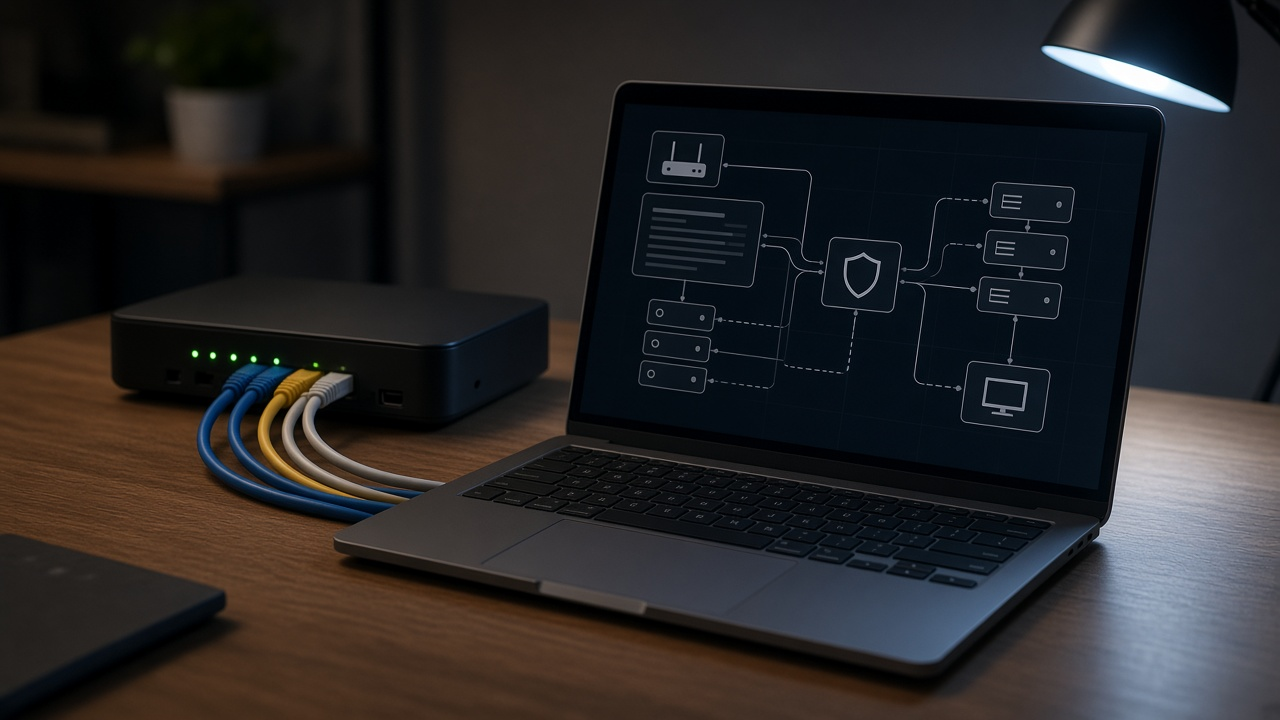
Port forwarding stands as the bedrock for directing traffic on a network, a key to unlocking remote access services with precision. Within the realms of home and business networks, this technique allows smooth ingress and egress of requests and data, funneling them to specific devices based on predetermined parameters. Picture the scenario where access to an FTP server from a nondescript location is needed — port forwarding steps in to create a seamless bridge across the digital divide. Furthermore, the meticulous application of port forwarding not only increases accessibility but also amplifies the performance and functionality of specialized applications and devices, honing your network's ability to meet diverse demands.
Decoding CGNAT: How ISPs Manage IP Addresses
Carrier-Grade Network Address Translation (CGNAT) serves as a technique used by Internet Service Providers to extend the life of IPv4 addresses. Address depletion poses a significant challenge due to the limited number of IPv4 addresses available; CGNAT enables ISPs to mitigate this challenge. By allowing multiple end-users to share a single IP address, CGNAT alleviates the demand for a unique public IP for every customer.
Unpacking the Consequences of Shared IP Addresses
CGNAT directly affects the nature of public and private IP addresses. Customers under CGNAT share a common public IP address, while each device maintains a unique private IP address within the local network. This layered approach to IP allocation causes a fundamental shift in how devices are identified and reached on the internet.
The presence of a CGNAT complicates the process of setting up port forwarding. Port forwarding traditionally allows external devices to connect to a specific device within a private network by mapping a port number to a private IP address. With CGNAT in place, a layer of complexity is added as users do not have control over the public IP address, and inbound connections must pass through an additional translation layer. This condition may prevent the implementation of standard port forwarding configurations, compelling users to seek alternate solutions.
The Significance of Public IP Addresses in Networking
Public IP addresses serve as unique identifiers for devices on the internet, allowing for direct communication between different networks. With a utility akin to street addresses for postal services, these addresses ensure data packets reach their intended destination across the global network.
In contrast, private IP addresses operate within local networks. They are reused in multiple private networks but cannot direct traffic through the internet without translation by a router. A private IP address identifies a device on a local network, but a public IP address identifies a device globally.
Lacking a public IP address impacts the functionality of internet-based services. For instance, an FTP server or a gaming console without a public IP address may become inaccessible from external networks. Such devices rely on inbound connections which, without a public address, could be severely restricted or entirely blocked, thereby hindering connectivity and service usability.
Identifying if You're Behind CGNAT
Determining whether your network is configured behind Carrier-Grade Network Address Translation (CGNAT) is a straightforward process. Recognize that your inability to control port forwarding may stem from a CGNAT environment, which affects your network's public IP address visibility. To begin the assessment, you will need to check your IP address.
How to Determine if Your Network is Behind CGNAT
Analyze your WAN (Wide Area Network) IP address by logging into your router's admin interface. Compare this address to the one displayed on an IP-checking website. Should these IP addresses differ, your network likely operates under CGNAT. Specifically, if the WAN IP is a private address, typically starting with 10.x.x.x, 100.64.x.x to 100.127.x.x, 172.16.x.x to 172.31.x.x, or 192.168.x.x, it's an indicator of CGNAT usage by your Internet Service Provider (ISP).
Tools and Methods to Test Your IP Address Configuration
Several online tools can aid in confirming your IP configuration status. Websites such as 'WhatIsMyIPAddress.com' or 'IPChicken.com' allow you to view the public IP address assigned to your connection. By running this check, you can identify any discrepancies between your public-facing IP address and the one allocated to your router.
The Implications of CGNAT on Your Ability to Configure Port Forwarding
Under CGNAT, multiple users share a single public IP address, which hinders direct communication with the internet for inbound connections. Therefore, setting up port forwarding becomes ineffective since the request cannot be directed to your specific device on the local network. Your ISP's implementation of CGNAT essentially dictates that traditional port forwarding is not possible, necessitating alternative strategies such as employing a Virtual Private Network (VPN) or seeking a dedicated IP service.
Router Configuration for Port Forwarding
Before diving into the step-by-step setup, ensure that you have administrative access to your router. This usually requires a username and password, which, if not changed, are typically provided on the router itself or in the documentation that came with the device.
Accessing Router Settings
- Open your preferred web browser.
- In the address bar, input your router’s IP address and press Enter.
- Enter the administrative username and password at the prompt to access the router’s dashboard.
Navigating to Port Forwarding Section
Once inside the router’s dashboard:
- Look for the “Port Forwarding”, “Gaming”, or “Advanced” section within the interface. The exact name may vary depending on your router’s firmware.
- Select “Port Forwarding” to enter the configuration area.
Assigning Ports to Devices
In the port forwarding section:
- Choose “Add Service”, “Create” or “New” to create a new port forwarding rule.
- Specify the external port that you want to open and the internal port where the service runs. Often, these ports are the same.
- Type the IP address of the device you’re directing the traffic to.
- Select the protocol type – TCP, UDP, or both.
- Apply or save your changes. Depending on the router, this might be labeled “Save”, “Apply”, or “OK”.
This configuration allows incoming requests on the specified external port to be directed to the correct device on your local network. After completion, external devices can communicate with your specified internal device via the configured port.
Remember, after you configure port forwarding rules, you might want to reboot your router to ensure the new settings take effect properly.
Unlock the Potential of VPNs for Port Forwarding Despite CGNAT
Virtual Private Networks (VPNs) serve as a pivotal tool for navigating around Carrier-Grade NAT (CGNAT) barriers. By routing your internet connection through a VPN server, you effectively receive a public IP address. This scenario mimics the setup one would achieve without the hindrances of CGNAT, thereby enabling the possibility of port forwarding.
Transforming Limitations into Opportunities with VPNs
With a VPN, users overcome CGNAT's restriction by initiating port forwarding through the VPN server's public IP address. This approach not only restores the functionality often lost by CGNAT but also enhances security through encrypted connections. Additionally, the VPN masks your actual IP address, procuring an extra layer of privacy online.
Selecting the Optimal VPN for Port Forwarding
To leverage a VPN for port forwarding effectively, one must choose a service that explicitly supports this feature. Seeking a VPN provider that offers both dedicated IPs and the option to configure port forwarding is critical. Reliability, speed, and strong security protocols are key criteria to keep in mind. As you assess potential VPNs, also consider customer support quality and whether the service provides enough guidance for setup with port forwarding in mind.
- Dedicated IPs: Ensure the VPN offers a dedicated IP option, which will provide you with a unique public IP address not shared with other users.
- Port Forwarding Support: Check that the provider facilitates port forwarding. This feature must be available and straightforward to set up.
- Security Features: Verify that strong encryption methods are in place to safeguard data as it transits through the VPN server.
- Customer Support: Comprehensive customer service resources are indispensable for troubleshooting potential issues during the port forwarding process.
- User-Friendly Interface: A clear and intuitive interface aids in ensuring a smooth configuration process for port forwarding.
Once a suitable VPN service is selected and set up, users typically navigate to the service's settings to specify which ports to forward. The VPN then handles the rest, allowing incoming connections to reach the user's local network by tunneling through the CGNAT-imposed restrictions.
Port Forwarding on Various Router Models
Port forwarding configurations differ across router brands and models, each with unique steps to access the settings required to direct traffic to your internal network devices. Locating model-specific documentation is essential for precise instructions, which typically detail the navigation through a router's web interface to the port forwarding section.
Linksys Routers
For Linksys routers, access the setup page by entering the router’s IP address into a web browser. From there, seek the 'Security' or 'Apps and Gaming' menu to find 'Port Range Forwarding'. Enter the port numbers and the internal IP address of the device that requires the open ports. Save the settings with a confident click, thereby implementing the changes.
Netgear Routers
Netgear routers necessitate logging into the admin panel, often located at http://www.routerlogin.net. The 'Port Forwarding/Port Triggering' option sits snugly under the 'Advanced' tab. Add a custom service, plugging in the port range and internal IP to which traffic should be directed. A save implements the new rule.
TP-Link Routers
TP-Link routers pose no exception: access the control panel by entering the router's IP address in a browser. 'Forwarding' and 'Virtual Servers' sections typically beckon users to add or modify port forwarding services. Enter the service ports and the internal IP address, apply the settings, and the ports will open like a charm.
While each router interface may speak its own design language, the above steps translate to a universal sequence for port forwarding. Should users struggle, consulting the router's documentation delivers further customized guidance. Remember, details such as the IP address and the specific ports to forward are paramount to setting up the router effectively.
Using a Dedicated IP Service to Bypass CGNAT
Exploring dedicated IP services unveils a reliable method for bypassing the restrictions of Carrier-Grade NAT (CGNAT). A dedicated IP service assigns an exclusive public IP address to a user, creating an unshared gateway to the internet. This standalone resource empowers users to successfully establish port forwarding, free from the hurdles imposed by shared IP configurations typically associated with CGNAT environments.
Understanding Dedicated IP Utility for Port Forwarding
A dedicated IP allows uninterrupted communication between devices over the internet, vital for services and applications that require direct access for proper functionality. When a user implements a dedicated IP, their network becomes uniquely identifiable, facilitating external connections that would otherwise be blocked or severely limited by CGNAT.
Choosing a Dedicated IP Service
- Research service providers to compare the reliability and stability of their offered IPs.
- Consider the geographical location of IPs to minimize latency and maximize speed.
- Evaluate the provider's customer support capabilities for assistance with setup and troubleshooting.
- Ascertain the provider's reputation and user reviews to gauge reliability.
Once a service provider fulfilling these criteria has been selected, the user can proceed to set up the service. Configuration involves updating the network's DNS settings to point to the new dedicated IP address. Technical assistance might be sought should issues arise during this phase.
While the initial setup of a dedicated IP might seem daunting, meticulous provider selection and adherence to proper configuration steps result in a robust, unmediated connection, conducive for seamless port forwarding.
Security Considerations for Port Forwarding
Port forwarding involves exposing specific ports of a network to the internet, creating points of entry that, if not properly secured, can serve as gateways for cyberattacks. Recognizing the potential risks associated with this process enables users to implement strategies to mitigate vulnerabilities.
Potential Risks of Port Forwarding
When ports are forwarded, they become accessible to anyone with the right knowledge, potentially allowing unauthorized users to exploit these openings to access network resources. Additionally, certain ports are commonly targeted for specific services, making them more susceptible to attacks. This exposure underlines the necessity of a vigilant approach to network security.
Best Practices for Secure Port Forwarding
- Utilize Complex Passwords: Secure the router and services behind the ports with robust, unique passwords to deter unauthorized access.
- Restrict Access: Limit port forwarding rules to specific IP addresses or ranges where feasible to minimize the attack surface.
- Monitor Traffic: Regularly inspect inbound and outbound traffic for anomalies that might indicate malicious activity.
- Time-based Rules: Implement rules that only enable port forwarding during specific hours, reducing the time ports remain open to potential threats.
- Use Non-Standard Ports: Change service port numbers from their default values to less predictable ones to complicate targeted attacks.
Maintaining Firmware and Software Integrity
Regularly updating the router’s firmware and any related software is a definitive measure against security threats. Manufacturers release updates that often include patches for recently discovered vulnerabilities. Outdated firmware and software can leave a network defenseless against exploits that target such weaknesses. Conducting these updates ensures that protective measures evolve in step with the dynamic nature of cybersecurity threats.
Troubleshooting Common Port Forwarding Issues
Successfully setting up port forwarding can sometimes be met with challenges. Users may encounter problems such as ports not opening, inconsistent connections, or errors in communication with the intended service.
Resolving Inoperability and Connectivity Hurdles
When ports do not open, verifying the configuration is a suitable first step. Ensuring that the correct IP address is assigned to the port forwarding rules and that the internal device is operational can rectify this issue.
For inconsistent connections, check the stability of the network environment. Fluctuations in internet service can disrupt port forwarding settings. A static IP for the device may lead to a more reliable connection.
Communication errors with services might be due to incorrect port numbers or protocols. Double-checking that the numbers correspond to the right service and that the appropriate protocol (TCP or UDP) is selected usually solves this problem.
Step-by-Step Troubleshooting Processes
- Begin by restarting the router and the device you are trying to reach.
- Review the port forwarding settings to confirm the correct internal and external ports are matched.
- Employ network tools like 'ping' to test connectivity to the device.
- Utilize network scanning software to verify if the desired port is listening.
- Inspect firewall settings on both the router and the local device for any rules that could be blocking the connection.
- Update the router's firmware, as outdated firmware can cause various connectivity issues.
Looking Further Afield for Assistance
For additional help and support, consider reaching out to the router manufacturer's technical support line or consult online forums for advice from experienced users. Documentation and customer support resources are invaluable when the usual troubleshooting steps fail to resolve the issue.
Engage with communities and experts in technology-centric platforms like Reddit’s r/HomeNetworking or Stack Exchange. These active online spaces often house professionals and enthusiasts who have overcome similar challenges and may offer insight or alternative solutions.
Mastering Port Forwarding & Overcoming CGNAT Limitations
Successfully setting up port forwarding enables personal or business networks to run more smoothly, allowing for direct device access and efficient data flow. Individuals must navigate through the complexity of Carrier-Grade Network Address Translation (CGNAT) to establish a stable and accessible network infrastructure.
Managed appropriately, port forwarding serves as a steadfast solution to the barricades erected by CGNAT, ensuing enhanced control, improved security, and the potential for streamlined communication in numerous applications.
The tech landscape continues to evolve, intertwining with daily operations and leisure activities; hence, proficiency in configuring network settings aligns with a seamless digital experience. Adhering to recommended security measures prevents unauthorized access and safeguards sensitive data during the process.
When challenges arise, resources are plentiful, and professional advice is often a query away. Networking communities and experts provide a wealth of knowledge for those seeking assistance or fine-tuning their digital infrastructure.
- Does your router model require a specific approach? Consult the available manuals.
- Need to maintain a preferred port forwarding setup with CGNAT? Explore VPN services that offer related features.
- Delve deeper into the intricacies of port forwarding and CGNAT with additional literature, gaining a more thorough understanding.
Share your port forwarding journey, including triumphs or quandaries, to contribute to the collective learning of the digital community. If the configuration maze proves daunting, remember that personalized assistance is accessible. For future explorations of networking topics, consider following or subscribing for up-to-the-minute guides and technical discussions. The road to networking mastery is a continual one—with each obstacle tackled, expertise grows.