How to Connect to WiFi Without a Password (2026)
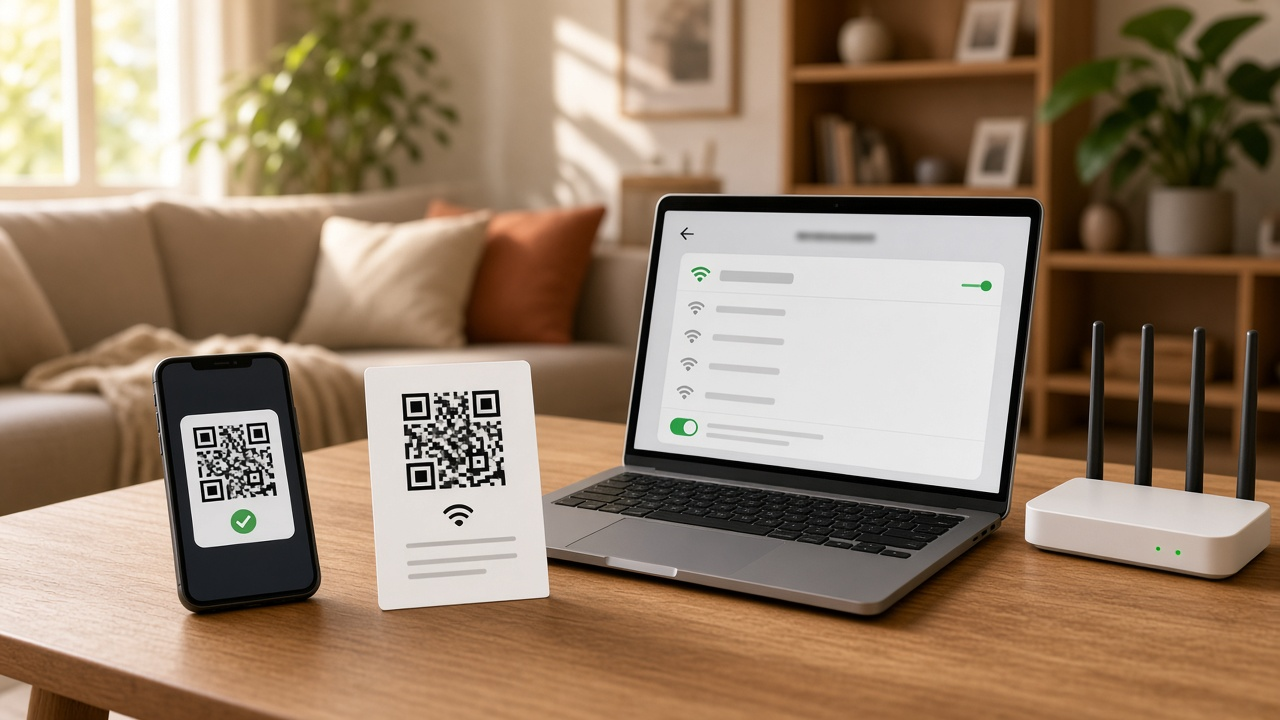
WiFi networks operate by broadcasting an SSID, or Service Set Identifier, that allows nearby devices to detect and attempt a connection. To gain access, most routers require a password, which protects the network using encryption protocols such as WPA2 or WPA3. These protocols encrypt data transmitted between the router and your device, shielding it from unauthorized interception and malicious tampering.
Keeping a WiFi network secure isn’t optional — it’s a functional requirement. The transition from older WPA to modern WPA2 and now WPA3 standards reflects the increasing need for tighter security in response to more sophisticated cyber threats. These protocols control access and ensure privacy by enforcing complex authentication and robust encryption algorithms.
However, any method used to access WiFi without the owner’s knowledge or consent falls into an ethical gray area — and in many jurisdictions, into outright illegality. Bypassing passwords, even with good intentions, can violate privacy laws and wireless network policies. The techniques covered here remain focused solely on legitimate use cases, such as accessing open networks, using WPS, or connecting devices you've pre-authorized.
Connect Instantly Using WiFi Protected Setup (WPS)
What Is WPS and How Does It Work?
WiFi Protected Setup, or WPS, provides a shortcut for connecting devices to a wireless network without entering the password manually. Designed primarily for ease of use on home networks, WPS initiates a temporary automatic handshake between the router and the device. Once enabled, the router creates a trusted connection with the requesting device—secured and authenticated within a few seconds.
✅ When to Use WPS
- WPS works best with private home networks where the router has a physical WPS button.
- Compatible devices include Windows laptops, Android smartphones, and some smart home gadgets.
🔧 Step-by-Step: Connect via WPS
- First, locate the WPS button on your WiFi router—usually labeled as “WPS” or marked with the WPS icon (a pair of opposing arrows).
- Press and hold this button for about 3–5 seconds. The router’s WPS LED will start blinking.
- On your device, open the WiFi settings menu. On Windows, choose the target network and click “Connect.” Then select the “Connect using WPS” prompt if it appears.
- Android users can also find a WPS Push Button option under Advanced WiFi settings, depending on the manufacturer.
- Once WPS negotiation completes, the device connects to the network automatically—no password entry required.
📌 Notes on Using WPS
- Some modern routers, especially those managed via mesh systems or cloud apps, may not include WPS as a feature.
- Although WPS is fast and convenient, it has known security vulnerabilities. Devices stay connectable while WPS mode is active, which could be exploited in less secure environments.
Connect to WiFi Without a Password Using a QR Code
What is a WiFi QR Code and How It Works
A WiFi QR code encodes the SSID, encryption type, and password of a wireless network into a scannable format. When someone scans the QR code with their device, the connection is established automatically—no manual typing, no need to reveal the password directly.
This method uses the standardized WiFi QR code format (WIFI:T:
✅ Suitable Scenarios: Share a Secure Connection with Guests
- Hosting clients or visitors in a business environment
- Accommodating guests at home without disclosing sensitive passwords
- Setting up temporary access during events or conferences
⬇️ How to Generate & Use
On Android
Android 10 and newer versions provide native support for WiFi QR code generation. Here's how to share:
- Open Settings → Network & Internet → WiFi
- Tap the connected network
- Select Share
- Authenticate via fingerprint, PIN, or pattern to view the generated QR code
Other devices can scan this code from their camera app or a QR scanner to connect instantly.
On iPhone
iOS doesn’t natively generate WiFi QR codes, but the process is still straightforward using a third-party tool:
- Use a QR code generator like qifi.org or Visual Codes app
- Enter the SSID, encryption type (typically WPA/WPA2), and password
- Save or print the generated QR code
Alternatively, create a Shortcut in iOS that generates and displays a WiFi QR code using preconfigured parameters.
On PCs
Most Windows and macOS systems don’t offer built-in QR code scanning for WiFi, but the function can be added using tools:
- Install QR code scanning software (e.g., QR Code Desktop Reader & Generator for Windows)
- Use the webcam or upload a saved QR image to scan
- The scanned credentials can then be used to connect manually or populate the device’s WiFi settings
📌 Tips
- Print the QR code and place it near your router for easy access by visitors
- Display the code on a tablet, digital frame, or smart display in shared spaces
- No passwords need to be spoken or stored visibly—scanning is touchless and secure
Method 3: Enable Guest Network Access
What Is a Guest Network?
A guest network is a separate WiFi access point created alongside your main network. It allows visitors or temporary users to connect to the internet without accessing your primary network’s devices, files, or settings. Most modern routers support this feature, and it can be tailored for either convenience or control.
Advantages of Using Guest Networks
- Enhanced Security: Devices on the guest network operate in isolation from your core systems, which lowers the risk of unauthorized access to sensitive data.
- No-Password Option: By design, this network can be made open—with no password at all—or configured with a simple passphrase that's easy to share.
- Network Management: Admins can limit bandwidth, restrict access times, or set data caps to maintain performance.
🚀 How to Set Up a Guest WiFi Network
The process requires administrator access to your router, but doesn't involve technical expertise. Follow these steps:
- Open a web browser and enter 192.168.1.1 or 192.168.0.1—this is the local IP address for most routers.
- Log in using your router's admin credentials. These are often printed on a label attached to the device.
- Find the Wireless Settings or Guest Network section. Brand-specific routers like TP-Link, Netgear, or ASUS may have differently labeled menus.
- Enable the Guest Network feature. Assign a name (SSID) that clearly identifies it as separate—for instance, “Office_Guest.”
- Under security settings, choose either “Open” for no password, or set a simple access code. Some routers also allow QR code generation from this screen.
- Adjust access controls if available—these may include allowing internet-only access, limiting speed, or disabling local network visibility.
- Save the settings. The guest network will immediately become available to nearby devices.
✏️ Tip: Share Access Seamlessly
Print the guest network’s login info or generate a QR code and place it near the entryway, front desk, or router. This removes the need to repeat instructions or reveal your primary credentials. For bonus convenience, laminate the label or mount it in a frame.
Connect Instantly: Nearby Sharing Between Android and iOS Devices
What Is Nearby Share or WiFi Sharing?
Sharing WiFi credentials no longer requires manually typing long passwords. Built into Android and iOS, Nearby Sharing lets you send WiFi access details between devices — quickly, securely, and without using third-party apps.
On iPhones, it’s an extension of Apple’s AirDrop ecosystem. Android uses a function called Nearby Share, introduced in Android 10 and refined in later versions. Both approaches rely on a blend of wireless technologies to deliver credentials across short distances.
✅ Platforms Supported
- iPhones (iOS 11 and above): When one iPhone is connected to a WiFi network, it can send credentials to another nearby Apple device. The incoming device only needs to be signed into an Apple ID and placed near the origin device.
- Android Devices (Android 10 and above): Using Nearby Share, you can tap “Share” within the WiFi settings menu to broadcast the credentials to trusted nearby users. Reliable only between verified Google accounts within proximity.
💡 How to Use WiFi Sharing
- Turn on Bluetooth and WiFi on both devices. Location services may also need to be active on Android.
- Ensure both devices are unlocked and not in airplane mode.
- Move the devices within a few inches of each other. Physical closeness increases the likelihood of detection and quick transmission.
- On the device already connected to WiFi, navigate to the network settings. Select the option to share the WiFi network.
- A prompt will appear on the nearby device: “Do you want to accept WiFi settings from [Device Name]?”
- Accept the request — connection takes place instantly with no password typed.
⚠️ Key Considerations to Ensure a Seamless Share
- Both devices must remain unlocked during the process.
- Network sharing only functions if the target device is listed in contacts or paired via Bluetooth (Android-specific behavior).
- The devices cannot be in battery saving mode — it disables some background sharing operations.
Method 5: Use a Mobile Hotspot as a WiFi Alternative
When locked out of a secured WiFi network and no password is within reach, there's still a reliable workaround. A mobile hotspot turns your smartphone into a personal internet broadcaster using your cellular data plan. This gives laptops, tablets, or other connected devices instant access—no password input needed for any traditional router.
📶 How to Set Up a Mobile Hotspot
- On Android: Navigate to Settings > Network & Internet > Hotspot & Tethering. Activate the Wi-Fi hotspot toggle. From here, you can rename the network, choose security protocols, or leave it open for quicker access.
- On iPhone: Go to Settings > Personal Hotspot. Switch Allow Others to Join to ON and a hotspot becomes visible to nearby devices instantly.
The connection process on other devices remains straightforward. Open the WiFi settings, select the smartphone’s hotspot name, and enter the password (or connect automatically if left open). You’re now online—without ever touching the main router's password.
🧾 Note: Most mobile data plans come with bandwidth thresholds. Streaming, updates, and large downloads will consume data quickly. Monitor usage through your phone's built-in tools or your carrier's app to avoid unexpected charges or throttling.
Method 6: SSID Broadcasting & Open Networks
What Is SSID and How It Works
SSID stands for Service Set Identifier, which refers to the public name of a wireless network. When a router broadcasts its SSID, devices within range can detect the network name and attempt to connect. Most households choose to secure this connection with passwords, but some networks—especially in public places like cafés or airports—remain open with no authentication required.
Public Broadcasting and Accessibility
Open WiFi networks typically broadcast their SSID by default. This public visibility makes them easily identifiable on your device's WiFi list. These networks often prioritize ease of access over security and are common in areas that offer free internet access to visitors or customers.
How to Find and Join an Open Network
- Open your device’s WiFi settings and scan for available networks.
- Look for SSIDs without a lock icon—this indicates there is no password protection.
- Tap the open network name to connect. Most devices will join instantly without additional prompts.
Connection Tips: What to Expect
Once connected, your device will likely receive an IP address automatically via DHCP. In some cases, a browser landing page may appear asking for agreement to terms or usage policies.
Rethink Data Usage on Open Networks
While these networks require no barriers to entry, consider how you use the connection. Is the information you're transmitting sensitive? Would it pose a risk if intercepted? Open networks skip encryption, which means traffic can potentially be monitored by others on the same channel.
Common Places Where Open WiFi Is Available
- Libraries and public parks offering free municipal internet
- Restaurants, fast food chains, and coffee shops
- Bus terminals and subway platforms in major cities
- Retail stores providing guest access during business hours
Explore the WiFi list around you and identify which networks are truly open. The visual cue—absence of a lock icon—is your shortcut to instant connection without a password.
Connect Without a Password Using MAC Address Whitelisting
Understand the Power of the MAC Address
Every WiFi-enabled device—from laptops to smart refrigerators—has a unique identifier known as a MAC address (Media Access Control address). This 12-digit hexadecimal code is hardcoded into the network card and acts as a fingerprint, distinguishing your device from others on a network.
Some advanced routers allow specific MAC addresses to connect, bypassing traditional password authentication. Instead of entering a WiFi password, the router checks the device's MAC address against a whitelist and grants access if it finds a match. This approach doesn't compromise encryption standards; it simply shifts configuration from the device to the router's interface.
Use MAC Whitelisting to Connect Without a Password
- Find your MAC address — On Windows, open the Command Prompt and type ipconfig /all. Look for the line under the appropriate network adapter labeled “Physical Address.” On macOS, use ifconfig en0 | grep ether in Terminal. Android and iOS store MAC info under WiFi or network settings.
- Log in to the router — Open a browser and go to the IP address of the router, often 192.168.0.1 or 192.168.1.1. Enter the admin credentials. These are typically printed on a label on the router or set manually.
- Navigate to the MAC filtering section — Depending on the model, labels might read “Access Control,” “MAC Filtering” or “Device Management.” Once inside, locate the option to enable MAC filtering.
- Add your MAC address — Enter the address exactly as retrieved, using colons or hyphens based on router formatting. Save the settings and reboot the router if necessary.
Ideal Use Cases
This method works especially well for devices that lack an interface for entering WiFi passwords, such as smart TVs, printers, or game consoles. Instead of navigating on-screen keyboards, you configure access once and enjoy seamless connection afterward.
Wondering whether this could work in a small office or for visitors at home? As long as you can access the router's settings, yes. Think about whose devices you trust, get their MAC addresses, and grant them direct access without sharing your WiFi password.
Recognizing the Limitations and Challenges of Password-Free WiFi Connections
Connecting to WiFi without a password sounds convenient at first, but the process comes with various technical and usability barriers. These limitations vary depending on network configuration, device compatibility, and feature availability.
Hardware and Software Incompatibility
Not every router on the market supports WPS (WiFi Protected Setup) or MAC address whitelisting. Many newer routers have deliberately removed WPS due to past security vulnerabilities, while older routers may lack QR code generation or guest network features altogether. On the receiving end, older laptops or mobile devices might not be able to scan QR codes or utilize nearby sharing protocols—this compatibility gap stalls the connection process.
Restricted Router Settings and Administrator Control
Guest networks, a common method for easy sign-in, require prior configuration. If the router owner has disabled this function—or doesn’t know how to activate it—there’s no guest access, regardless of your device's capabilities. Similarly, routers that block unknown MAC addresses cut off any chance of connecting unless your device is manually whitelisted by an admin.
Device Ecosystem Limitations
Cross-compatibility presents its own challenge. Nearby sharing, such as Apple’s AirDrop or Android’s Nearby Share, works best within the same ecosystem. Trying to bridge the gap between Android and macOS, or Windows and iOS, introduces layers of friction. Seamless password-free sharing isn’t always realistic between competing platforms.
Reliability and Security of Public Networks
Open networks in coffee shops, airports, or hotels may promise easy access, but often deliver unstable connections. Speeds fluctuate, interference is common, and some networks use captive portals that still require interaction before actual internet access. In addition, such networks are frequently monitored for traffic patterns, making them unreliable for anything beyond basic browsing.
Legacy Devices and Feature Gaps
Older operating systems—Windows 7, early Android versions, legacy macOS builds—lack native support for QR scanning or modern sharing protocols. Even with compatible hardware, the absence of updated software restricts available methods. In these cases, manual entry or password-based methods often become the only functional option.
- WPS and guest network support: Not guaranteed on every router model.
- Device compatibility: Inconsistent support for QR scanning and sharing tools.
- Public network drawbacks: Unpredictable performance and passive surveillance risks.
- Administrative restrictions: Whitelisting requires privileged access to router settings.
- Cross-platform issues: Limited interoperability between Android, iOS, and desktop systems.
These challenges underline the need to understand the tools and infrastructure available before attempting to connect without a password. Networking flexibility increases when both hardware and permissions align, but without that foundation, attempts may end in frustration rather than functionality.
Respecting Boundaries: Ethical and Legal Considerations When Accessing Networks
Accessing a WiFi network without a password might seem convenient, but not all methods align with ethical standards or legal frameworks. Public or guest networks are fair game when properly offered, but any attempt to bypass security protocols or gain unauthorized access crosses a clear line.
Avoid Exploiting Security Weaknesses
Using tools or tricks to crack WiFi passwords or exploit vulnerabilities—such as packet sniffing, brute force attacks, or spoofing MAC addresses—constitutes unauthorized access. Laws in many countries categorize this behavior as illegal. In the United States, for example, the Computer Fraud and Abuse Act (CFAA) prohibits access to a computer network without permission; courts have interpreted WiFi networks as falling under this law.
Beyond potential legal consequences, such actions damage trust and violate privacy. Every private network carries with it a set of expectations: boundaries owners have put in place to protect their data, devices, and users. Circumventing those barriers isn't just a policy breach—it’s an offense against fundamental digital ethics.
Connect Only with Authorization
Sticking to networks explicitly designated for public or guest access ensures compliance. Terms like “FreeWiFi_StoreName_Guest” or QR codes at cafes often signal intended availability. If a network isn't openly shared or you haven't been granted access (even verbally), don't connect. Going a step further and modifying device settings to appear authorized—such as spoofing a MAC address—doesn't legitimize the action.
Legal Ramifications Are Real
Penalties vary by jurisdiction, but fines, probation, community service, and even jail time are possible outcomes of unauthorized access. In Japan, unauthorized access to a secured WiFi network can lead to a prison sentence of up to three years. In the UK, the Computer Misuse Act 1990 classifies such access as an indictable offense. Even in places where legal resolution is less severe, consequences could include a ban from the network or reputational damage.
Guidance for Businesses: Offering Secure Guest Access
Want to allow visitors safe, legitimate use of your network? Here are best practices:
- Create a separate guest network: Isolate guest traffic from internal systems while controlling bandwidth and access time.
- Use QR code sharing: Print a scannable code at the reception or check-in area to simplify the connection process without exposing your main password.
- Enable captive portals: Direct guests to agree to terms of use or register before accessing the network.
- Limit access: Set up automatic daily resets for credentials or apply per-session limitations.
When businesses secure their networks while still facilitating guest access, they reduce exposure and offer a better user experience. That keeps traffic legitimate and keeps both guests and systems protected.
Connecting Without a Password: Smart, Shareable, Secure Options
Every method covered offers a practical route around manual password entry—but not all are created equal for ease or access. Among them, three stand out as the most efficient and user-friendly for the average person:
- QR code sharing: A quick scan, and the connection is complete. No typing, no mistakes—just point your phone’s camera at the screen or printout.
- WiFi Protected Setup (WPS): Available on many routers, this lets users connect with a physical push of a button or PIN, bypassing the need to enter a password.
- Guest networks: Ideal for hosts. Just toggle on a guest SSID, set access limits, and let others connect freely without exposing your main network credentials.
These solutions balance convenience with control—offering secure access without the friction of traditional password-sharing. Less effort, fewer errors, and smoother setups for everything from your PC to your smart home devices.
Always treat network access with respect. Use these methods only where appropriate permissions exist—and encourage others to do the same.
📣 Join the Conversation
- 👍 Found this helpful? Share this page with friends or colleagues who constantly ask for the WiFi password.
- 📲 Want a printable guide? Download our Free PDF: “5 Smart Ways to Share Your WiFi Securely”.
- 💬 Running into a screen or hardware problem? Or have a method we didn’t cover? Drop your questions and input below. Our tech-savvy community reads every comment.