How to Check Router History 2026
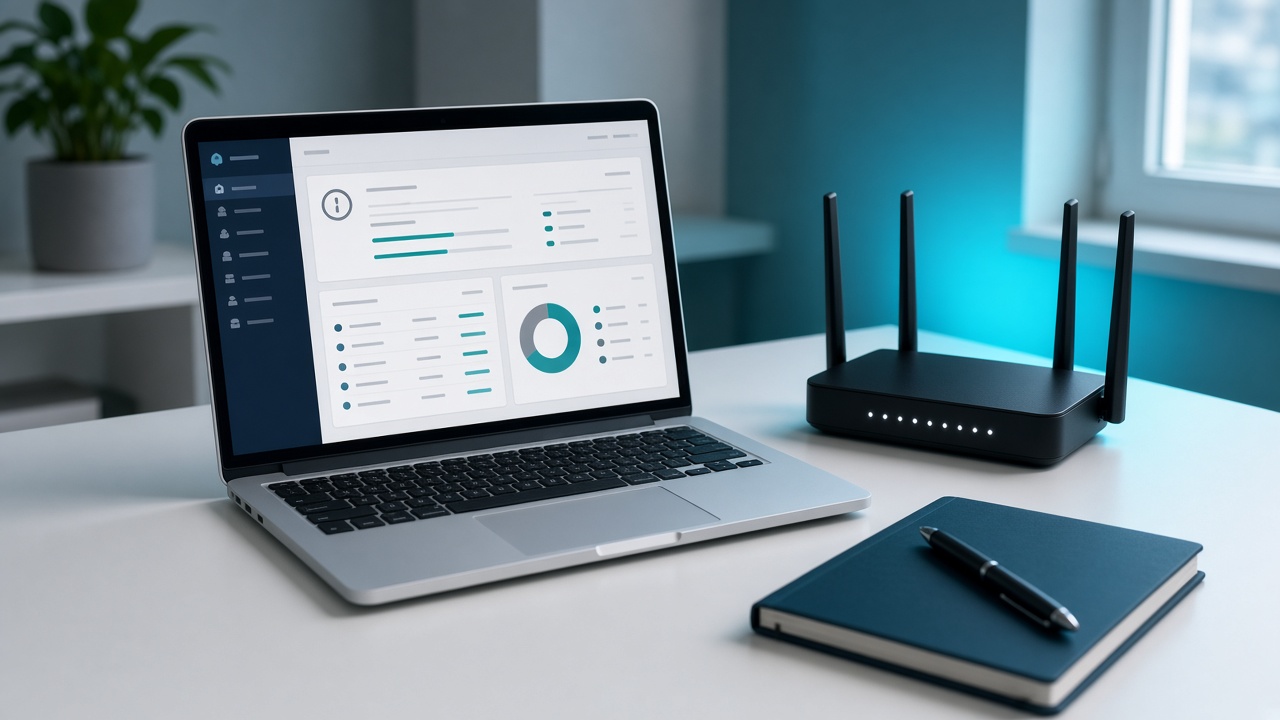
Network activity doesn’t start in your browser—it begins at the router. This device acts as the gatekeeper of all incoming and outgoing traffic in your home or office, and examining its history can reveal far more than what appears in an individual browser’s log. That history, often referred to as router history, includes DNS queries, IP connections, and sometimes device-specific activity logs.
Unlike browser history, which only tracks activity on one device, router history provides a snapshot of all network activity, regardless of whether it's a phone, tablet, smart TV, or gaming console generating it. This makes it a critical tool for parents monitoring screen time, administrators checking for suspicious behavior, or anyone responding to unexpected data usage spikes or suspected unauthorized access.
This guide outlines how to access router logs, explains the type of information you might find, and walks through steps to interpret that data. It also covers what features to look for in a router model if logging options matter to you, and highlights the limitations and privacy implications of network-level tracking.
Ready to go beyond your browser and see what’s really happening on your network?
What Exactly Is Router History—and What Can It Reveal?
Router History vs. Browser History
Router history refers to the metadata logs stored by a router as devices communicate with the internet via the local network. Unlike browser history, which records the full URLs and pages accessed by a specific device, router history offers a broader, more infrastructural view of activity across the entire network.
For instance, while browser history might show https://www.example.com/login, router history in most cases only logs that a connection was made to www.example.com. This is because routers typically do not decrypt encrypted HTTPS traffic; they only log the destination domain and connection time.
What Data Does the Router Actually Store?
Most consumer-grade routers store limited but actionable metadata. This includes:
- Destination domains: The names of websites visited, captured through DNS requests or IP-level information.
- Device IP addresses: Each internet-connected device inside the network gets a local IP, which is recorded in the logs.
- Time of access: Routers timestamp events, allowing for timeline-based analysis of usage.
- Port or protocol data: Depending on configuration, some logs show the kind of traffic—HTTP, HTTPS, FTP, etc.
What You Can—and Can’t—See
The reach of router logs is not unlimited. Here’s what you won’t find:
- Specific page content: Routers don’t log content like messages, images, or video data.
- HTTPS URL paths: Due to encryption, routers can log domain names but not the full URLs for secure websites.
- User-specific attribution: Unless specially configured, typical routers can’t directly identify which user or account visited a site—only which device did.
This means router logs serve as a high-level audit trail rather than a deep inspection tool. They confirm connections, chart device activity, and trace basic routing—but they don’t replace end-device monitoring tools. Interested in what domain a phone on the network accessed last night? The router might show netflix.com, but not whether the user watched a movie or browsed the homepage.
Interpreting router history requires filtering this at-a-glance metadata into meaningful patterns. The next step? Identifying your router’s IP address to access the admin panel.
Locating Your Router’s IP Address: The Key to Managing Network Settings
What Is an IP Address and Why It Matters
Every router uses an IP address to identify itself on the local network. This address acts as a digital gateway to the device’s administrative interface, where all logs, configurations, and diagnostics reside. Without knowing this address, accessing the router's history or any other management feature is impossible. Typically, routers use common private IPs like 192.168.0.1 or 192.168.1.1, but the exact value can vary based on manufacturer or custom settings.
How to Find Your Router’s IP on Windows
For Windows users, the Command Prompt offers a fast and precise way to locate the default gateway:
- Press Windows + R, type cmd, then hit Enter.
- In the new window, type ipconfig and press Enter.
- Scroll through the output to find the line labeled Default Gateway.
- The IP address listed here—most often 192.168.x.x—is your router’s local IP.
Finding Your Router’s IP on macOS
macOS users can pull up network details in just a few clicks:
- Open System Settings and go to Network.
- Select your current network connection—Wi-Fi or Ethernet—from the sidebar.
- Click the Details or Advanced button, depending on your macOS version.
- Look for the Router field; the number next to it is your router’s IP.
How to Find the Router IP on iOS and Android
Smartphones reveal router details through their Wi-Fi settings. Here's how it works across mobile systems:
On iOS:
- Open Settings and tap Wi-Fi.
- Find your connected network and tap the ⓘ icon next to it.
- Locate the field named Router—this shows the IP address you're after.
On Android:
- Open Settings and go to Network & Internet or Connections, depending on your device.
- Tap Wi-Fi, then select the network you’re connected to.
- Look for an IP address section; your router’s IP usually appears under Gateway.
Got the IP? Store it somewhere secure—it’s your direct link into the admin panel where the router’s full history and connected data await.
Direct Access: Getting Into the Router’s Admin Panel
What Is a Web-Based GUI?
Routers use a graphic user interface (GUI) hosted within the device itself, accessible through any modern web browser. This interface allows control of network settings, logs, and system features from a centralized dashboard. Unlike software installed on a computer, this GUI loads via a local IP address and runs directly from the router’s firmware. No internet connection is required—just connection to the local network through Wi-Fi or Ethernet.
Entering Through a Web Browser
Launch your preferred browser—Chrome, Firefox, Safari, or Edge—and type your router’s IP address into the address bar. Don’t enter it into a search engine; place it where a URL normally goes. Most routers use one of these IPs:
- 192.168.1.1
- 192.168.0.1
- 10.0.0.1
Pressing Enter will load the login page for the admin panel. If nothing appears, verify that your device is on the network and that you've typed the correct IP—refer to the router label or use command-line tools to confirm.
Using Default Login Credentials
Finding the default username and password takes no more than a quick glance at the router itself. Most manufacturers print this information on a label, usually located on the underside or back of the device. Common default combinations include:
- Username: admin | Password: admin
- Username: admin | Password: password
If the label is missing or unclear, manufacturers like Netgear, TP-Link, and Linksys document default logins on their websites. Try visiting the router’s support page using the exact model number.
Update the Default Password
Default credentials offer zero protection against unauthorized access. Keeping them unchanged leaves the network wide open. After the first successful login, navigate to the account or system settings and assign a strong custom password. Combine uppercase, lowercase, numbers, and symbols. This change closes one of the most common security gaps in home networks.
Logging into the Router Interface
Step-by-Step Access to Your Router's Dashboard
To inspect your router’s history, start by reaching its configuration panel. Every setting, including logs and connected devices, stems from here. The following steps describe the login process with clarity.
1. Connect to the Router's Network
Make sure your computer, smartphone, or tablet is connected to the router you want to check. It can be either via Wi-Fi or using an Ethernet cable. Without this connection, the router interface will remain inaccessible.
2. Open a Browser and Enter the Router’s IP Address
Launch any web browser and type the router’s IP address into the address bar. Common addresses include 192.168.0.1 or 192.168.1.1. Press Enter. If you're unsure of your router's IP, refer to system network settings.
3. Enter the Username and Password
The login screen should now appear. Unless changed manually, most routers use default credentials like:
- Username: admin
- Password: admin or password
If these don’t work, try checking the bottom label of the router — default credentials are often printed there. Alternatively, consult the router manual or manufacturer's site.
4. What to Do If You Can’t Log In
Can't remember the credentials or they’ve been changed? A hard reset restores the router to factory settings. To do this:
- Press and hold the reset button (usually on the back of the device) for 10 to 30 seconds.
- Release the button and wait for the router to reboot, then try the default login.
Keep in mind: resetting erases all custom configurations, including SSID and Wi-Fi password.
5. Secure Access: Use HTTPS, Not HTTP
Some modern routers support encrypted connections. When entering the IP address, try adding https:// instead of http://. For example, https://192.168.1.1. This enhances security by encrypting the login session, reducing the risk of credential interception on unsecured networks.
Locating the Router Logs or History Section in the Admin Interface
Once inside the router settings, the next step involves locating the section where browsing history, traffic logs, or connection data appears. This interface varies across manufacturers, but certain patterns are consistent.
Typical Locations in Router Interfaces
- Logs: Look for easily identifiable menu items such as "Logs," "System Logs," or "Security Logs." These sections track events like login attempts, firmware updates, IP address assignments, or even traffic flow, depending on the model.
- Status or Administration Tabs: Many routers file log data under broader sections like "Status" or "Advanced Administration." These areas often include a subsection for system monitoring.
- Traffic Monitor: Routers with enhanced capabilities may feature a "Traffic Monitor" or "Traffic Statistics" label, where you can view bandwidth usage, active connections, and possibly URLs visited.
Variation by Manufacturer
- Netgear: On Netgear routers, logs typically reside under Advanced > Administration > Logs. Here, you'll find system events, firewall records, and occasionally DHCP assignments.
- Asus: For Asus devices, access real-time data under Advanced Settings > System Log > General Log. Additional information like DHCP leases appears in the LAN tab.
- Linksys: The Linksys interface often places logs under Administration > Logs or within a Status page, where you can toggle logging features and review recent events.
- TP-Link: TP-Link routers store traffic records and system messages within System Tools > System Log. Some models also include Statistics for visual bandwidth overviews.
Not seeing any plausible tab? Try searching for keywords like “monitor,” “history,” or “log” using the built-in interface search field, if available. The naming scheme usually gives away the functionality once you get familiar with the structure.
How to Enable Logging Features on Your Router
Logs form the backbone of network monitoring, but many routers ship with logging features turned off. Without logging enabled, the router records little to no data about websites visited, devices connected, or other network activity. Enabling these features requires a deliberate action inside the router’s configuration interface.
Where to Find Logging Settings
Start by locating either the Security or Administration tab within your router’s interface. Router models differ, but logging options are typically housed in one of these two sections. Look for menu items labeled:
- System Logs or Event Logs
- Activity Logging
- Traffic Monitoring
- URL Logging or Website History
Inside these menus, you’ll often find toggles or checkboxes to activate logging. For example, on a Netgear Genie interface, users can enable Log Settings under the Advanced tab; on Asus routers using ASUSWRT, the option is typically under the System Log section.
Toggling On Activity Monitoring
Once located, activate the logging option corresponding to your needs. Some routers allow separate settings for specific types of logs:
- Activity Logging tracks outgoing and incoming traffic patterns and application usage.
- URL Logging records websites visited based on HTTP requests.
- System Logs register firmware events, reboots, and system-level changes.
Not every router includes all logging types. Lower-end consumer models often provide limited granularity. On business-grade routers, such as Ubiquiti or MikroTik, advanced logging categories are segmented by protocol, event severity, and source host.
Adjusting Log Retention and File Size
After enabling logs, check the configuration options for log retention. Some routers allow you to specify how much data is stored and for how long. You’ll often see parameters like:
- Maximum Log Entries: e.g., 1000, 5000, etc.
- Log File Size Limit: measured in kilobytes or megabytes
- Overwrite Behavior: circular logging options to overwrite old entries automatically
On routers that support external storage, such as those with a USB port or integrated cloud options, logs can be exported periodically. This extends storage capacity and enables long-term monitoring. Routers running custom firmware like OpenWRT or DD-WRT offer log rotation policies and the option to push logs to remote syslog servers.
Curious about what your router supports? Try enabling one log category, save the settings, then refresh the log view after a few minutes of network usage. Are the events appearing? If not, look for firmware updates or consult your router’s manual to see if logging is limited on your model.
Identify and Analyze Devices Connected to Your Network
Why Device Identification Matters
Understanding which devices are connected to your router enables you to match browsing activity with specific endpoints. Since router history logs typically store data based on IP or MAC addresses rather than user-friendly labels, tying activity to a device ensures clarity when analyzing network usage. This step also helps you identify unauthorized connections or bandwidth-heavy devices impacting network performance.
Viewing Connected Devices From the Admin Panel
Most routers offer a “Connected Devices,” “Device List,” or “DHCP Clients” section within the admin interface. Here’s how to access and interpret that information:
- MAC Address: Each network-capable device has a unique Media Access Control address. This identifier doesn’t change and helps differentiate between devices even if IP addresses rotate.
- IP Address: Assigned by the router, this address is used internally to track communication. It’s critical for cross-referencing devices with router logs, which usually record IP-based activity.
- Device Names: Some routers detect and display recognizable names, like “John’s iPhone” or “Office Laptop.” If not, the MAC address becomes the fallback for identification.
Correlating Devices with Network Activity
After gathering IP and MAC address data from the connected devices page, navigate to the logs or traffic statistics section of the router. Many models show clickstream data, destination IPs, or hostnames associated with each internal IP. Matching the internal IP address from the logs with the device list confirms which device visited which site.
Examining Bandwidth Usage per Device
Some routers provide traffic tables or real-time monitoring dashboards that break down data consumption per device. This feature shows how much bandwidth each IP or MAC address uses over time. Granular tables may show:
- Upload/download rates in Mbps or MB/hour
- Total data transferred in the last 24 hours or week
- Live traffic flows highlighting active devices
Routers running advanced firmware like DD-WRT or AsusWRT often offer deeper traffic analytics, including per-device graphs and protocol-level tracking. Want to pinpoint which tablet streaming 4K video is draining your bandwidth? This is where you'll find the answer.
Interpreting Browsing History Data from Your Router
Understanding What the Logs Are Telling You
Once inside your router’s history or system logs section, the data can feel overwhelming. But breaking it down field by field turns it into actionable insight. Start by identifying three key elements: the source IP address, the destination, and the timestamp.
- Source IP Address: This tells you which device on your network initiated the connection. For example, a log line might show 192.168.0.105; if that IP matches your phone or laptop, you know who browsed it.
- Destination: This is usually an IP address or hostname of the external server accessed. It could appear as something like 157.240.22.35 or edge-chat.facebook.com.
- Timestamp: It shows the exact date and time the connection occurred, often in UTC format. Comparing these times with user activity on specific devices helps link browsing behavior to individuals.
Connecting the Dots with Domain Lookup Tools
Destination IPs don't always reveal the domain being visited at a glance. Use tools like WHOIS databases or reverse DNS lookup utilities to map IP addresses to their associated domain names. For example, entering 142.250.190.78 into a WHOIS search will return "google.com" if it's assigned to Google.
This simple step uncovers the websites users visited, especially when the router doesn't log full URLs. When the hostname is encrypted or masked, a reverse lookup often provides enough public metadata to determine the general service.
Limitations of What You’ll Find
Most routers log only the IP address of the host your device contacted—not the full URL. This limitation becomes more pronounced with HTTPS traffic. With secured sites (which now include nearly all major platforms), the router can see the domain but not what page was visited.
For example, if someone visits https://www.amazon.com/product/B0932Z8DH6, the router history might only show a connection to amazon.com. The full product URL is encrypted and inaccessible through standard router logs. This keeps certain user-specific details hidden while still logging general web activity.
Curious which log fields provide the most context for your review? Focus on connections that repeat frequently or occur during odd hours. These patterns often lead to useful discoveries about which services run silently in the background on your network.
Expand Access and Control: Using Third-Party Firmware like DD-WRT or OpenWRT
Stock firmware limits visibility into router activity. To unlock comprehensive data logging, detailed traffic analysis, and long-term monitoring capacity, installing a third-party firmware such as DD-WRT or OpenWRT provides a clear advantage.
What Third-Party Firmware Adds That Stock Doesn’t
- Advanced Logging: Get complete traffic statistics, DNS request/sourcing information, and real-time bandwidth usage broken down by device.
- Custom Storage Options: Redirect logs to external USB drives or remote servers for permanent storage and full data retention.
- Real-Time Monitoring: Use interfaces like Bandwidth Monitor, Live Logs, or IPTables visualizers to scan current activity.
- Enhanced Configuration: Automate scripts to detect specific domains or block suspicious requests using advanced firewall rules.
Installing DD-WRT or OpenWRT on Your Router
To install DD-WRT or OpenWRT, start by confirming your router model supports the firmware. DD-WRT maintains a comprehensive router database listing all supported hardware. OpenWRT has a similar table of hardware compatibility.
- Download the correct firmware build for your router model. Always use the version labeled “factory-to-ddwrt” or “factory.img” for first-time installs.
- Access your router’s firmware upgrade section through the admin panel.
- Upload the third-party firmware and initiate the upgrade process. Wait until the router completes installation—do not interrupt power.
- Once the router reboots, access the new admin panel via the default IP (often 192.168.1.1) and set your credentials.
With the firmware installed, navigate to the Services or Status tabs in DD-WRT, or System > Log in OpenWRT to explore logging and monitoring tools. Configure syslog, enable remote logging, and attach storage for full historical tracking.
Consider the Risks Before You Flash
- Warranty Voidance: Manufacturers like Netgear, TP-Link, and ASUS often void warranties if unofficial firmware is detected.
- Bricking Possibility: Uploading an incorrect firmware build or interrupting the installation can permanently disable the router.
Despite the risks, the benefits of deploying DD-WRT or OpenWRT are definitive in cases where full oversight of network activity is essential. With expanded functionality, granular visibility, and ongoing support communities, these open-source platforms place near-total control into your hands.
Taking Control of Your Router’s History: Final Actions That Make an Impact
To recap the process: connect to your network, identify your router’s IP address, access the router admin panel, enable logging features, and start reviewing the data. With those steps, you can unlock a detailed snapshot of your network’s activity, from connected devices to specific timestamps of usage.
Router logs give insight, but they have limits. These logs don’t capture full browsing histories or page content like browsers do. Instead, they log IP packet activity, visited domains (if DNS logging is enabled), and connection events. If you're expecting Chrome-like histories with time-on-page data and behavior footprints, router history can't provide that level of granularity.
Still, with monitoring tools and third-party firmware—like DD-WRT or OpenWRT—combined with router logs and active connection tracking, you gain real-time visibility. Join that with network security apps or firewalls, and you've got an ecosystem that keeps your network transparent and secure.
Looking to maintain oversight every month? Try this:
- Schedule monthly admin panel log-ins to review connected devices.
- Download log files regularly and archive key data.
- Audit new or odd IP addresses using threat databases or DNS lookup tools.
- Rotate Wi-Fi passwords quarterly, and monitor admin log-in attempts.
- Monitor router firmware updates and changelogs from the vendor site.
Want to stay ahead of router vulnerabilities and new monitoring techniques? Drop a comment below. Need more tutorials? Subscribe and get notified when we release new security breakdowns and walkthroughs.
Free resources to explore:
- 📋 Download:Your Monthly Wi-Fi Router Health Check – a printable checklist covering firmware, device filters, and log reviews.
- 📘 PDF Guide:Top Free Tools to Monitor Network Activity – detailed list with screenshots and setup instructions.
- 🎥 Tutorial:How to Log into Your Router in Under 5 Minutes – watch the embedded video and follow along step by step.