How to Activate New Android Phone from AT&T?
Seamless Activation: Your Guide to Initiating Service on Your New AT&T Android Device Activation refers to the process of enabling a new mobile phone to connect to a wireless carrier's network, granting access to voice, text, and data services. In order to begin using a new Android smartphone with AT&T, users will engage in a series of steps designed to authenticate the device and associate it with a specific account. This ensures seamless communication and a robust digital experience. AT&T's activation process for Android devices encompasses verifying the user's information, configuring network settings, and establishing a connection with the AT&T network. By following these procedures, subscribers can quickly enjoy the full range of their phone's capabilities and start connecting with the world around them.
Checking AT&T Network Compatibility
Activating a new Android phone with AT&T begins with a crucial step: verifying network compatibility. This process ensures seamless service and optimal performance, as not all devices are configured to operate on the AT&T network. A compatible device can access the full range of AT&T services, including voice, text, and data.
New Devices
For new phones purchased directly from AT&T, compatibility is usually a given. However, for those who have procured their Android phones through other channels, AT&T offers an online tool to check device compatibility. Simply enter the phone's IMEI number into the AT&T compatibility page, and confirmation is immediate.
Existing Devices
If planning to activate a previously owned Android phone with AT&T, it is equally essential to verify compatibility. Users must ensure that the device is unlocked and that it supports AT&T's network bands and frequencies. Users can refer to the device specifications or contact the manufacturer directly for this information. Once confirmed, the device's IMEI number can again be used on AT&T's online tool to validate compatibility before proceeding with activation.
Preparing Your Device for Activation
Before activating a new Android phone with AT&T, a series of preparatory steps guarantees a smooth transition. A crucial preparatory measure is to backup your existing device. This ensures that personal data, including contacts, photos, and app information, is not lost. Backing up can usually be completed through your current phone's system settings, often by syncing with a cloud service or transferring to a local computer.
Equally imperative is the management of existing accounts. Review all accounts linked to the device, such as Google, social media, and any apps requiring login credentials. Verify these accounts are accessible and passwords are current. This proactive approach streamulates the setup process on the new device.
- Sync your device with your Google account to save contacts, app data, and settings to your Google Drive.
- Transfer photos, videos, and multimedia to cloud storage solutions like Google Photos or Dropbox, or directly to your computer.
- Remember to review any two-factor authentication settings; update them to reflect the new device where necessary.
Conclude preparation by removing any personal information from the current device after the backup. A factory reset usually accomplishes this and will remove personal data, disassociating the device from your accounts. Access the factory reset option in the settings menu, but remember to only initiate this after confirming the successful backup of all important data.
“Have you consolidated your digital life, ensuring all personal data is backed up and accounts are in order?”
By addressing these preparatory measures, you set the stage to activate your new Android phone seamlessly, preserving your digital footprint with no data left behind.
Locating the AT&T SIM Card
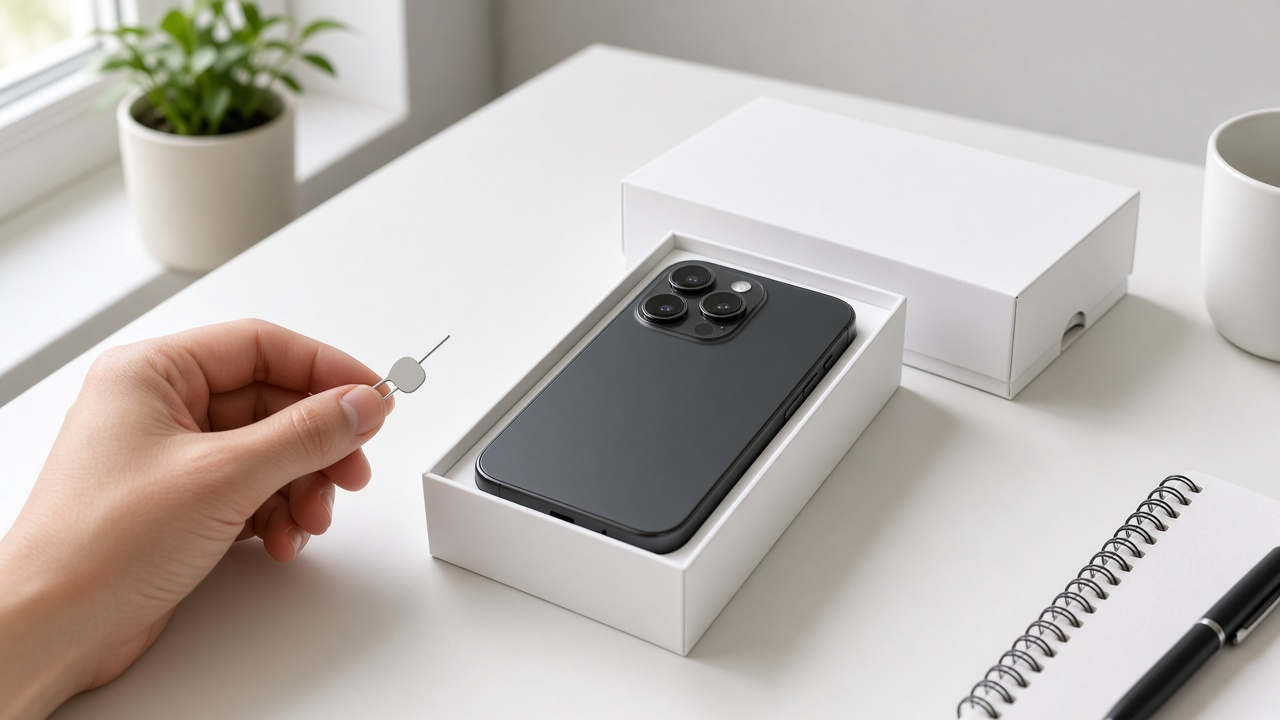
A Subscriber Identity Module (SIM) card, a small rectangular piece of plastic, serves as a bridge between your phone and the network. Before activating your phone on AT&T's network, locating and installing the SIM card is a prerequisite. Upon opening your device's packaging, you usually find a dedicated slot or envelope for the SIM card. Most frequently, it's located on the top or side of the box, often marked with the AT&T logo or an illustration signifying its presence.
After retrieving the SIM card from the package, you’ll be one step closer to establishing a connection with AT&T’s network infrastructure, thus providing access to services such as calling, texting, and data usage. In some instances, the SIM card might already be pre-installed in the phone, so a visual inspection of your phone's SIM card tray can also confirm this. When handling the SIM card, careful manipulation is warranted as the small and delicate nature of the card could make it susceptible to damage.
Charging Your New Android Phone
A full charge lays the groundwork for an efficient activation process. When you receive a new Android phone, take the following steps:
- Use the original charger that comes with the device to ensure optimal charging speed and safety.
- Locally, seek an electrical outlet; avoid using a computer's USB port as this may result in a slower charge.
- Connect the charger to the device. A battery icon will appear on the screen indicating the charge level.
- Leave the device powered off during the first charge. This action accelerates the charging process.
For longevity, avoid draining the battery completely before recharges. Battery performance can degrade over time when consistently dropped to a low charge before plugging in. Instead, maintain the battery health by charging when it dips below 50%. Modern Android phones are equipped with lithium-ion batteries that do not require a full charge cycle before initial use. However, achieving a complete charge before activation ensures the phone has enough power for downloading necessary updates and configuring settings during activation.
Regularly charging your phone can also provide a strategic advantage. Keeping the device between 20% to 80% charge maximizes battery lifespan. Charging habits impact overall battery health, so practitioners of this method tend to see the benefit in the long-term performance of their devices.
Is your charger not in the box? This might occur with certain manufacturers looking to reduce electronic waste. Purchase an official charging cable and adapter from the brand or a reputed third-party manufacturer if necessary.
Powering On Your Android Phone
Press and hold the power button located on the side or top of your new Android phone. Release the button once the screen lights up, displaying the manufacturer's logo or branding. If you notice no response, the battery may need additional charging. Proceed to connect the charger and wait a few minutes before attempting to power on the phone again. Once the device is active, an animation or welcome greeting usually signals the start of the setup process.
Before moving forward, ensure the phone displays signal strength bars, indicating AT&T network recognition. If signal bars are not visible, adjust the position of your SIM card for a better connection.
- Anticipate a few seconds for the phone to boot; this process initializes system applications and settings.
- Pay close attention to on-screen prompts; these guide you through the initial setup stages which typically include language selection, date and time configuration, and unlocking methods.
While waiting for your device to power on, contemplate whether all essential items such as Wi-Fi passwords, AT&T account details, and a list of applications you wish to install, are at hand. Having these close by will facilitate a smooth and efficient setup experience.
Step-by-Step: Connect Your Android Phone to Wi-Fi
A Wi-Fi network powers your Android's data and feature setup. Once the phone powers on, the next move is to link it with a secure Wi-Fi network. This action enables you to complete the remaining setup without consuming mobile data and ensures fast and efficient downloading of necessary updates and apps.
Selecting a Secure Wi-Fi Network
Navigate to your Android phone's settings and locate the Wi-Fi settings. Swipe down from the top screen to access the quick settings panel where you'll often find the Wi-Fi icon. Tapping this icon presents a list of available networks.
Connecting to the Network
Choose your preferred Wi-Fi network. Enter the password when prompted and select 'Connect'. A successful connection is typically indicated by a Wi-Fi symbol appearing in the status bar. This symbol confirms your phone's access to the internet.
- Open the device's 'Settings' app.
- Tap 'Network & Internet' then 'Wi-Fi'.
- Ensure Wi-Fi is enabled and select a network from the list that appears.
- If necessary, accept terms and conditions if you are connecting to a public network requiring authentication.
Confirmation of a successful connection includes immediate access to the internet, allowing apps to synchronize data. Your phone can now receive important updates and you can browse the internet or log in to other accounts securely.
Entering AT&T Activation Details
Upon reaching the activation screen, provide the necessary information to initialize your AT&T service. Different procedures apply to new and existing customers, detailed below to ensure a seamless setup experience.
New AT&T Customers
Welcome to the AT&T family. Start by selecting 'New Customer' on your activation screen. You will then be prompted to enter your ZIP code and the activation code you received with your new device. If you do not have an activation code, you will need to visit the AT&T website or contact customer service to obtain one.
Existing AT&T Customers
If you're already with AT&T, select 'Existing Customer' and login using your AT&T username and password. This information verifies your identity and links your new phone to your current account. Forgetting your login details is not a barrier; simply retrieve them by selecting 'Forgot User ID or Password?' on the login screen.
- Enter your phone number or account information as requested.
- Follow the prompts to confirm your phone's IMEI and SIM card numbers.
- Once verified, accept the terms and conditions to proceed with the activation.
Through these steps, you will successfully input the required data for AT&T activation. Subsequent steps include activating the service and customizing account settings.
Setting Up AT&T Account and Password
Once activation is complete, setting up your AT&T account and password is the next step. An AT&T account gives you access to manage your services, view your billing information, and customize your data plans directly from your Android device. Proceed with creating or updating your account credentials promptly; an active email address and phone number are required for verification purposes.
Create Your AT&T Account
Navigate to the official AT&T website and look for the registration link. Select 'Create a new account'. You will need your AT&T phone number or account number and zip code. After submitting this information, you will receive a confirmation code via text message or email. Input the code to verify your identity and continue to the next step.
Choose a username that is unique to you and easy to remember. Your username will serve as your AT&T identity for accessing services and support. Next, create a secure password. It should contain a mix of letters, numbers, and special characters to increase security against unauthorized access. Complete any additional security questions or backups for password recovery in the future.
Update Your AT&T Account
- Log in to your existing AT&T account.
- Review your account profile.
- Look for an option to change your password or user information.
- Enter your current password before creating a new one.
- Save the changes to assure your account reflects the most recent information.
After these steps, you will have access to your AT&T account, which allows for greater control over your services and provides an avenue for timely assistance when needed. Regularly review and update your account details to ensure all contact and payment information remains current.
Choosing a Suitable AT&T Data Plan
The selection of an AT&T Data Plan directly impacts the experience of using your new Android phone. AT&T offers a range of data plans with varying levels of data allowance, features, and pricing structures designed to cater to diverse connectivity needs. Factors such as data consumption habits, the number of devices, and budget constraints guide the choice of an appropriate plan.
AT&T Data Plan Options
AT&T provides multiple data plans, from unlimited data offerings to prepaid plans. Unlimited plans, like AT&T Unlimited Elite℠, provide extensive data use, HBO Max™ inclusion, and 30GB of mobile hotspot data per line. AT&T Unlimited Extra℠, offers 15GB mobile hotspot data per line and a substantial data allowance. For users with limited data needs, AT&T 4GB Plan can suffice, offering shareable data across devices along with unlimited talk and text in the U.S., Mexico, and Canada.
Selecting the Right Data Plan
Assessing your typical online activity helps in determining the most suitable plan. If streaming high-definition videos, engaging in online gaming, or other data-intensive tasks are routine, an unlimited data plan may be necessary. Conversely, if usage is predominately composed of light browsing and social media, a plan with a smaller data cap may be more economical. Keep in budget considerations, as higher data allowances tend to come with higher monthly rates. Also, certain plans offer additional benefits such as international perks or premium data, which secure faster speeds even during network congestion.
- Review past data usage to estimate your needs.
- Consider the number of devices that will utilize the plan.
- Factor in potential changes, such as increased travel or new streaming services.
- Examine extra features that come with plans, such as streaming subscriptions or cloud storage.
Matching a plan to your data consumption not only prevents overage charges but also ensures that your connectivity is uninterrupted throughout the billing cycle. After choosing the most fitting AT&T data plan, the experience on your new Android phone will be optimized for your lifestyle and habits.
Maximizing Your Android Experience: Essential Apps and Updates
Following activation, ensuring your Android phone performs optimally involves downloading and updating the necessary applications. Access the Google Play Store, signify your preferences, and search for applications tailored to your needs. Seamless synchronization with your Google account facilitates the installation process, permitting you to quickly equip your device with social media platforms, productivity tools, and entertainment apps.
- For messaging and communications, apps like WhatsApp, Messenger, and Skype are readily available.
- In terms of productivity, options such as Google Drive, Microsoft Office, or Evernote could enhance your efficiency.
- Entertainment services such as Netflix, Spotify, and YouTube provide on-the-go enjoyment.
Frequent app updates are non-negotiable; these refinements address security vulnerabilities and offer new features, boosting your phone's functionality and safeguarding your digital footprint. Neglect invites risk - outdated apps can become the weak link in your device's defense.
Manual updating can be done through the Google Play Store by opening the app, tapping on your profile icon, and then selecting 'Manage apps & device.' Under 'Updates available,' choose to update individual apps or select 'Update all' to streamline the process.
Consider enabling automatic updates for a hassle-free approach. Navigate to the Google Play Store settings, tap 'Network Preferences,' and adjust the settings to 'Auto-update apps' over Wi-Fi to conserve your data plan while keeping your apps current.
Are personalized suggestions something you would explore? Google Play Store offers recommendations based on your download history, ensuring you discover applications that resonate with your preferences and lifestyle.
With your essential applications installed and updated, your AT&T Android phone is now a powerful hub for both productivity and entertainment, primed for daily use. Continuous updates serve as a maintenance pact with your device, ensuring the gap between user experience and device capability remains nonexistent.
Understanding AT&T Voicemail Setup
Setting up voicemail on a new Android phone with AT&T ensures you never miss important messages. Upon activation of your phone service, you will be prompted to create a voicemail password. This password secures your voicemail from unauthorized access and can be changed at any time through the voicemail settings on your device.
After establishing a password, record a personal greeting. New callers will hear this greeting when you are unable to answer the phone. A well-crafted greeting provides a professional or friendly introduction before inviting the caller to leave a message. To record your greeting, press and hold the '1' key on the phone's keypad, which will direct you to the voicemail system.
Once connected to AT&T's voicemail service, follow the voice prompts to set up your mailbox. The system will guide you through recording your greeting and setting up your voicemail options.
- Navigate through menu options with ease, using the prompts to add, delete, or replay messages.
- If you prefer a visual interface, consider enabling AT&T's Visual Voicemail app, which allows you to view and manage your voicemail directly from the screen of your Android phone.
- AT&T also offers voicemail-to-text transcription services for times when listening to messages is not possible.
Are you frequently in meetings or otherwise occupied? The AT&T Visual Voicemail app might be the ideal solution. This app provides a visual interface with your voicemail inbox, displaying each message in a list along with the option to play, delete, or respond to messages without having to dial into the traditional voicemail system.
Customizing your voicemail settings can make managing calls more manageable and efficient. You can adjust the number of rings before a call goes to voicemail, ensuring you have enough time to answer if available.
Lastly, with your voicemail set up, do not overlook the occasional need to check for software updates for your voicemail service. Such updates can bring new features and improvements to the user experience. To check for voicemail software updates, visit the 'My AT&T' app or AT&T's website and look for information under the voicemail settings or support sections.
Enabling AT&T Mobile Security
With the proliferation of digital threats, securing your new Android phone is just as significant as its activation. AT&T Mobile Security, provided by AT&T, functions as a guard against these threats, offering features such as malware and breach reports. The application provides peace of mind by continually monitoring the safety of your device.
Detailed Feature Overview of AT&T Mobile Security
- Secure Wi-Fi VPN: Secures your data on public Wi-Fi networks by establishing a Virtual Private Network (VPN), making it more difficult for hackers to access your information.
- Breach Reports: Alerts you when a company, service, or app has been hacked, potentially compromising your personal data.
- Malware Protection: Runs regular scans on your device and apps to detect malware before it can do damage.
- Theft Alerts: Notifies you of potential theft with alerts if suspicious activity is detected, such as a sudden change in the SIM card.
Steps to Activate and Use AT&T Mobile Security To Protect Your Device
To begin enhancing your device's security, download the AT&T Mobile Security app from the Google Play Store. Once installed, open the app and grant the necessary permissions for it to function correctly, typically requiring access to your device's status and identity. Activate Secure Wi-Fi VPN by following the in-app instructions to safeguard your data when using public networks.
Next, enable Breach Reports. By toggling on this feature, you can stay informed about the latest security breaches. Malware Protection is activated by default; however, for thorough scanning, ensure your device is connected to Wi-Fi and plugged into a charging source to prevent battery drainage. Lastly, configure Theft Alerts to receive notifications of suspicious activity that could indicate your phone has been compromised.
Managing AT&T Billing and AutoPay Options
Seamless management of account billing details is accessible through AT&T's online services. Direct control of your billing preferences empowers efficient financial management. Access to AT&T's billing portal enables users to view account balances, download statements, and edit payment methods. AT&T online service fosters an environment where users are always informed and in command of their billing information.
AutoPay simplifies the payment process for AT&T services. Once AutoPay is set up, monthly payments are automatically deducted from the designated bank account or charged to a credit or debit card. This ensures bills are paid punctually, circumventing late fees and maintaining uninterrupted service. Users can set up AutoPay directly from the online dashboard or through the AT&T mobile app, customizing their payment preferences and selecting a preferred payment method.
In setting up AutoPay, navigate to the payment options on your AT&T account page. Ensure the accuracy of your bank or card details prior to activation. Changes to AutoPay settings, such as payment method adjustments or scheduling, can be made with equal ease. Subscribers have the capability to update or cancel AutoPay at any given time, providing flexibility to adapt to changing financial circumstances.
Utilization of AutoPay may qualify for discounts or credits on certain AT&T bills, providing additional incentive for customers to embrace this method of payment. Enrolling in paperless billing alongside AutoPay often results in further account management simplification, reducing physical mail clutter and contributing to environmental conservation efforts.
Exploring AT&T Customer Support Resources
After purchasing a new Android Phone from AT&T, a comprehensive range of customer support resources becomes available. These facilitate seamless usage and troubleshooting of device, service, or feature-related inquiries.
Available Support Resources
AT&T offers multiple avenues for support, each tailored to suit different needs. Customers may access a detailed knowledge base directly on the AT&T website, which includes articles, guides, and tutorials for self-help. For personalized assistance, the AT&T support page provides options to chat live with a representative or to schedule a phone call at the customer’s convenience. Furthermore, AT&T maintains a community forum where users can seek advice from other customers or share their own experiences and solutions.
For those who prefer in-person assistance, visiting a local AT&T store is an option. Representatives can assist with device, billing, and service inquiries. Additionally, AT&T’s social media channels serve as an interactive touchpoint for support and updates on services and features.
Direct Assistance from AT&T
Direct support from AT&T is designed to resolve specific issues quickly and efficiently. Customers can contact support via the official AT&T mobile app, which often features a convenient one-click connection to a service representative. The app also provides diagnostics and allows users to manage their account settings and view device details. Alternatively, one can dial 611 from their AT&T mobile phone to reach customer service for immediate assistance.
In instances where technical expertise is required, AT&T’s technical support team is available round the clock. They specialize in solving complex problems related to devices or network services.
- Knowledge Base - Access to articles, guides, and tutorials for DIY solutions.
- Live Chat & Phone Calls - Real-time assistance from AT&T representatives.
- AT&T Community Forum - Peer-to-peer support and knowledge sharing.
- Local AT&T Stores - In-person help for a range of topics and services.
- AT&T Mobile App - Device diagnostics, account management, and direct representative contact.
- Technical Support Team - Specialists in complex device or network issues, available 24/7.
Taking advantage of these resources will ensure that any questions or issues regarding the new AT&T Android phone will be addressed, providing an optimal user experience.
Tips for Troubleshooting Activation Issues
Occasionally, users might encounter difficulties during the activation process of a new Android phone with AT&T. Proactive measures can streamline the resolution of these issues.
Reflect on Error Messages
Take note of any error messages that appear. These can offer clues to the root of the problem and guide your troubleshooting efforts.
Restart the Activation Process
Some issues resolve simply by starting the activation process anew. If initial efforts fail, powering off your device, waiting a few minutes, and turning it back on may rectify the situation.
Examine SIM Card Installation
Ensure the SIM card is installed correctly. Remove the card, inspect it for any visible damage, and then reinsert it firmly to ensure proper contact with the device.
Check for Network Coverage
Verify that your location has AT&T network coverage. Areas with weak signals may hinder activation. Access AT&T's coverage map for confirmation.
Update Your Android Phone
Your device should run the latest software update to ensure compatibility with AT&T services. Check for updates in your phone's system settings.
Contact AT&T Support
If challenges persist, contact AT&T customer support. Representatives can provide specialized assistance and walk you through the activation process.
Explore additional measures such as resetting your phone's network settings, checking for service outages, or trying activation via another method, like AT&T's website or customer service hotline. Each step has the potential to resolve your activation concerns efficiently.
Ready to Enjoy Your AT&T Android Experience
Activating a new Android phone with AT&T unfolds through a series of systematic steps. Once the AT&T network compatibility is confirmed and the device is primed for activation, the subsequent measures involve the installation of the SIM card followed by charging and powering on your device. Establishing a connection to Wi-Fi facilitates a seamless navigation through the Android Setup Wizard, leading to the activation of AT&T service.
After activation, a wealth of possibilities opens up. Further personalization of the device can be achieved by setting up an AT&T account, selecting a data plan that aligns with one's needs, and transferring data from the previous phone effortlessly. With apps updated and voicemail set up, leveraging AT&T mobile security features and managing billing options enhance the overall user experience.
Should any questions or issues arise, the AT&T activation support page stands ready to assist. Engaging with customer support provides a personalized touch to resolve any predicaments encountered during the activation or use of your Android phone. Additionally, delve into the plethora of features and service plans that can enrich your AT&T experience further once activation is complete.
For assistance beyond this guide, the dedicated team at AT&T customer support is available. Reach out for guidance and ensure your mobile service is optimized to its full potential.