Don't confuse Apple TV remote with Spectrum TV Remote
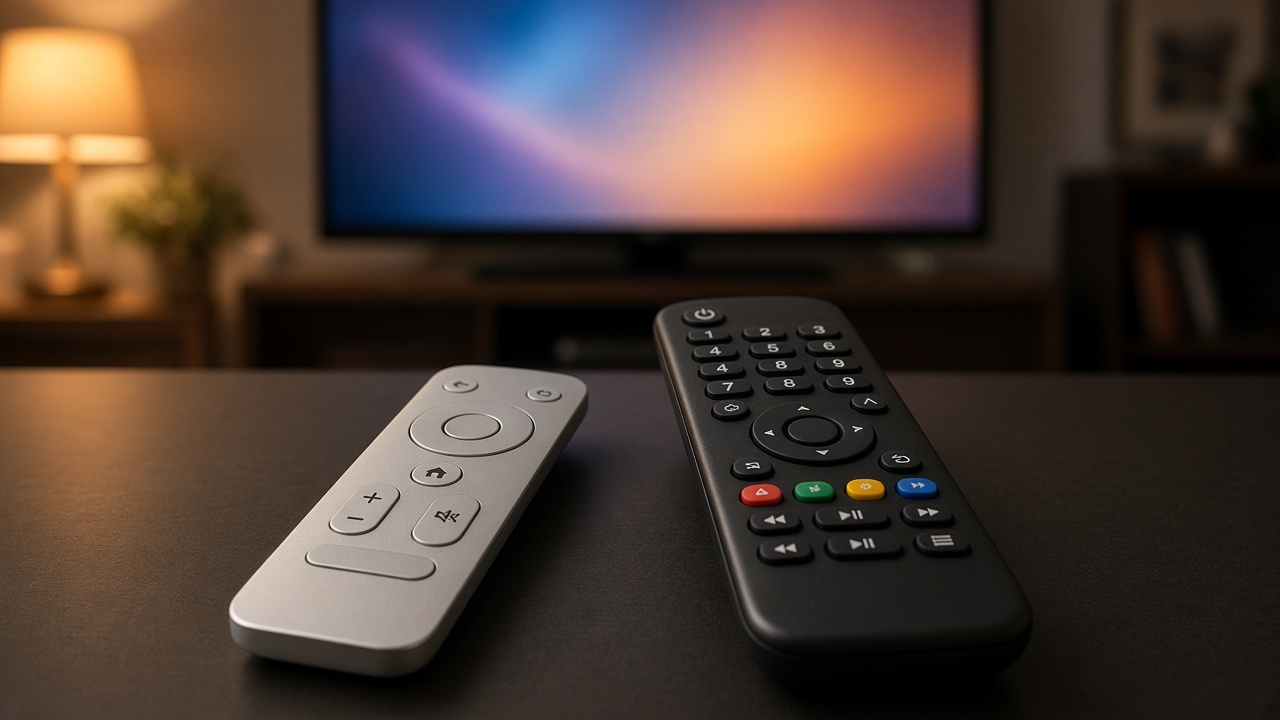
With multiple streaming boxes, smart TVs, sound systems, and gaming consoles packed into media centers, the typical living room now hosts a small collection of remotes—often a confusing mix of shapes, buttons, and brand logos. Apple TV and Spectrum TV are two of the most commonly used entertainment platforms in U.S. households, yet their remotes can easily be mistaken for one another, leading to frustrating moments of trial-and-error navigation.
Correctly identifying and using the right remote doesn’t just streamline your viewing experience—it ensures full functionality of the features built into each device. Misusing the wrong remote results in unresponsive screens, lost navigation, and unnecessary reboots.
In this post, you'll get a side-by-side look at the Apple TV remote and the Spectrum TV remote, including their physical differences, which functions they control, and how to quickly switch between them. The goal: eliminate the confusion so your streaming setup works exactly the way it should.
Understanding the Platforms: Apple TV vs. Spectrum TV
Two Systems, Two Experiences
Apple TV and Spectrum TV operate on very different ecosystems, starting with their core architecture. One is a streaming-centric device built by a tech giant, the other a hybrid service rooted in traditional cable yet evolving toward digital delivery. Each brings its own interface, content library, and integration capabilities.
What Apple TV Offers
Apple TV is a compact streaming box that connects to your television via HDMI. It runs on tvOS, a platform optimized for app-based content ranging from Netflix to Hulu, Apple TV+, and ESPN. Users download apps from the App Store just like on an iPhone or iPad. Navigation relies heavily on gesture-based input via the Siri Remote, voice integration, and tight synchronization with other Apple devices.
- Streaming-first interface: Focused on apps, not channels.
- Seamless Apple integration: Syncs effortlessly with iCloud, Apple Music, and AirPlay.
- Advanced controls: Includes Siri voice commands, touch-sensitive navigation, and control via iPhone or iPad.
What Spectrum TV Delivers
Spectrum TV, from Charter Communications, is designed for households subscribing to traditional cable service, though it also supports streaming access. It works through either a Spectrum-issued set-top box or the Spectrum TV app on smart TVs and mobile devices. This system maintains a channel-based framework, replicating the grid-like experience familiar to cable users.
- Hybrid functionality: Offers both cable and app-based viewing.
- Live TV and On Demand: Thousands of channels and programs available in real-time or via catalog.
- Device options: Available on cable boxes, Roku, Apple TV (via app), and mobile platforms.
Core Differences That Impact Control
Apple TV's system eliminates the notion of channel numbers entirely. Instead, users switch between services and search for shows via voice or app interface. By contrast, Spectrum TV relies on remote-based channel flipping, DVR navigation, and an electronic program guide. These foundational contrasts shape not just the interface, but the design and behavior of their remotes.
Apple TV remotes control a digital hub for apps. Spectrum remotes manage linear broadcast flows. Recognizing this difference anchors the understanding needed to avoid mismatching or misusing the devices—especially when remotes appear deceptively similar.
Remote Showdown: Apple TV Remote vs. Spectrum TV Remote
Visual Design and Layout Differences
Place the Apple TV Remote side by side with the Spectrum TV Remote, and the contrast hits immediately. Form meets function in very different ways across these two devices. While Apple opts for minimalism and sleek aesthetics, Spectrum leans into familiarity with a button-heavy, utilitarian design built for direct cable TV control.
Apple TV Remote
The current-generation Apple TV Remote is a compact, aluminum device with a symmetrical, balanced feel. It features a small number of buttons, arranged to maintain a clean and intuitive layout.
- Sleek Design, Minimal Buttons: The remote is slim, lightweight, and easy to grip. Navigation relies on a few multifunction buttons, reducing clutter and pushing for streamlined control.
- Touch-enabled Clickpad: Depending on the version—especially the second-generation Siri Remote and later—the top section serves as a touch-sensitive clickpad. Users can swipe to navigate menus or press to make selections, blending tactile feedback with gesture input.
- Siri Voice Command Capability: A dedicated Siri button activates voice search and control. This feature enables users to open apps, rewind content, or launch shows using natural language commands—no need to scroll through menus manually.
The Apple TV Remote pairs tightly with the Apple ecosystem, prioritizing elegance and digital smart controls over physical buttons.
Spectrum TV Remote
Now shift focus to the Spectrum TV Remote. It belongs to a different generation of interaction style—built for precision over polish, targeting users who want tactile control across multiple devices.
- Traditional Remote Style: The Spectrum remote follows the established mold: long body, physical buttons, clear labels. Every function from DVR to On Demand sits at the user’s fingertips.
- Numeric Keypad, Volume/Channel Controls: Direct channel entry through the numbered keypad makes flipping between known stations fast. Volume, mute, input selection, and guide navigation also have dedicated buttons, allowing for granular control without accessing a menu system.
- Compatibility with TV and Cable Box: This remote doesn't just talk to Spectrum cable boxes. When configured, it operates TVs, AV receivers, and even DVD players. Its multi-device control functionality emphasizes versatility over specialization.
Designed for traditional television setups, the Spectrum remote offers reliable, button-based navigation and widespread hardware compatibility.
Do you often grab the wrong remote from the coffee table? Considering how different these two devices are, recognizing their unique feel, design, and control philosophy will make it easier to avoid the mix-up. Think about which interface your hands have memorized—metallic touchpad or rubber-tipped volume button?
Compatibility Considerations: Know What Works Where
Device-Specific Remote Compatibility
Not all remotes speak the same language. Each brand builds remote controls to function specifically with its hardware, and rarely are they interchangeable. Picking up the wrong remote and expecting it to operate the other system leads to confusion, non-responsiveness, or unintended device behavior.
Apple TV Remotes Operate Only Apple TV Boxes
Apple designed its remote to exclusively control Apple TV hardware—nothing else. Whether you’re using the aluminum Siri Remote with a clickpad or the older glass-touch variant, its firmware and connectivity protocols support only the Apple TV ecosystem. Attempting to use it on a Spectrum cable box won’t produce a response because the signal architecture is completely different.
Spectrum TV Remotes Are Limited to Spectrum-Compatible Devices
The Spectrum remote typically works with Spectrum receivers and certain compatible TVs. Some models can be programmed to control other brands, but they don’t have the capabilities to navigate tvOS or control Apple’s system functions like Siri input or app switching. These remotes send IR commands that don’t align with Apple TV’s expected signals.
Why the Wrong Remote Doesn’t Work
If you’ve ever mashed buttons on your Spectrum remote hoping your Apple TV would react—or vice versa—you’ve experienced the wall between protocols. Each remote transmits distinct control codes that the other device doesn’t recognize. The Apple TV listens for Bluetooth or HDMI-CEC input; Spectrum reacts to IR commands tailored to its interface.
Bluetooth vs. Infrared: Different Communication Methods
- Apple TV Remotes: Starting with the 4th-generation Apple TV, Apple shifted its remote communication from infrared to Bluetooth. This enables directional input, touchpad gestures, voice control, and proximity-based pairing. IR is still included but serves secondary or limited roles.
- Spectrum Remotes: These continue to rely primarily on infrared. Point the remote directly at the receiver or compatible TV; if there's an obstruction, commands won’t register. Some advanced Spectrum remotes support RF (radio frequency), but even then, they lack the specialized Bluetooth pairing Apple employs.
Trying to use a Bluetooth remote on an IR-only device yields zero results. The two modes operate on different wavelengths and require distinct receivers. That’s why no amount of button-pressing will bridge the gap between them.
Quick Ways to Tell If You're Holding an Apple TV or Spectrum TV Remote
Spot the Difference at a Glance
Apple TV and Spectrum TV remotes steer two entirely different ecosystems, and telling them apart doesn't require a deep dive into manuals or model numbers. Sharp observation will do the job in seconds. You only need to know where to look.
Pay Attention to Branding and Build
- Apple TV remote: Sleek, slim, and made with aluminum finishes on recent versions, the Apple TV remote often includes the Apple logo or the word "Apple" on the back or near the charging port. Earlier generations used a black glass top with a symmetrical layout. The shape is minimalist and often includes a touch surface.
- Spectrum TV remote: Bulkier and button-rich, the Spectrum remote usually carries its branding visibly. Look for the "Spectrum" logo above the navigation pad or near the battery compartment. Made of matte plastic and designed for cable box navigation—it’s built for function, not form.
Iconography That Tells the Whole Story
- The Apple TV remote features a pronounced Siri button—typically located on the side or marked with a microphone icon. If you spot a Home icon (depicted as a TV screen) that takes you to the Apple TV dashboard, you’ve got an Apple device in hand.
- The Spectrum remote will showcase classic TV control buttons: DVR, Live TV, and Input. These aren’t for navigating apps or voice commands—they’re tied directly to live broadcasting and cable box functions.
Smart Sorting Techniques for Multi-Remote Homes
If your living room hosts multiple remotes, simple labeling will cut confusion. Use color-coded stickers or washi tape—blue for streaming, red for cable, or any system that works for your household. Label each remote not only by service name but also by function: “Living Room Apple”, “Bedroom Spectrum”, etc.
Keep all streaming-related remotes in a separate tray or drawer from cable remotes. Mount small holders at the back of the TV or use magnetic clips on a metal cabinet. Quick access and quick ID—no more guesswork during movie night.
Seamless Control: Apple Device Integration Demystified
Control Apple TV Using iPhone or iPad
Apple integrates its ecosystem tightly, and that includes transforming every iPhone or iPad into a functional remote for Apple TV. Through the Control Center, users can access a built-in Apple TV Remote interface. This isn't a separate app; it’s embedded natively into iOS and iPadOS, available by swiping down from the top-right corner of the screen.
The digital version of the Apple TV Remote mirrors the physical one exactly. Users can navigate menus with intuitive swipes, search using the iOS keyboard, adjust volume, activate Siri, and even power the TV on or off—when paired with AirPlay-compatible smart TVs or receivers. It provides total control and a frictionless transition between hardware and touchscreen.
Streaming With Spectrum TV App on Apple Devices
Spectrum’s app for iOS delivers something entirely different: streaming access, not device control. Available on the App Store, the Spectrum TV app lets users watch live TV, browse On-Demand content, and manage DVR recordings. The app functions as a media platform, not a functional TV remote in any traditional sense.
- Live programming: watch shows in real-time from networks included in your subscription.
- Cloud DVR access: schedule, manage, and watch saved shows without turning on the main TV.
- Personalized guides: sort channels, set favorites, and browse through intuitive live tabs.
Unlike the Apple TV Remote feature in Control Center, this app won’t control hardware like power, volume, or channel input on your TV or Spectrum cable box.
Avoiding Confusion: Physical Remotes vs. On-Screen Interfaces
This distinction matters. The Apple TV Remote on iPhone acts as a mirror to the actual Siri Remote. The Spectrum TV app is not a remote. It offers access to content, but doesn't have physical remote functions like volume control or TV input switching.
Consider this analogy: using the Apple TV Remote on iOS is like driving the same car with a different key, while the Spectrum app puts you in a different car altogether. Both move you forward—but with entirely different instrumentation.
Before reaching for your device, ask yourself, "Am I trying to control my TV or stream content?" That single question helps prevent a mix-up between Apple’s Control Center and Spectrum’s mobile streaming app.
Troubleshooting Common Remote-Control Issues
What to Do When Apple TV Doesn’t Respond to Its Remote
Unresponsive Apple TV remote? The first step is to determine whether it's a connection issue or hardware-related. Press and hold the TV/Control Center button along with the Volume Down button on the Siri Remote (2nd generation or later) for about five seconds. If the status light on the Apple TV blinks and then turns off, the device is restarting — a quick way to reset minor glitches.
If there's no response at all, try using the Apple TV Remote feature in the iOS Control Center on an iPhone or iPad. If that works, your physical remote may be unpaired or faulty.
Interference Issues: Wireless Signals and Line-of-Sight
Apple TV remotes use Bluetooth, while Spectrum remotes use infrared (IR) signals. This creates two entirely different troubleshooting paths. Bluetooth does not require line-of-sight, but dense walls or appliances emitting radio waves — like microwaves and wireless speakers — can cause interference.
In contrast, IR-based Spectrum remotes demand a clear path to the receiver. Even a glass cabinet door or a misaligned set-top box can block the signal.
- Keep at least one meter of open space around the Apple TV unit to avoid Bluetooth signal disruptions.
- Position Spectrum’s IR receiver in direct line with the remote — no obstructions, no angle barriers.
- Move routers, soundbars, or smart speakers away from the devices if you notice erratic response behavior.
Checking Wi-Fi and Router Settings
Not all remote issues stem from the remote itself. Apple TV relies heavily on network connectivity for system responsiveness, especially if using an iPhone or iPad as a remote. Lag, delay, or complete failure to register inputs can trace back to poor Wi-Fi performance.
- Ensure you're on the correct frequency band — 5 GHz offers less congestion than 2.4 GHz.
- Restart your router and Apple TV to reestablish a stable connection.
- Update the Apple TV firmware and check for router firmware updates through the manufacturer’s portal.
Low bandwidth or excessive connected devices can also slow down the system’s response to remote commands. Use Quality of Service (QoS) settings on your router to prioritize media traffic if needed.
Battery Check and Replacement Tips
Low or dead batteries often mimic communication errors. Siri Remotes use rechargeable lithium-ion batteries, while Spectrum remotes typically run on AA or AAA batteries.
- For Apple TV Siri Remote: Check battery levels via Settings > Remotes and Devices > Remote. If low, use the Lightning cable to charge; a full charge may take about 2.5 hours.
- For Spectrum remotes: Replace both batteries at once. Mixing old and new cells can lead to inconsistent performance.
If the remote still doesn’t respond post-charging or battery replacement, unpair and re-pair the remote to reset the hardware connection.
Setting Up and Pairing Remotes Correctly
How to pair your Apple TV remote with your Apple TV device
Pairing an Apple TV remote follows a precise, streamlined process. For the Siri Remote (2nd generation and later), place it within three inches of your Apple TV. Then press and hold both the Back (or Menu on older models) and Volume Up buttons for about five seconds. A message will appear on the screen confirming a successful pairing.
If using the first-generation Siri Remote or the white Apple Remote (infrared), point it directly at the front of the Apple TV. For IR models, pairing isn't necessary unless you're using multiple Apple TVs in close proximity. Hold Menu and Right for six seconds to initiate pairing with the aluminum IR remote.
Once paired, navigation becomes immediate, with minimal lag. Signal conflicts rarely occur, thanks to Apple’s proprietary Bluetooth integration for Siri Remotes and focused IR beam for legacy versions.
Steps to program the Spectrum remote to control your cable box and TV
The Spectrum remote requires manual programming for most TV models. Start by identifying your remote model—either the RC122, URC1160, or UR5U-8780L. Each follows a specific setup procedure. Here’s a general overview using the URC1160 as a common example:
- Turn on your TV and your Spectrum receiver.
- Hold down the MENU and OK buttons simultaneously until the input button blinks twice.
- Press the TV Power button once; the button should stay lit.
- Point the remote at your TV and hold down the UP arrow until the TV turns off. This process scans through thousands of codes.
- When the TV powers off, press OK immediately to save the code.
If you overshoot the correct code, reinitiate the process and repeat the cycle. Each TV brand is mapped to a unique code set, which the remote cycles through sequentially.
Resetting remotes if paired incorrectly or stuck on wrong device
Mispaired remotes create navigation dead ends. To reset an Apple TV Siri Remote, unplug the Apple TV for six seconds, then plug back in. Next, hold Back (or Menu) and Volume Up for five seconds once more to re-pair.
For Spectrum remotes, a full system reset clears all pairings. Hold TV and OK together until you see an LED blink. Then press 977. The LED blinks three times, signaling that factory settings have been restored. At this point, reprogram the remote as outlined earlier.
Still holding both remotes and not sure which one's which? Check button layouts—the circular trackpad is pure Apple, while rows of alphanumeric or DVR controls scream Spectrum. Don’t confuse Apple TV remote with Spectrum TV remote at any point during programming—it will delay setup and create command conflicts.
Control Both Apple TV and Spectrum TV With One Remote: Here's How
Universal Remotes That Work With Apple TV and Spectrum
Streamline your home entertainment setup by selecting a universal remote that handles both Apple TV and Spectrum TV seamlessly. Specific models support IR (infrared), Bluetooth, and even IP-based control protocols—each affecting how well they work across platforms.
- Logitech Harmony Elite: Offers full compatibility with Apple TV (via Bluetooth or IR with Hub) and Spectrum cable boxes. Customizable activities make switching between services instantaneous.
- Caavo Control Center: Integrates voice search, HDMI switching, and multi-device control. Recognizes Apple TV and Spectrum receivers during setup.
- SofaBaton U1: Suitable for IR-based Spectrum remotes and Apple TV (using IR or Bluetooth, depending on model). The companion app simplifies configuration.
Benefits and Limitations of a Single-Remote Setup
There’s a clear payoff in cutting down clutter and avoiding remote confusion. With one universal remote controlling both devices, users skip the clumsy hunt through drawers or couch cushions. Activity macros—like “Watch Apple TV”—can turn on multiple devices, switch HDMI inputs, and launch the interface with one button.
However, not every universal remote handles all protocols equally well. Some rely solely on IR, making them incompatible with Apple TV 4K out of the box unless paired with an IR receiver or hub. Others might support everything, but suffer from laggy navigation or app incompatibility that affects features like Siri dictation or Spectrum channel guide browsing.
Setup Essentials and Why Device Recognition Matters
Proper setup is non-negotiable. During configuration, identifying each device correctly ensures that the remote maps functions to the right commands. Select “Apple TV” instead of a general media player profile, and enter the specific Spectrum cable box model if prompted. This allows the remote to download precise command sets for each system.
Universal remotes like Harmony use cloud-based device profiles. When you input “Apple TV 4K” or “Spectrum WorldBox 210,” the software matches your hardware to the exact button schema required. Skip this step, and features like fast-forward or menu navigation might produce unintended results.
After setup, don’t forget to test custom activities. Toggle between platforms using pre-programmed scenes—“Stream on Apple TV,” then “Watch Cable on Spectrum.” Each should initiate the correct chain of power, input, and platform controls without needing a second remote in sight.
Common User Mistakes and How to Avoid Them
Mixing up the Apple TV remote with the Spectrum TV remote leads to more confusion than users often expect. With both remotes lying next to each other on the same coffee table, the wrong button press becomes almost inevitable. Below, see how to identify frequent slips and apply tactics that keep everything under precise control.
Trying to Control Apple TV with the Spectrum Remote—And Vice Versa
Each remote is designed for its own ecosystem. The Apple TV remote communicates via Bluetooth and occasionally IR, integrating tightly with tvOS. The Spectrum remote operates using IR or RF to interact with cable boxes. Attempting to control Apple TV using the Spectrum remote results in zero response, and vice versa—since functionality simply doesn’t cross over.
The fix is clear: keep brand boundaries in mind. Before pointing and clicking, take an extra second to check the remote in hand. Drop a sticker or colored tape on each to create a visual cue—it works better than memory alone.
Forgetting Which Remote Controls Volume or Input
Volume tends to be a shared function among remotes, depending on how they're programmed, but not always. Apple TV remotes can control volume only if configured with HDMI-CEC or IR. Spectrum remotes control volume directly through your TV or audio receiver—again, depending on how they're set up.
Labeling helps here too, but training muscle memory is even more effective. Use one remote consistently for audio control and shelve the other when watching TV through that device. Unused remotes create fewer chances for error.
Pressing the Wrong Input on the TV and Triggering a “No Signal” Screen
Switching between HDMI inputs manually or through a remote leads to temporary confusion. Pressing the wrong input button sends the TV searching down an unplugged route, ending in the infamous "no signal" message.
Rather than guessing which HDMI input connects to which device, rename each input directly through your TV's settings. For instance, label HDMI 1 as "Apple TV" and HDMI 2 as "Spectrum". When switching sources, a quick glance will ensure you’re back on track without second-guessing.
Over-Relying on a Universal Remote Without Proper Programming
Universal remotes like Logitech Harmony or GE models allow cross-device control—but only when properly configured. Skipping correct programming leads to spotty performance: volume control fails, or only one device responds.
Before relying on a universal remote, run through its full setup process. That includes device-specific configurations, testing each function within the ecosystem, and assigning the right input commands. Don’t assume functionalities will carry over automatically—unprogrammed buttons are just plastic.
- Tip: Create labeled device “activities” like “Watch Apple TV” or “Watch Spectrum” to automate source switching and device activation in one tap.
Wrap Up Your Remote Control Know-How
Mistaking an Apple TV remote for a Spectrum TV remote—or the other way around—leads to unnecessary frustration. These devices serve distinct platforms with specific controls, interfaces, and pairing processes. Recognizing those differences streamlines day-to-day use and eliminates wasted time troubleshooting the wrong hardware.
Take a few minutes to clearly label your remotes. Stickers, colored sleeves, or simple tags work well. This step alone cuts down repeated confusion, particularly in a household with multiple streaming devices. Spend time with each remote and explore its buttons, navigation features, and shortcut behaviors. Familiarity breeds efficiency.
Before restarting a device or diving into technical settings, glance at the screen. Are you on Apple TV or Spectrum TV? Matching the on-screen platform with the correct remote is the fastest way to regain control—literally.
With a bit of upfront organization and awareness, using both remotes becomes second nature. Ready to take command?