Bridge Mode 2026
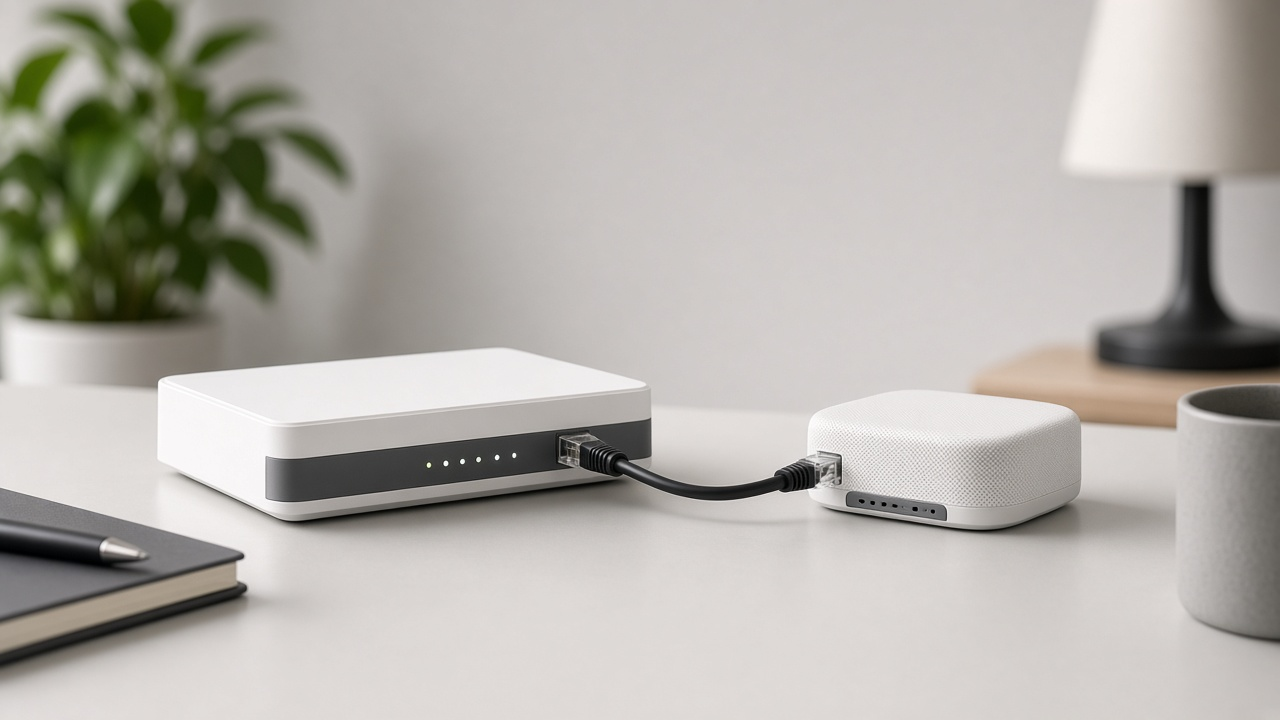
Every wireless network relies on a structured system of devices to deliver seamless connectivity. Routers, modems, and Wi-Fi all play specific roles in ensuring stable internet access. Understanding these components makes it easier to manage connections, troubleshoot issues, and improve network performance.
A modem serves as the primary gateway between a home or office network and an Internet Service Provider (ISP). It converts the signal from the ISP into a digital format that connected devices can use. A router then distributes that signal to multiple devices via wired or wireless connections, assigning each an IP address – a unique identifier that enables communication within the network.
Wi-Fi allows devices to connect wirelessly, eliminating the need for physical cables. When multiple routers or access points are involved, network management becomes more complex. This is where advanced settings like bridge mode come into play, optimizing how signals are transmitted while maintaining efficient data flow.
What is Bridge Mode?
Definition of Bridge Mode
Bridge mode is a network setting that disables the routing capabilities of a modem-router combination, allowing another device, typically a dedicated router, to take over network management. In this configuration, the modem-router functions solely as a bridge, facilitating communication between the internet and the primary router without performing Network Address Translation (NAT) or assigning IP addresses.
This setup eliminates the creation of multiple private networks, preventing conflicts such as double NAT, which can cause connectivity issues for online gaming, VPN usage, and remote access. When bridge mode is enabled, the router connected to the modem handles all networking functions, ensuring a more streamlined and efficient connection.
How Bridge Mode Differs from Traditional Routing
A standard router performs multiple tasks beyond just passing internet traffic. It manages DHCP (Dynamic Host Configuration Protocol), NAT, and firewall security while directing data packets across a private network. By default, most modems with built-in router functionalities create a separate network, assigning private IP addresses to devices.
Enabling bridge mode deactivates these routing capabilities, transforming the device into a transparent bridge that forwards external IP addresses directly to the primary router. This differs from traditional routing in key ways:
- Elimination of Double NAT: When both a modem-router and a standalone router are active with NAT enabled, devices may experience communication issues due to overlapping private network layers. Bridge mode resolves this by allowing a single router to manage NAT.
- Improved Network Performance: Since network traffic bypasses extra processing from the modem-router, latency decreases, which can be beneficial for latency-sensitive applications like video conferencing and gaming.
- Seamless Integration with Advanced Routers: Many users prefer high-performance routers with superior features such as Quality of Service (QoS) controls, MU-MIMO support, and better wireless range. Bridge mode ensures these capabilities remain fully functional without interference from the modem-router.
While bridge mode simplifies network management and enhances flexibility, enabling it requires careful consideration of network requirements to ensure uninterrupted service and compatibility with devices on the network.
The Purpose and Benefits of Using Bridge Mode
Enhancing Network Coverage and Managing Internet Traffic Effectively
Bridge mode extends the reach of a network by turning a secondary router into an access point. This eliminates the restrictions imposed by double NAT (Network Address Translation) and optimizes internet bandwidth distribution. In a multi-router setup, devices can switch between access points without disrupting connections, ensuring uninterrupted connectivity across larger spaces.
Internet traffic management benefits significantly from bridge mode. By disabling router functions like DHCP (Dynamic Host Configuration Protocol) on the secondary device, the network reduces unnecessary IP conflicts, leading to more consistent speeds and lower latency. Large homes and office environments experience fewer dead zones and less interference.
Creating Seamless Wireless Networks by Connecting Multiple Routers
Multiple routers placed strategically throughout a space improve network efficiency, but without bridge mode, they assign separate IP subnets. This disrupts device communication between networks. Bridge mode resolves this by merging these subnets into a single unified network, allowing seamless transitions between routers.
- Wireless devices automatically connect to the strongest signal without losing connectivity.
- Users experience uniform network performance without manual switching between Wi-Fi networks.
- Smart home devices linked across multiple access points remain fully operational without re-authentication issues.
Businesses, hotels, and large households benefit from this approach, ensuring that all devices remain on the same network regardless of their physical position.
Reducing Network Congestion and Managing IP Addressing Issues
Routers managing independent subnets introduce network congestion through redundant IP address assignments. This often results in slowdowns and inconsistent latency for online activities. Enabling bridge mode offloads unnecessary routing tasks to a primary device, streamlining traffic handling.
Network congestion can degrade real-time applications like video conferencing, online gaming, and VoIP calls. By operating within a single subnet, bridge mode minimizes high-latency connections, leading to smoother data transmission.
- IP address management improves, limiting DHCP conflicts.
- Bandwidth allocation becomes more efficient without routing redundancy.
- Overall network stability increases with fewer packet loss issues.
Deploying bridge mode aligns network architecture with the demands of modern high-speed connections, ensuring better resource allocation and optimal performance.
Network Configuration: Setting Up Bridge Mode
Step-by-Step Guide to Configuring Bridge Mode
Converting a router to bridge mode requires precise steps to ensure stability and performance. Different manufacturers use unique interfaces, but the core process remains similar.
- Access the Router’s Admin Interface: Open a web browser and enter the router’s IP address, typically 192.168.1.1 or 192.168.0.1. Log in using administrator credentials.
- Locate the Bridge Mode Setting: Navigate through the settings. Some manufacturers place this under "WAN Settings," "Advanced Setup," or "Network Mode."
- Enable Bridge Mode: Activate this setting, which disables the router’s DHCP and NAT features, allowing another device to manage network traffic.
- Connect to the Primary Router: Use an Ethernet cable to link the secondary router (now in bridge mode) to the main router’s LAN port.
- Apply and Restart: Save changes and restart both the bridged router and the primary router.
- Verify Connectivity: Access the bridged router’s settings to ensure it has obtained an IP address from the primary router.
Some routers require a firmware update to enable bridging. Check the manufacturer's website for the latest version before starting the configuration.
Compatibility Considerations When Pairing Routers and Devices
Not all routers support bridge mode. Manufacturers like Netgear, TP-Link, and ASUS offer models with dedicated bridging functionalities, but older hardware may lack these features. Checking the router’s documentation confirms compatibility.
Dual-band routers with simultaneous 2.4 GHz and 5 GHz operation provide better performance in bridge mode compared to single-band devices. When bridging Wi-Fi networks, maintaining the same SSID and security parameters prevents connection drops.
ISP-provided modems with integrated routing capabilities may require disabling their DHCP and NAT manually. In some cases, ISPs lock these settings, preventing changes, which necessitates contacting the provider for assistance.
Devices dependent on UPnP (Universal Plug and Play), such as gaming consoles and smart home gadgets, sometimes experience connectivity issues in bridge mode. Checking for firmware updates and manually forwarding ports improves compatibility.
Router Setup: Bridging with Your Current Device
How to Check If Your Current Router Supports Bridge Mode
Not all routers come with bridge mode functionality. Before making any configuration changes, verify whether your device includes this option. Begin by checking the router's user manual or accessing the manufacturer’s website for detailed specifications.
Alternatively, access the router’s admin interface. Most routers use a local web address such as 192.168.1.1 or 192.168.0.1. Log in using the provided credentials—often found on a sticker on the device or in the manual. Look for options related to bridge mode, passthrough, or modem mode in the settings menu. Some routers may label it under advanced or wireless settings.
If the admin interface does not offer bridge mode, check with the router's manufacturer regarding firmware updates or confirm if third-party firmware like DD-WRT or OpenWrt provides this feature for your model.
Adjusting Settings Within Your Router’s Admin Interface for Bridge Mode
Once you confirm bridge mode support, proceed with adjusting the necessary settings. Follow these steps for a standard setup:
- Log into the Admin Interface: Open a web browser and enter the router’s IP address. Use the administrator credentials to access the settings.
- Locate Network Mode Settings: Navigate to the Advanced Settings or WAN or LAN configuration, depending on the router's interface layout.
- Enable Bridge Mode: Find the Bridge Mode or Passthrough option and activate it. Some routers may require rebooting after this step.
- Disable DHCP: Bridge mode hands over IP management to another device. Disable the router’s DHCP server to prevent conflicts.
- Connect to the Primary Router: Use an Ethernet cable to link the router in bridge mode to the primary network gateway or main router.
- Save Settings and Reboot: Apply the changes and restart the router to finalize the configuration.
Some routers enable bridge mode only for specific LAN ports. Check the manual to ensure the correct port connections. If Wi-Fi functionality is required, verify that it remains active after enabling bridge mode, as certain routers disable wireless capabilities by default.
With bridge mode active, the router serves purely as a pass-through device, eliminating double NAT issues and improving network stability. Verify connectivity by testing internet access on connected devices and checking if they receive IP addresses from the primary network.
Understanding IP Addressing in Bridge Mode
How Bridge Mode Affects IP Address Allocation
Enabling bridge mode on a router fundamentally changes how IP addresses are distributed across the network. In a standard router configuration, the device assigns private IP addresses to connected devices using Network Address Translation (NAT). This setup creates a local subnet managed by the router.
When bridge mode is activated, the router stops assigning IP addresses and instead allows the upstream network, typically the main router or a server, to handle DHCP (Dynamic Host Configuration Protocol). This means:
- Devices connected to the bridged router receive their IP addresses from the primary DHCP server.
- No additional subnet is created; all devices exist within a single IP range.
- IP conflicts can occur if DHCP settings overlap with another network segment.
Bridge mode effectively turns the router into a pass-through device, ensuring that all network devices operate within the same IP addressing scheme without additional NAT layers.
The Role and Configuration of DHCP in Bridge Mode
DHCP plays a central role in determining how devices obtain network addresses. In bridge mode, this function shifts entirely to the upstream router or network server.
Key changes in DHCP configuration when bridge mode is enabled:
- The secondary router’s DHCP server is disabled to prevent conflicts.
- All DHCP address assignments come from the main network, ensuring a unified address space.
- Static IP mappings and reservations must be configured within the main router, as the bridged device no longer manages them.
To ensure seamless operation, verify that the primary router's DHCP range can accommodate all connected devices. Additionally, some enterprise-level systems allow DHCP relay, forwarding IP requests to a centralized server across different network segments.
The transition to bridge mode simplifies network management by eliminating double NAT issues, but it requires careful oversight of DHCP settings to maintain consistent IP allocation.
Internet Service Providers and Bridge Mode
How Using Bridge Mode Affects Your Relationship with Your ISP
Activating bridge mode on your router changes how network traffic flows from your Internet Service Provider (ISP) to your devices. ISPs typically provide modems with built-in routing functionality, meaning they expect customers to use their equipment as both a modem and a router. When bridge mode is enabled, the ISP’s router stops managing the local network and passes the public IP address directly to a user-managed router.
Some ISPs implement remote management tools to monitor and assist users with network connectivity. By switching to bridge mode, these tools may become less effective, limiting the ISP’s ability to provide technical support. Certain diagnostic functions, such as remote troubleshooting via an ISP-provisioned app, might also stop working.
Performance characteristics can also change. With bridge mode enabled, the customer’s router takes responsibility for all NAT functions, DHCP assignments, and firewall settings. If issues arise from misconfiguration, the ISP may not offer assistance, requiring the subscriber to manage network troubleshooting independently.
Considering ISP Policies on Using Routers in Bridge Mode
Some ISPs place restrictions on hardware configurations, including limitations on using their equipment in bridge mode. Providers often lease gateway devices that combine a modem and a router, and disabling routing functionality could violate service agreements. Checking the ISP’s terms of service ensures compliance before making changes to network settings.
Additionally, ISPs with proprietary firmware may block bridge mode functionality or require users to contact customer service for activation. In certain cases, enabling bridge mode automatically disables additional services offered by the ISP, such as mesh Wi-Fi solutions, parental controls, or security features integrated into the default router.
Fees may also be a factor. Some ISPs charge extra for users opting to use their own routers instead of the default equipment. Others don’t officially support third-party routers in a bridged setup, potentially limiting support options if network issues occur.
Before making changes, reviewing ISP documentation or calling support can clarify any potential restrictions. For users reliant on ISP-provided features like remote management or bundled network security, switching to bridge mode may not be the best option.
Network Address Translation (NAT) in Bridge Mode
How NAT Functions in Bridge Mode
Network Address Translation (NAT) enables multiple devices on a local network to access external networks using a single public IP address. When a router operates normally, it translates private IP addresses to a public one before forwarding traffic to the internet. However, enabling bridge mode alters this behavior.
In bridge mode, the router disables NAT and stops assigning local IP addresses. Instead, it passes all network traffic directly to the next device upstream, typically another router or a modem-router combo. This eliminates double NAT, a scenario where two devices in sequence perform address translation, which can cause connectivity issues in applications like online gaming and remote access services.
Pros and Cons of Disabling NAT
- Improved Network Performance: Without NAT, the network avoids handling additional address translation, reducing latency and potential slowdowns in data transmission.
- Elimination of Double NAT: Devices requiring port forwarding, like gaming consoles and VoIP systems, establish connections more reliably when only one device manages NAT operations.
- Simplified Network Management: The primary router manages all DHCP and NAT tasks, creating a single point of control for network traffic.
- Loss of Local Routing Control: With NAT disabled, the bridged router no longer manages IP address assignments, so another device must handle DHCP and firewall protections.
- Potential Security Risks: NAT provides a layer of protection by shielding internal devices from direct exposure to the internet. Without it, devices on the network may require additional security measures like firewalls.
- Compatibility Considerations: Some ISPs base their service restrictions or configurations on NAT-enabled routers. Switching to bridge mode could require adjustments to ISP-supplied equipment.
Using bridge mode with disabled NAT ensures seamless connectivity when multiple routers are in use, but it demands proper configuration of the upstream router. Without a correctly set firewall and DHCP service, devices may experience conflicts, access issues, or exposure to external threats.
Wi-Fi Extenders vs. Bridge Mode
Key Differences Between Wi-Fi Extenders and Bridge Mode
Wi-Fi extenders and bridge mode serve distinct purposes in network expansion. A Wi-Fi extender, also known as a repeater, captures the wireless signal from a router and rebroadcasts it to extend coverage. This approach increases the signal range but introduces latency and bandwidth reduction, as the data must be processed through multiple radio transmissions.
Bridge mode, on the other hand, disables routing functions on a secondary router, allowing it to act as a pass-through device. This configuration eliminates double NAT issues and improves network performance by maintaining a single IP address space. Unlike extenders, bridge mode does not amplify Wi-Fi signals but ensures seamless connectivity within the same network.
When to Choose Bridge Mode Over Wi-Fi Extenders
- Eliminating Double NAT: If an additional router is needed within a network, bridge mode ensures smooth communication without IP conflicts or performance degradation.
- Preserving Bandwidth: Wi-Fi extenders split bandwidth between the primary network and connected clients, reducing overall speed. Bridge mode maintains full-speed data transfer across connected devices.
- Seamless Network Integration: Using multiple routers in bridge mode creates a unified network with a single SSID, enabling devices to switch between access points without disconnecting.
- Wired Expansion Needs: Devices requiring wired connections can benefit from bridge mode, which extends the network using Ethernet instead of relying solely on Wi-Fi.
When Wi-Fi Extenders Might Be the Better Option
- Extending Coverage Without Additional Wiring: When physical connectivity is not feasible, extenders offer a wireless alternative to reach dead zones.
- Quick and Simple Setup: Wi-Fi extenders typically require minimal configuration, making them an easier solution for non-technical users.
- Expanding Guest Networks: In environments where a separate network is required for guests, an extender can provide coverage without altering the primary network structure.
Making the Right Choice
Both solutions enhance network reach but serve different needs. Bridge mode optimizes performance and network cohesion by eliminating additional NAT layers, while Wi-Fi extenders focus on increasing coverage at the cost of speed. Selecting the best option depends on whether seamless integration or extended coverage is the primary goal.
Integrating VPN (Virtual Private Network) with Bridge Mode
Feasibility of Running a VPN on a Network with a Bridged Router
Using a VPN in a network where the router is in bridge mode depends on where encryption and tunneling take place. A router in bridge mode operates as a transparent network device, so it does not handle VPN functions directly. Instead, the VPN connection must be established at the level of an upstream router, a dedicated VPN appliance, or individual client devices.
A VPN-capable upstream router, positioned after the bridged router, can manage the encrypted tunnel for all network traffic. Many high-end routers support VPN configurations using OpenVPN, WireGuard, or IPsec, allowing all connected devices to route traffic through a secure tunnel.
If the upstream router does not support VPN functionality, individual devices must initiate their own VPN connections. This setup works but lacks the centralized control and encryption coverage provided by a VPN-enabled router.
Potential Issues and Solutions Relating to Data Security
When integrating a VPN with bridge mode, security issues may arise due to how traffic is routed. A bridged router does not perform network address translation (NAT) or firewall functions, meaning VPN security features rely on the upstream router or client devices.
- Unencrypted Traffic Leakage: If some devices connect directly to the internet without routing through the VPN, their traffic remains exposed. Using firewall rules on the upstream router to block non-VPN traffic prevents this issue.
- DNS Leaks: Devices running VPN software may default to the ISP's DNS servers, risking data exposure. Configuring VPN clients to use secure DNS servers, such as those provided by Cloudflare (1.1.1.1) or Google (8.8.8.8), mitigates this.
- Performance Considerations: A VPN can introduce latency, especially with encryption overhead. A router or device with strong processing power ensures efficient encryption and decryption.
- Device Compatibility: Some IoT devices and streaming services may block VPN traffic. Running a split-tunnel configuration allows non-sensitive traffic to bypass the VPN while securing critical data.
A well-integrated VPN in a bridge mode environment requires proper placement of VPN functions, careful traffic routing, and strong encryption settings. Optimizing these parameters ensures security without compromising network performance.
Optimizing Your Home Network with Bridge Mode
Bridge mode eliminates double NAT, reduces network complexity, and enhances performance by allowing a primary router to manage all network functions. Devices communicate more seamlessly, improving data flow and minimizing potential connection issues.
A well-planned network setup ensures efficient resource utilization. Understanding bridge mode helps in designing a scalable and secure home network. Compatibility with ISP equipment, proper subnet configuration, and integration with other network components determine the effectiveness of bridge mode deployment.
How has bridge mode impacted your home network? Share your experiences and ask questions in the comments. Your insights could help others optimize their setups.