Why Your Wi-Fi Signal Drops From 5 Bars to 1—and What That Really Means
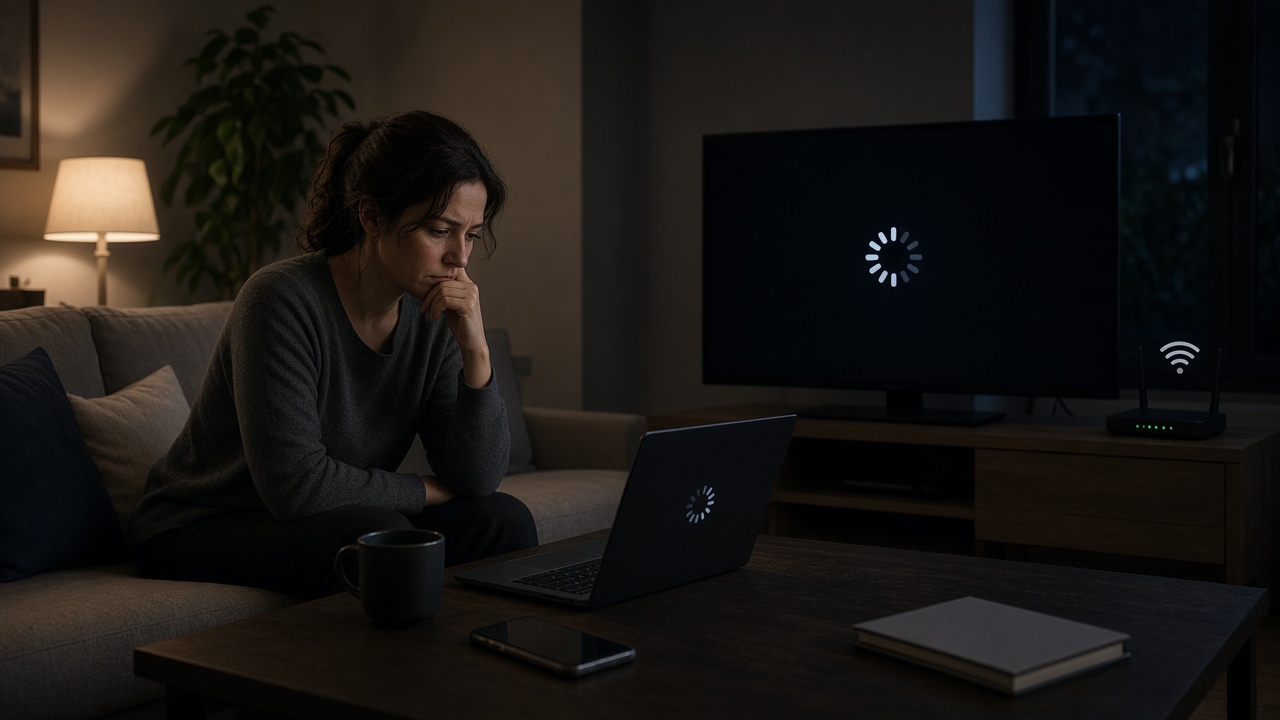
Strong signal, smooth streaming, no delays. Then suddenly—only one bar, buffering circles, and apps refusing to load. It’s a familiar experience that leaves many users puzzled and frustrated.
Take John, for instance—a regular iPhone user who depends on his home Wi-Fi. At 8 PM, just as he sat down to stream his favorite show, the signal dropped from five bars to one. Within seconds, the video froze, and playback stopped entirely. No settings were changed, no one moved the router, and yet the performance tanked.
Scenarios like this continue to crowd threads across platforms like the Apple Community and Reddit’s r/HomeNetworking. Users compare signal strength fluctuations, debate possible causes, and search for clear answers. The conversation is constant for one reason: the problem doesn’t go away on its own.
What Do Signal Bars Really Mean?
Seeing four or five bars on your device doesn't guarantee fast, uninterrupted internet. Despite common assumptions, these bars only offer a partial snapshot of your actual connectivity. To make sense of a sudden drop—like losing streaming capability when the bars dip to one—you need to understand what these signal indicators actually represent.
Signal Bars Reflect Connection Quality, Not Internet Speed
Signal bars display the strength of your connection to a network source, not the available bandwidth or internet speed. On Wi-Fi, they show your device’s reception from your router. On cellular networks, they represent your proximity and connection quality to the nearest tower. Neither assures stable high-speed internet.
Wi-Fi vs. Cellular Signal: Two Different Sources
- Wi-Fi Signal Strength: This measures how well your device communicates with your wireless router. A full-strength signal means a strong connection to the router—but if the router itself has a poor internet feed or is overloaded, data speed still suffers.
- Cellular Signal Strength: The bars here reflect the radio frequency signal between your phone and your carrier’s cell tower. Obstructions, distance, and network congestion affect this.
Devices like iPhones complicate matters further because they can switch between Wi-Fi and cellular data in response to signal changes. You might believe you're connected to a solid Wi-Fi signal, when in fact the device has switched to cellular due to poor router performance—or the opposite, sometimes choosing a weak Wi-Fi over a stronger cellular link based on its software's judgment.
Why You Need to Check Both
Relying solely on the number of bars isn’t enough. Open your network settings. Look at what you're connected to. Is it your home Wi-Fi or cellular data? Test speeds on both, especially when streaming fails. A strong Wi-Fi signal with no internet access leads to the same frustration as a weak cellular signal—buffering, dropped connections, and failed loads.
Next time you notice bars dropping and streaming halted, don't just glance at the top corner of your screen. Dig deeper—your solution starts by identifying the actual source of the signal your device trusts at that moment.
Why Streaming Sometimes Fails When Signal Bars Drop
Common Causes Behind Sudden Streaming Issues
When someone says, “We usually have 4 or 5 bars on the internet. Last night it went to one, we can not stream,” the experience points to more than just an annoyance—it’s a breakdown in the real-time delivery of data. Streaming, by design, requires a steady and reliable connection. A sudden dip in signal strength triggers buffering, resolution drops, or complete failure to play media. Several conditions can lead to this kind of connectivity degradation.
Internet Throttling by Your ISP
ISPs can intentionally limit your internet speed, especially during peak usage times or after you've reached a data cap. This practice, known as throttling, impacts bandwidth-intensive activities like 4K video streaming or gaming. If you’re streaming through services such as Netflix, YouTube, or HBO Max, throttling can lead to persistent loading screens or downgraded video resolution from HD to SD.
- ISPs monitor traffic types and can selectively reduce speed for streaming or torrenting.
- Streaming quality may sharply decline during evening hours due to peak demand.
- Performance may recover after midnight or outside popular viewing windows.
Temporary Outages or Network Congestion
Shared networks, such as those in apartment buildings or densely populated areas, experience local congestion. Multiple users accessing high-bandwidth services at once—particularly during evenings—push the available data pipeline beyond capacity. This leads to:
- High latency, causing noticeable lag during video playback.
- Packet loss, where fragments of data never reach your device.
- Periodic buffering or connection timeouts on streaming apps.
Even in suburban households, a smart home running simultaneous 4K streaming, Zoom calls, and gaming on separate devices can max out a standard internet plan. The result? The bar count on devices may drop, signalling decreased performance across the network.
Device-Specific Glitches
Connectivity issues sometimes come from the devices themselves—not the network. Phones, laptops, or streaming sticks carry their own set of variables affecting performance. Consider these possibilities:
- A misbehaving firmware update on a smart TV can interfere with Wi-Fi connectivity.
- iOS devices occasionally misread the signal indicator, displaying one bar even with strong connections.
- Background app processes may hog bandwidth without user awareness.
If the streaming issue only occurs on one device but others perform normally, device-level troubleshooting will resolve the problem faster than restarting the router or calling your service provider.
Quick Resets and Essential Checks: Where Home Network Troubleshooting Begins
When the internet signal drops from five bars to one and streaming grinds to a halt, check the basics before diving deeper into diagnostics. Many connectivity issues resolve with a few initial actions—no technical expertise required.
Start Here: The Fastest Fixes
- Restart Your Router and Modem: Unplug both devices from the wall. Wait for 30 seconds before plugging them back in. This clears memory, stops overheating loops, and forces a fresh signal negotiation with your internet service provider. Most routers take 2 to 5 minutes to fully boot.
- Forget the Wi-Fi Network on Your iPhone, Then Reconnect: Go to Settings > Wi-Fi, tap the info icon next to your connected network, and select Forget This Network. After that, reconnect and enter the password manually. This eliminates saved configuration glitches that can interfere with connections.
- Restart the Device: Turn off your iPhone completely and restart it. Cached processes or failed connections may resolve after a reboot.
- Check Your Router's Indicator Lights: Look for stable LED indicators on Power, Internet, and Wi-Fi signals. If the internet light is red or blinking rapidly, the issue may stem from the provider’s end or a line-level problem. If the Wi-Fi light is off, the wireless transmitter inside the router could be malfunctioning.
- Run a Speedtest for Real-Time Performance: Use the Speedtest by Ookla app or website while connected to your home Wi-Fi. Compare the measured download and upload speeds to your contracted internet plan. Streaming services typically require at least 5 Mbps for HD and over 25 Mbps for 4K. If you're seeing speeds below 2 Mbps, deeper network issues are likely.
These first steps often isolate whether problems are device-specific or tied to the broader home network. If nothing changes after trying these, the origin likely lies beyond personal devices and routine settings.
Pinpointing the Real Strength of Your Wi-Fi Connection
Using Tools to Measure Signal Strength and Detect Dead Zones
Bars on your screen don’t tell the whole story. To accurately assess Wi-Fi strength at home, use dedicated measurement tools. Apps like NetSpot (macOS and Windows), Acrylic Wi-Fi Home (Windows), or WiFi Analyzer (Android) provide real-time data on network strength in decibels-milliwatts (dBm). iPhone users can access signal specifics via the Airport Utility app enabled in developer settings.
These tools generate heatmaps that identify dead zones—areas in your house where the signal drops dramatically. Scan multiple rooms. Compare signal readings. Typical results from -30 dBm (excellent) to -90 dBm (unusable) will help highlight if your “1-bar” drop correlates with an actual network weakness or interference.
When Full Bars Still Mean Poor Connectivity
Devices showing four or five bars might still buffer endlessly or refuse to stream altogether. This apparent contradiction often points to backend issues. High signal strength only indicates a strong link to the router—it doesn’t guarantee that data flows effectively to and from the internet.
- Weak upstream connectivity: Your device maintains a solid link to the router, but if the router itself suffers from a low-quality connection to the ISP or experiences packet loss, performance drops sharply.
- Router misplacement and obstruction: Signals bounce off surfaces and get absorbed by walls. A router tucked behind a television or in a closet radiates poorly, especially through concrete or metal. Alignment near reflective or absorbent materials alters signal behavior.
- Device deprioritization: Routers with Quality of Service (QoS) settings may allocate more bandwidth to specific devices. Streaming may fail on devices ranked lower in priority, despite high signal readings.
Consistent one-bar experiences in certain rooms signal a spatial problem. Multiple devices getting reduced performance across the house, though, usually reveals something deeper—either on the router or the ISP side of the connection. Start mapping the signal, then match the readings with behavior across time of day and user activity.
The Impact of Router and Modem Performance on Internet Stability
When your streaming content slows to a crawl and the internet bars drop from five to one, the root cause may lie in the core of your home network—the router and modem. These two devices process, manage, and distribute your internet connection. If they're not functioning optimally, no number of signal bars will deliver smooth streaming.
Lifespan of Routers—When Is It Time to Upgrade?
Consumer-grade routers and modems have a typical functional lifespan of about 3 to 5 years. After this period, performance degradation becomes noticeable, especially with the arrival of new internet standards, increasing device connections, or higher data demands from services like 4K streaming.
For example, routers built before 2018 may not support Wi-Fi 5 or Wi-Fi 6 protocols, which handle device congestion far more efficiently than earlier versions. Holding onto outdated hardware restricts throughput speeds and limits signal range even when the internet package from your provider remains top-tier.
Router Placement: Location Determines Coverage
Placement impacts signal strength at every corner of your home. A poorly positioned router, even the most advanced model, will leave you with inconsistent coverage.
- Centralized locations: Place the router near the center of your home where signals can radiate outward evenly. Tucking it away in a far corner or confined room cuts off a significant portion of your living space from strong coverage.
- Away from interfering devices: Household appliances like microwaves, cordless phones, baby monitors, or even Bluetooth-connected speakers emit frequencies that interfere with Wi-Fi signals. Keep your router at least a few feet away from such devices for maximized performance and minimal cross-signal noise.
Rebooting Frequency and Firmware Updates
Although routers are designed to stay powered on 24/7, periodic reboots clear out memory, reset device handshakes, and allow configuration updates to take effect. Rebooting once every few weeks—or as needed when performance drops—can resolve slowdowns caused by process congestion or minor network conflicts.
Firmware plays an equally critical role. Manufacturers release updates to fix bugs, patch security vulnerabilities, and improve compatibility with evolving network standards. Logging into your router’s control panel reveals whether the firmware is current. Most modern routers offer an auto-update feature; enabling this ensures the device remains optimized without manual checks.
Factory-resetting should remain a last resort, but updating firmware and relocating hardware can transform poor connectivity into a smooth, uninterrupted experience—without touching a single wire outside your home.
Bandwidth Battles: When Congestion Chokes Your Internet
Pinpoint the Timing of the Slowdown
Start by identifying exactly when the connection decelerates. Did the signal strength drop to one bar around 8 PM while streaming? If yes, that suggests evening congestion. During these peak hours—typically between 7 PM and 11 PM—many neighbors and household members are online at once. Streaming services, video calls, and gaming platforms ramp up traffic, squeezing the bandwidth available to each device.
Audit Your Bandwidth Demand
Check what’s running on your network during the slowdown. Smart TVs streaming 4K content, cloud backups kicking in on desktop PCs, and Zoom calls on a laptop can saturate available bandwidth. Add to that an iPad running YouTube Kids, a fridge syncing its data, and a smart speaker updating software in the background, and the network reaches capacity quickly.
Identify Data-Hungry Devices
Use your router’s admin interface or a network monitoring tool to list connected devices. Several routers now offer live bandwidth visualization per device. Look for sudden spikes—maybe your teenager’s PS5 is auto-updating 100 GB of game data or someone’s watching HDR Netflix with the highest bitrate setting.
- Log in to the router dashboard using its IP address (typically 192.168.0.1 or 192.168.1.1).
- Review the device list–note anything unfamiliar or unusually active.
- Check real-time data usage if available; some routers list Mbps each device is pulling.
Pause or Prioritize
Switch off non-essential smart home operations temporarily. Scheduled backups, firmware updates, or even your robotic vacuum pulling routines from the cloud can wait until bandwidth is readily available. Many modern routers allow device prioritization—use that to give streaming devices or a work laptop higher traffic priority during heavy usage windows.
Want an easy test? Temporarily unplug or disable smart home hubs, restart only your essential devices, and retest streaming speed. If performance improves, you’ve identified the congestion source.
Wireless Interference: Invisible Signal Killers
The drop from four reliable bars to just one during peak usage isn't always about the service provider. Devices inside the home can weaken or disrupt Wi-Fi performance, silently hijacking the signal before it reaches your device. If you couldn’t stream last night, wireless interference may be the hidden culprit.
Common Household Devices That Disrupt Wi-Fi Signals
Several everyday appliances operate on the same 2.4 GHz frequency band used by many routers. When active, they generate electromagnetic interference that competes with your network transmission.
- Microwaves: When running, microwave ovens can produce significant signal noise on the 2.4 GHz band, especially damaging if the router is nearby.
- Baby Monitors: Analog or digital, many of these devices emit signals that directly interfere with Wi-Fi, particularly older models.
- Cordless Phones: DECT phones using the 2.4 or 5 GHz ranges can disrupt Wi-Fi communication, depending on the band your network relies on.
To isolate the issue, switch off these devices one at a time and observe the signal strength. Streaming quality tends to stabilize once interference drops.
When Physical Layout Blocks the Signal
Materials and home architecture can act as barriers. Concrete and brick walls, metal plumbing, or even large appliances positioned close to the router can absorb or deflect Wi-Fi signals. This has a direct, measurable impact: signal loss through a brick wall can exceed 8–10 dB, enough to reduce four bars to one, especially in low-power routers.
For improved performance, place the router at a central elevation, away from thick structural walls, refrigerators, dishwashers, or stacked electronics.
Pinpoint Interference with Wi-Fi Analyzer Apps
Empirical data beats speculation. Start with free or paid Wi-Fi analyzer apps available for Android or Windows desktops (iOS has system limitations). These tools visualize signal strength, channel overlap, and interference sources using spectrum heat maps or signal graphs.
- NetSpot maps signal strength room by room.
- WiFi Analyzer (Windows 10/11) identifies crowded channels.
- inSSIDer offers in-depth channel conflict diagnostics.
If a neighbor's Wi-Fi occupies the same channel, overlapping signal noise may degrade performance. Switching to a less crowded channel on your router’s admin page typically increases stability and restores streaming ability.
Next time the signal crashes, don’t just blame the ISP—start with the microwave, then launch a signal map.
When Signal Bars Drop, Your ISP Might Be the Culprit
Check for Widespread Outages Before Digging Deeper
Before tweaking router settings or rearranging furniture for better signal, verify if the issue stems from a larger provider-side outage. DownDetector offers real-time reporting based on user-submitted complaints and can quickly confirm spikes in connection issues across regions. Alternatively, many ISPs provide status pages that deliver outage alerts and estimated resolution times.
For example, if you're with Xfinity, visiting their Service Status Center can immediately confirm if the drop from four bars to one last night was part of a broader problem. Spectrum, AT&T, Verizon—all major providers maintain similar diagnostic tools for transparency.
ISP Stability Isn’t All Equal—Choose with Care
Some providers maintain more stable infrastructure than others. Studies like the Federal Communications Commission's Measuring Broadband America reports consistently show variance in reliability across ISPs. Factors include regional network saturation, last-mile delivery technology (fiber vs. copper), and peak-time bandwidth allocation policies.
Reviewing service-level agreements, peak capacity ratings, and bandwidth throttling policies before committing can help avoid future frustration. Pay attention not just to download speeds, but also latency, jitter, and packet loss performance.
When Should You Escalate the Problem?
If the outage is isolated—affecting only your home—and basic troubleshooting hasn’t resolved it, initiate direct support contact. Here are clear signals that justify elevating the issue with your ISP:
- Consistent drops to one-bar signal not mirrored in DownDetector or their own status page updates.
- Streaming platforms fail to load or buffer repeatedly even though signal bars appear high.
- Multiple reboot cycles and device resets fail to restore normal connectivity.
- Neighbors using the same ISP report uninterrupted service, indicating a local delivery issue to your premises.
- Router logs show line errors or frequent signal reconnections overnight.
Ask for line testing or technician evaluation when basic customer support scripts don’t resolve the issue. Documenting downtime also helps if service-level credits or refunds come into play, especially for business clients or remote workers.
Smart Switching: How iPhones Handle Cellular and Wi-Fi Connectivity
Using Cellular Data When Wi-Fi Fails
iPhones automatically prioritize Wi-Fi over cellular data to save on data usage and preserve mobile plan allowances. However, when Wi-Fi signal weakens to the point of throttling performance—such as dropping from 4 bars to 1—apps like YouTube, Netflix, or FaceTime can stutter, buffer endlessly, or fail to connect altogether.
In those moments, switching manually to cellular data can restore connectivity. To do that:
- Open Settings.
- Tap Wi-Fi, then toggle it off.
- Return to the Home screen; now your device is using cellular networks exclusively.
iPhones also include a feature designed to automate this decision—one that many users overlook.
Enable “Wi-Fi Assist” for Seamless Streaming
Introduced by Apple in iOS 9, Wi-Fi Assist detects when signal strength dips below usable levels and automatically switches the device to cellular data. This prevents interruptions during video calls, media streaming, or app usage requiring real-time syncing.
To activate it:
- Go to Settings.
- Select Cellular.
- Scroll to the bottom and toggle on Wi-Fi Assist.
Once enabled, the system will use mobile data when the Wi-Fi connection falters—but never when you're on roaming.
Data Usage Awareness and Mobile Plan Monitoring
Switching to cellular delivers instant performance gains, but for many users, it also activates concerns about monthly data caps. In the U.S., for instance, Verizon's basic 5G Start plan includes unlimited data but begins deprioritizing traffic during congestion after 50 GB of monthly usage. T-Mobile applies similar policies.
Want to know how much mobile data streaming consumes? Here's a breakdown:
- Streaming a Netflix video in standard definition uses about 1 GB every hour.
- High-definition jumps to 3 GB per hour. Ultra HD quadruples that to roughly 7 GB/hour.
- Spotify and similar audio apps consume 40–150 MB per hour, depending on the quality setting.
If you're relying on cellular data due to unreliable Wi-Fi, consider changing app settings to reduce streaming quality. iOS also lets you track and reset cellular data usage per app under Settings > Cellular.
Take a moment—has your iPhone already used mobile data to compensate for weak Wi-Fi lately? Check the meter and review app behavior to understand where your performance is thriving and where it’s silently leaking bandwidth.