Who Is on My Wi-Fi? How to See and Block Unknown Devices
Updated
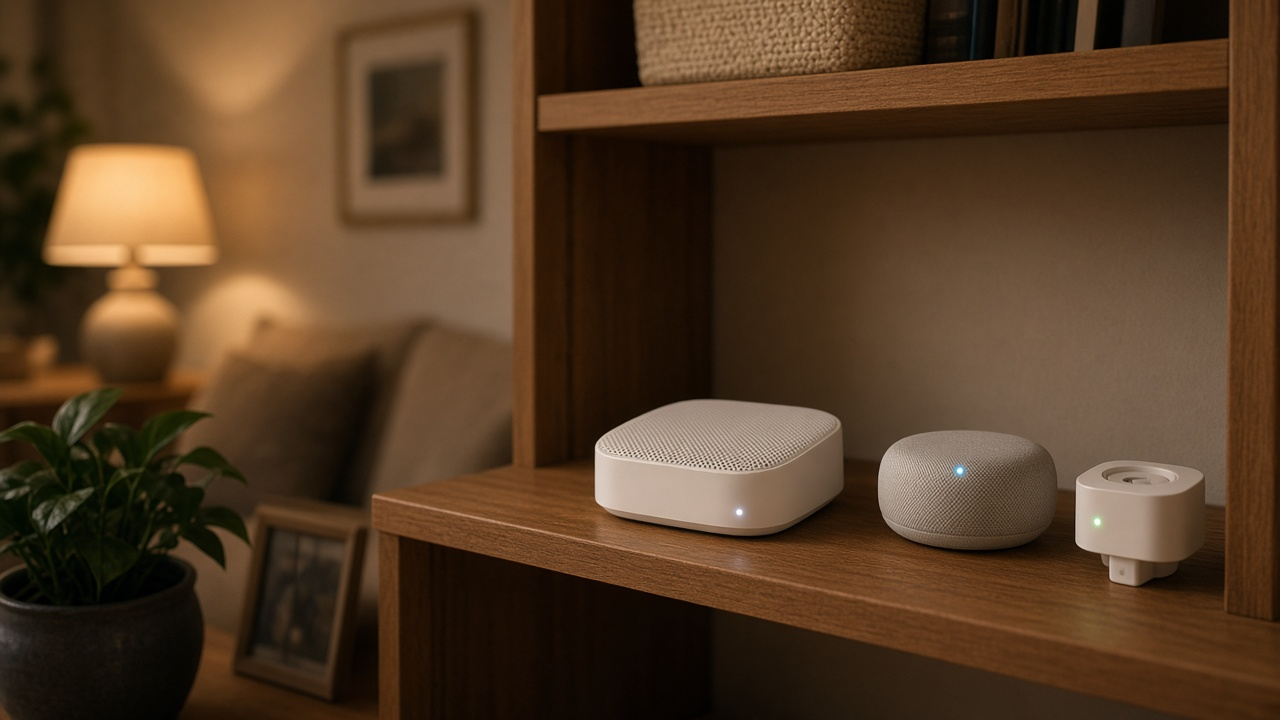
To see who is on your Wi-Fi, open your internet provider’s app, your mesh Wi-Fi app or your router’s admin page and look at the list of connected devices. Match each entry to a phone, computer, TV or smart-home gadget you own. If something is left over that you cannot explain, the surest way to remove it is to change your Wi-Fi password, because every device then has to reconnect with the new one. Then use WPA3 or WPA2/WPA3 security and a guest network for visitors so it does not happen again.
Where to find your connected devices
| Your setup | Where to look | Can you block from there? |
|---|---|---|
| Xfinity gateway | Xfinity app, Wi-Fi or network section | Usually yes (pause or remove) |
| Spectrum router | My Spectrum app, internet or network section | Usually yes |
| AT&T gateway | AT&T Smart Home Manager app | Usually yes |
| eero or another mesh system | The mesh app’s device list | Yes, on most systems |
| Any other router | Admin page in a browser (often 192.168.0.1 or 192.168.1.1), under attached or connected devices | Often, through access control or MAC filtering |
Menu names change between app versions, but the device list is normally one or two taps from the main Wi-Fi screen. If you rent your gateway from Xfinity, Spectrum or AT&T, the provider app is the easiest place to start.
How to tell your devices from strangers
- Count what you own first: phones, tablets, laptops, TVs, streaming sticks, game consoles, printers, cameras, doorbells, thermostats, smart plugs and speakers. Most homes have more than they think.
- Look at the name and maker shown for each entry. Many apps show the brand of the device’s network chip, which can look unfamiliar.
- Rename or label devices in the app as you identify them.
- Turn devices off one at a time and watch which entry disappears.
- Remember that phones often use a private, random address on each network, so the same phone can show up as a new device after a reset.
Signs someone is using your Wi-Fi
Slow speeds at times you are not using much, data use that does not match your habits, or a device that stays connected when everything you own is off are all clues. A neighbor using an old shared password is the most common cause. Our guides to stopping a neighbor from using your Wi-Fi and what you can legally do about it cover that situation.
Wi-Fi still slow after kicking off strangers?
The problem may be your plan or equipment. See faster plans and newer gateways at your address.
How to block unknown devices
- Block or pause the device in your app or router page for a quick fix.
- Change your Wi-Fi password to something long and new, and reconnect your own devices. Our guide to changing your Wi-Fi name and password walks through it.
- Change the router’s admin password if it is still the default printed on the label.
- Set security to WPA3 or WPA2/WPA3 transition mode; see WPA2 vs WPA3.
- Turn off WPS, the push-button pairing feature, if you do not use it.
- Give visitors and smart-home gear a guest network, and make sure it is secure.
Blocking one device by its MAC address helps in the moment, but addresses can be changed, so the new password is what keeps people out. If you want to know what a device did while it was connected, see how to check router history.
Compare internet plans by ZIP
Enter your ZIP to compare providers, speeds and included Wi-Fi equipment at your home.