How to Restart Your Xfinity Gateway (App and Manual Methods)
Updated
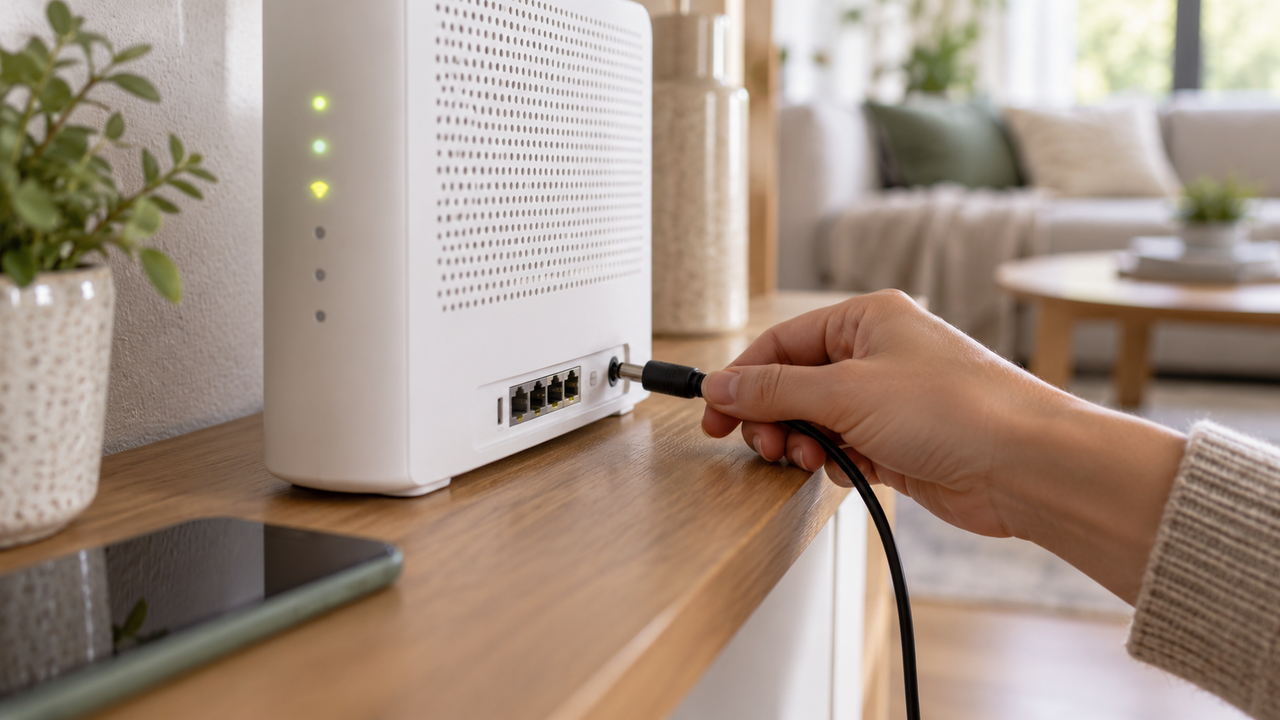
Restarting your Xfinity Gateway fixes a surprising number of internet problems, including slow speeds, devices that won't connect, and WiFi that drops in and out. It clears the gateway's memory and gives it a fresh connection to Xfinity's network. Here's how to do it from the Xfinity app or by hand, what to expect while it restarts, and what to try if a restart doesn't help.
Before you restart: rule out an outage
If the problem is an outage in your area, restarting won't help. Check the Xfinity app or our Xfinity outage guide first. Xfinity also suggests running its full network test in the app, which tells you whether a restart is the right fix.
Method 1: Restart with the Xfinity app
If you rent your gateway from Xfinity, the app is the easiest way, and it works even when you aren't home.
- Open the Xfinity app and sign in with your Xfinity ID.
- Tap the WiFi icon.
- Tap Troubleshoot.
- Select Restart your Gateway.
Xfinity says the process can take up to 12 minutes. You can also start the same troubleshooting from Xfinity Assistant on xfinity.com.
Method 2: Restart it manually
Use this if the app restart doesn't work, if you own your modem or router, or if the gateway isn't responding at all.
- Unplug the power cable from the gateway (or from the wall).
- Wait one full minute.
- Plug the power cable back in.
- Wait for the lights to settle before testing your connection. This can take several minutes.
If you have a separate modem and router, restart the modem first. When it's fully back online, restart the router.
Restarting your gateway all the time?
If your connection keeps dropping, it may be time for a different plan or provider. See what's available at your address.
What goes offline during a restart
- Your home network: No internet on any device until the restart finishes.
- Xfinity Voice: You can't make or receive calls on your home phone, including 911 calls, until the gateway is back online. Keep a cell phone handy.
- Xfinity Home: Cameras and connected automation devices are unavailable, but security sensors aren't affected.
Restart vs reset: don't mix them up
A restart just turns the gateway off and on. Your WiFi name, password, and settings stay the same. A factory reset erases everything and returns the gateway to its original settings, so every device has to reconnect. Only reset if a restart doesn't fix the problem and you're ready to set things up again. See soft vs hard resets for the difference.
If a restart doesn't fix it
- Check the light. The status light tells you a lot. See our guides to a blinking white, blinking orange, or blinking green light.
- Check the cables. Make sure the coax cable is screwed in tightly at the gateway and the wall, and that the power cord is firmly seated.
- Move closer or plug in. If only one room is slow, the problem may be WiFi coverage, not the connection. Test with an Ethernet cable.
- Let Xfinity troubleshoot. If its online tools find a problem they can't fix, Xfinity offers to schedule a technician.
Learn more about your equipment in our Xfinity gateway explainer, and see how often a restart makes sense in how often to reboot your router.
Tired of troubleshooting?
Compare internet plans and providers available where you live.
Frequently asked questions
How long does an Xfinity Gateway restart take?
Xfinity says a restart can take up to 12 minutes. Your home network, Xfinity Voice, and any Xfinity Home cameras are unavailable until it finishes.
Will restarting my Xfinity Gateway erase my settings?
No. A restart keeps your WiFi name, password, and settings. Only a factory reset erases them.
Can I restart my Xfinity Gateway from my phone?
Yes. If you rent your gateway, open the Xfinity app, tap the WiFi icon, choose Troubleshoot, then Restart your Gateway.