How to Set Up a Router: Connections, Wi-Fi and Security
By RSINC editorial team | Updated
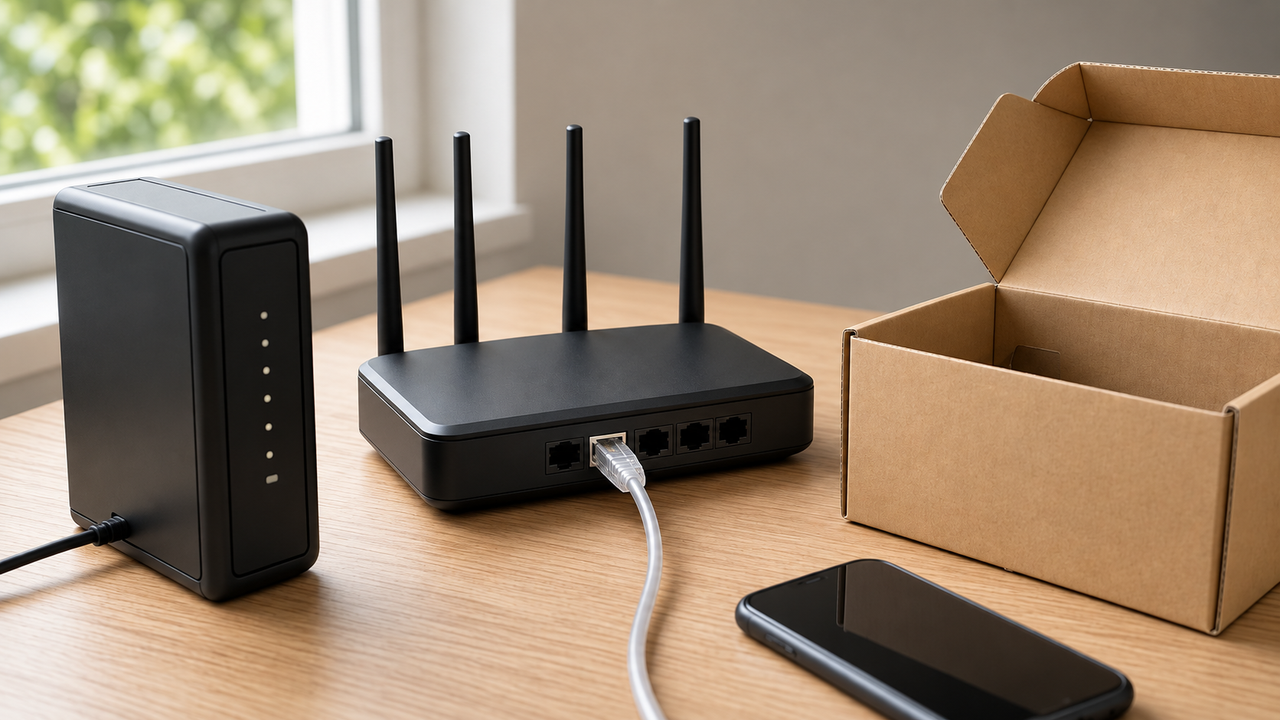
To set up a separate Wi-Fi router, connect its WAN or internet port to your modem or the Ethernet handoff specified by your provider, then use the router's documented app or setup page. Choose a unique network name and strong Wi-Fi password, update the software and secure the administrator account. The exact steps depend on your router and internet connection.
Check your connection before unplugging anything
Have the router, its supplied power adapter, an Ethernet cable and a phone or computer available. Read the quick-start instructions for your exact model. A combined modem/router, fiber terminal and cellular gateway can require different arrangements. Ask your provider whether you need activation, a particular connection type, account credentials or VLAN settings.
Record the existing connections so you can restore them if necessary. Do not factory-reset equipment simply because a new router is being added. A reset can remove settings that the service requires.
Connect the internet cable and start setup
For a separate modem and router, follow the manufacturer's power-off and startup sequence. Connect the modem's Ethernet output to the router's WAN or internet port. If the service provides an Ethernet wall connection instead, use the port and connection instructions supplied by the provider.
Wait for the relevant modem or service lights, then start the router as instructed. Join its initial network or connect a computer by Ethernet. Use the app or local management address documented on the device or quick-start card. Download apps through the manufacturer's official links or a trusted app store; do not assume every router uses the same setup address.
Secure the Wi-Fi network and administrator account
Give the network a distinctive name that does not reveal your personal details. Set a long, unique Wi-Fi password. Choose WPA3 Personal where supported, or WPA2 Personal when needed for compatible devices. WEP and the older WPA standard are unsuitable choices for a new setup.
The Wi-Fi password and administrator password serve different purposes. Change default administrator credentials where the device permits it. Check for a firmware update and enable automatic updates if offered. Provider-managed equipment may receive updates through the provider instead. Log out of the management interface when finished.
Check whether you already have a router
A provider gateway may already perform routing. Adding a second router can create double NAT, which can affect features such as some games or port forwarding. Depending on the equipment, the documented solution may be bridge mode on the provider gateway or access point mode on the additional device. Follow model-specific guidance: changing modes can disable features, and mesh systems can have additional restrictions. Check the manufacturer and provider instructions before changing modes.
Test before calling the setup complete
Confirm that a device can access the internet, then check the rooms where you need Wi-Fi. Compare a wired test, when available, with a wireless test before deciding whether a problem is the incoming connection or Wi-Fi coverage. Keep the old equipment available until the replacement works with essential devices.
A router upgrade does not establish that a faster internet plan is offered at your property. Compare the exact address and provider requirements separately from the router's advertised capabilities.
For help comparing internet at your address, call RSINC at 1-877-697-2926 or compare local providers.
Reviewed November 4, 2026. Availability, prices and terms can change.