How to Restart Your Verizon Router (Fios and 5G Home Internet)
Updated
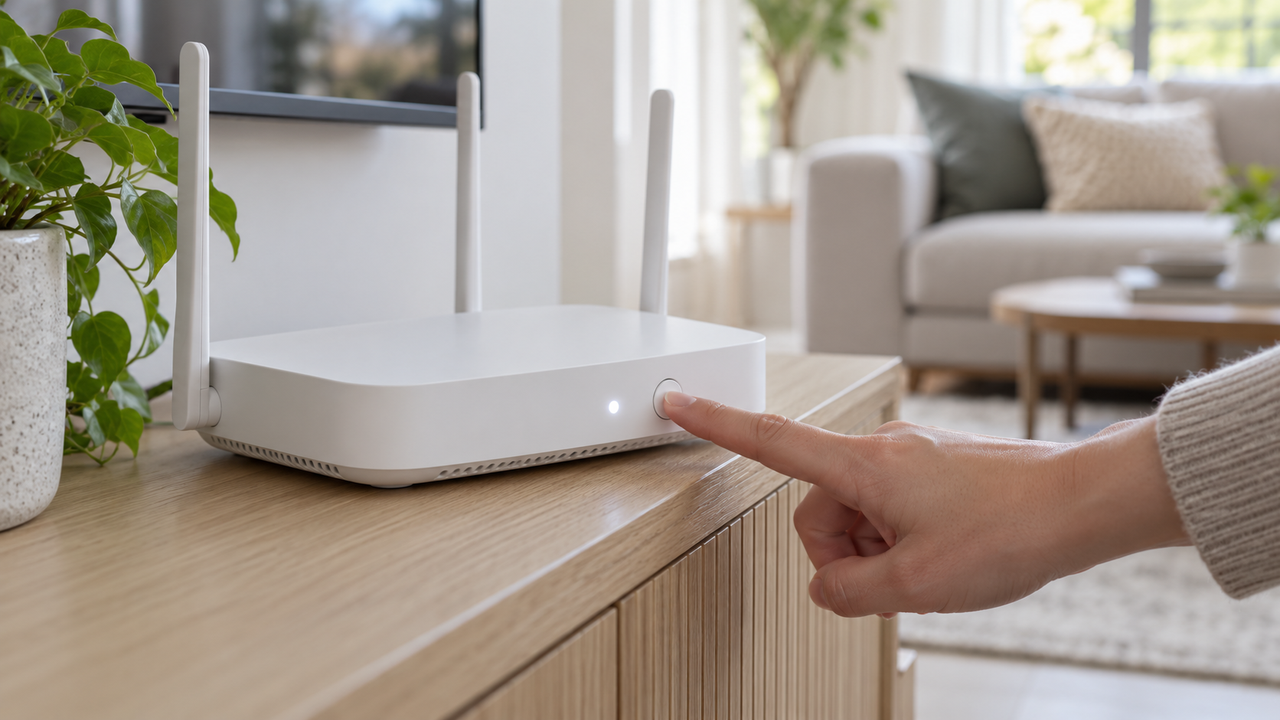
A quick restart fixes many Verizon home internet hiccups, including slow speeds, devices that won't connect, and Wi-Fi that keeps dropping. How you do it depends on whether you have Fios fiber or 5G Home Internet. Here are the steps for both, plus how to tell a restart from a factory reset.
Check for an outage first
If Verizon has a service issue in your area, restarting won't help. Check the My Verizon app or Verizon's website for alerts before you start.
Restart a Verizon Fios router
Option 1: The Unified button (fastest)
- Find the Unified button on the front of your Fios Router.
- Press and hold it for 10 seconds.
- Wait for the router to reconnect. The Internet light turns steady white when it's back online.
Option 2: Power cycle
- Unplug the router's power cord.
- Wait about a minute.
- Plug it back in and wait for the steady white light.
If a blue light is blinking, see our guide to a Verizon router blinking blue.
Restart Verizon 5G Home Internet
Option 1: Verizon Home app
- Open the Verizon Home app.
- Tap Restart gateway.
- Tap Restart gateway again to confirm.
- Allow up to 10 minutes for the gateway to restart.
Option 2: My Verizon website
- Sign in to My Verizon and go to Home devices.
- Select your device.
- Under Router quick actions, select Restart.
- Review the message, select Restart, and allow a few minutes.
Verizon notes that restarting doesn't change your Wi-Fi network name or password.
Restarts not doing the trick?
If your connection keeps acting up, see which other internet plans and providers serve your address.
Restart vs factory reset
A restart is safe. It clears temporary glitches and keeps all your settings. A factory reset is a bigger step. On a Fios Router, pressing and holding the red reset button on the back with a paperclip for 15 seconds returns the router to its factory defaults. That erases your custom Wi-Fi name, password, and home network settings, so every device must reconnect using the details on the router's label. Try a restart first. See soft vs hard resets for more.
If a restart doesn't help
- Check every cable. Make sure the router's power and network cables are firmly connected.
- Test wired. Plug a laptop into the router. If it works fine, the problem is Wi-Fi coverage, so try moving the router to a more central spot.
- For 5G Home, check placement and timing. Gateways do best near a window facing the nearest tower. Evening slowdowns can be network congestion; see why 5G home internet slows at night.
- Contact Verizon if lights show no connection after several minutes, or problems keep coming back.
Want a faster, steadier connection?
Compare fiber, cable and 5G home internet plans available where you live.
Frequently asked questions
How do I reboot my Verizon Fios router?
Press and hold the Unified button on the front of the router for 10 seconds. Then wait until the Internet light turns steady white.
How do I restart Verizon 5G Home Internet?
Open the Verizon Home app, tap Restart gateway, confirm, and allow up to 10 minutes. You can also restart it from the Home devices section of the My Verizon website.
Will restarting my Verizon router change my Wi-Fi password?
No. Restarting doesn't change your network name or password. A factory reset, done by holding the red reset button for 15 seconds, does.