Google Home and Nest Speaker Update: Seven Fixes and Wi-Fi Checks
By RSINC editorial team | Updated
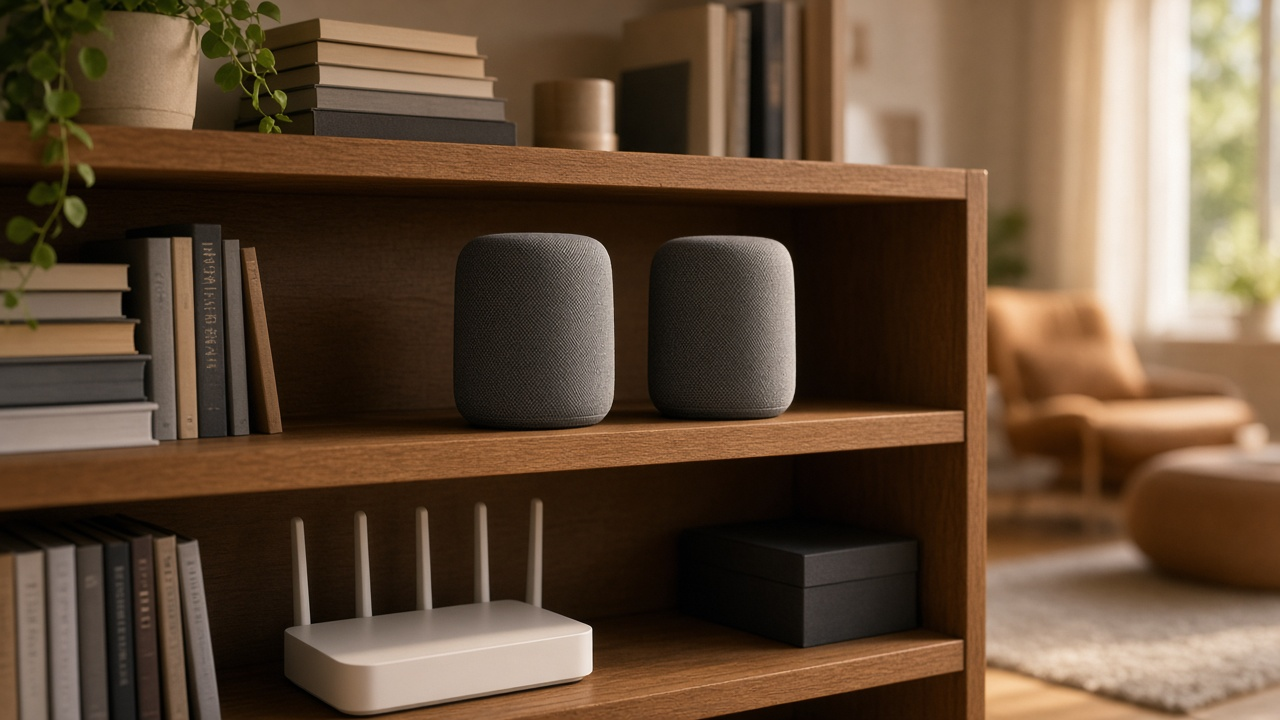
Google’s October 29, 2026 release notes list seven improvements for Nest and Google Home speakers. They cover playback, paired-speaker sound, device discovery and connection problems. Availability can roll out gradually, so a release-note announcement does not mean every device receives every change at the same moment.
The seven speaker changes Google lists
| Area | Reported improvement |
|---|---|
| Audio playback | Smoother streaming on Nest Audio, Google Home and Google Home Mini |
| Paired-speaker volume | Less excessive bass and clearer playback at low volume |
| Local discovery | More reliable detection in the Home app on the named supported speakers |
| Bluetooth resume | A correction for playback pausing after a spoken resume command |
| Wi-Fi 7 and WPA3 | A correction for certain setup and connection failures |
| Groups and stereo pairs | A correction for devices disappearing from the Home app |
| Google Meet calls | A correction for voice commands that could not end a call |
These are the fixes described by Google, not results of a device test by RSINC. The release notes do not give one firmware version for this entire list. Google also notes that release information can be corrected. Use the current support information for your particular speaker model if a problem remains.
How speaker updates work
Google says its smart speakers and displays can update automatically. Keep the device connected as its instructions require and let an active update finish before trying to use the voice assistant. Do not unplug a device in the middle of an update merely because it is temporarily unavailable. Consult Google’s update troubleshooting guidance if it fails to finish.
Check local Wi-Fi before buying a faster plan
A speaker disappearing from an app can involve discovery, network isolation or a device issue rather than insufficient internet speed. Confirm that the phone and speaker are on the intended home network. Guest-network isolation can prevent devices from seeing one another. Check the router’s instructions before changing network settings.
Place the router where walls, cabinets and nearby equipment do not unnecessarily obstruct the signal. Test a speaker closer to the router if practical. Our guide to router placement around household appliances offers general placement ideas. Avoid weakening network security as a troubleshooting shortcut; the published Wi-Fi 7 fix concerns WPA3 compatibility.
Separate a speaker problem from a connection problem
Check whether another device can reach the internet and whether the problem affects one speaker or the whole home. A wired-device test, where practical, can help separate Wi-Fi trouble from the provider connection. A speed test is one observation, not proof of the cause. Intermittent faults may need several checks and provider or device support.
See Wi-Fi connected with no internet and how your router affects Wi-Fi. If your household needs a different connection, compare address-eligible plans and equipment terms. A larger advertised speed alone will not fix every smart-speaker or local-network problem.
For help comparing internet at your address, call RSINC at 1-877-697-2926 or compare local providers.
Reviewed October 30, 2026. Availability, prices and terms can change.