How to Change Your YouTube TV Home Area and Fix 'Verify Location'
Updated
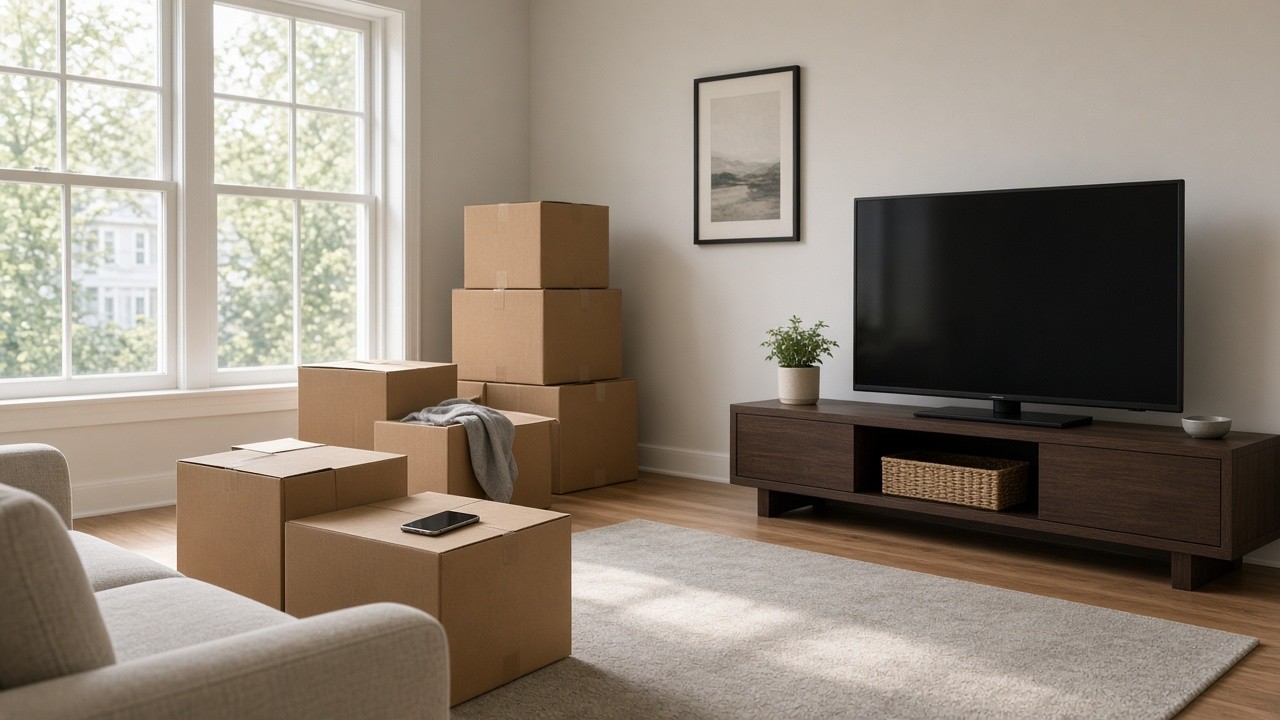
To change your YouTube TV home area, use Home area in your profile or Location settings while physically in the new area. Menu labels vary by device. YouTube TV only allows two home-area changes in 12 months, so use it for a real move. If you are only traveling, leave the home area alone and update your current playback area instead. For a "verify location" prompt, use the phone URL shown by the TV app; it may be tv.youtube.com/verify or tv.youtube.com/settings/area.
Home area vs current playback area
| Home area | Current playback area | |
|---|---|---|
| What it is | The ZIP code where you live | Where you are physically watching right now |
| Controls | Your local channels and your DVR recordings | Which local channels you can watch live on the road |
| How often it can change | Twice in any 12 months | Whenever you travel |
| Who can change it | The family manager | Any member, on their device |
How to change your home area after a move
- Be at the new address. YouTube TV checks your device location, so the change fails if you try it before you move.
- On a computer or phone browser, go to tv.youtube.com/settings/area. In the app, select your profile photo, then Location or Home area as shown on your device.
- Select Update next to Home area and enter the new ZIP code.
- Allow location access when asked, then confirm.
Your new local channels appear once the change goes through. Recordings saved under the old area keep playing, but new recordings follow the new local lineup. Regional sports networks also follow the home area, so a move across a team’s market line can add or remove local games.
How to update your location when traveling
- On the TV app, select your profile photo, then Location.
- Select Update next to Current playback area.
- On a phone signed in to the same Google account, open the URL shown on the TV (often tv.youtube.com/verify or tv.youtube.com/settings/area) and allow the browser to use your location.
On the road you get the local channels where you are, not the ones at home. You also cannot record anything outside your home area, though shows you already recorded at home play anywhere in the U.S.
Moving? Set up internet at the new place first
YouTube TV needs a home internet connection at your new address. See which providers serve it.
Fixing the verify location prompt
- Check that the phone and the TV are signed in to the same Google account.
- Turn on location services for the phone’s browser, not just the YouTube TV app.
- Turn off any VPN or proxy on the phone or home network; it hides your real location.
- After verifying, close and reopen the YouTube TV app on the TV.
- If it still fails, check location permissions and clear the browser cache or cookies before retrying.
The three-month check-in for frequent travelers
Snowbirds and RV travelers should watch YouTube TV from their home area at least once every three months. YouTube TV uses that check-in to keep the right local networks and DVR on the account. If you spend most of the year somewhere new, it may be simpler to make that your home area, keeping in mind the twice-a-year limit.
Internet at the new address
YouTube TV needs a steady home connection to stream live channels, and our guide to YouTube TV internet speeds covers how much you need for several screens. If your new home is outside cable and fiber areas, our rural internet options guide compares what is available.
Find internet for your new address
Enter your new ZIP to compare internet providers before moving day so streaming works from the first night.